
Ever notice how some live streams grab attention right away? Streaming your games might seem a bit tricky at first, but a few simple steps can really up your game.
Think of it like gearing up for that clutch win; your gear and streaming setup need to be on point so you can show off your best moves. This guide shares easy tips to start your broadcast and keep things running smoothly.
Ready to put your gaming skills in the spotlight and have a blast on camera?
How to Begin Streaming Your Games
To get your stream off the ground, start with strong hardware. You'll need a gaming PC or console that can handle fast gameplay and the streaming software at once. Don’t skip on the basics like a good microphone and a clear webcam to show off your reactions. Picture it like prepping for a clutch win, your gear adds to the excitement. If you're starting your first setup, pick parts that are proven to deliver top performance and dependability.
Next, set up your streaming software. Popular picks are OBS, Streamlabs, YouTube Studio, and Twitch’s own tools. These let you mix video feeds, screen recordings, and real-time alerts into one cool broadcast. It’s kind of like arranging your own control panel before a match, everything needs to be right where you want it. Follow easy, step-by-step guides and check out streaming platforms like https://sololadder.com?p=598 for extra tips.
Finally, make sure your network holds up during the game. A fast connection, especially with fiber optics, works way better than old copper cables. Try testing your connection speed, set your upload bitrate around 3,000–6,000 kbps, and adjust your settings to suit your internet. Keeping an eye on your connection helps you dodge lag and buffering, so you can just focus on enjoying the live action.
Choosing the Right Platforms to Stream Games
When you're diving into game streaming, you have plenty of cool platforms to pick from. Twitch stands out because its lively chat and real-time buzz make every stream feel like a live event. YouTube Gaming, on the other hand, is great if you love having a massive library of plays ready for a rewatch. And if you’re already tight with your Facebook crew, Facebook Gaming keeps your friends in the loop.
New players like Kick are worth checking out too. Kick offers fresh revenue splits (different ways to earn) and is drawing in more viewers every day. Plus, multistreaming with services like Restream lets you broadcast on several platforms at once, it’s like playing on multiple teams in one go.
Every platform has its own ups and downs. Starting on Twitch works well since its community vibe is strong, though its strict rules on ads and subscriptions can be a bit of a hurdle. YouTube often means your content can live on longer, while Facebook might be easier if your crew is already there. And streaming to multiple channels can boost your reach, even if it makes managing your stream a tad more complicated.
Start with a clear plan. Imagine setting up your stream like drawing up the perfect playbook before the big match. Choose the platform that best matches your style and goals, and game on!
Hardware Essentials for High-Quality Game Streams
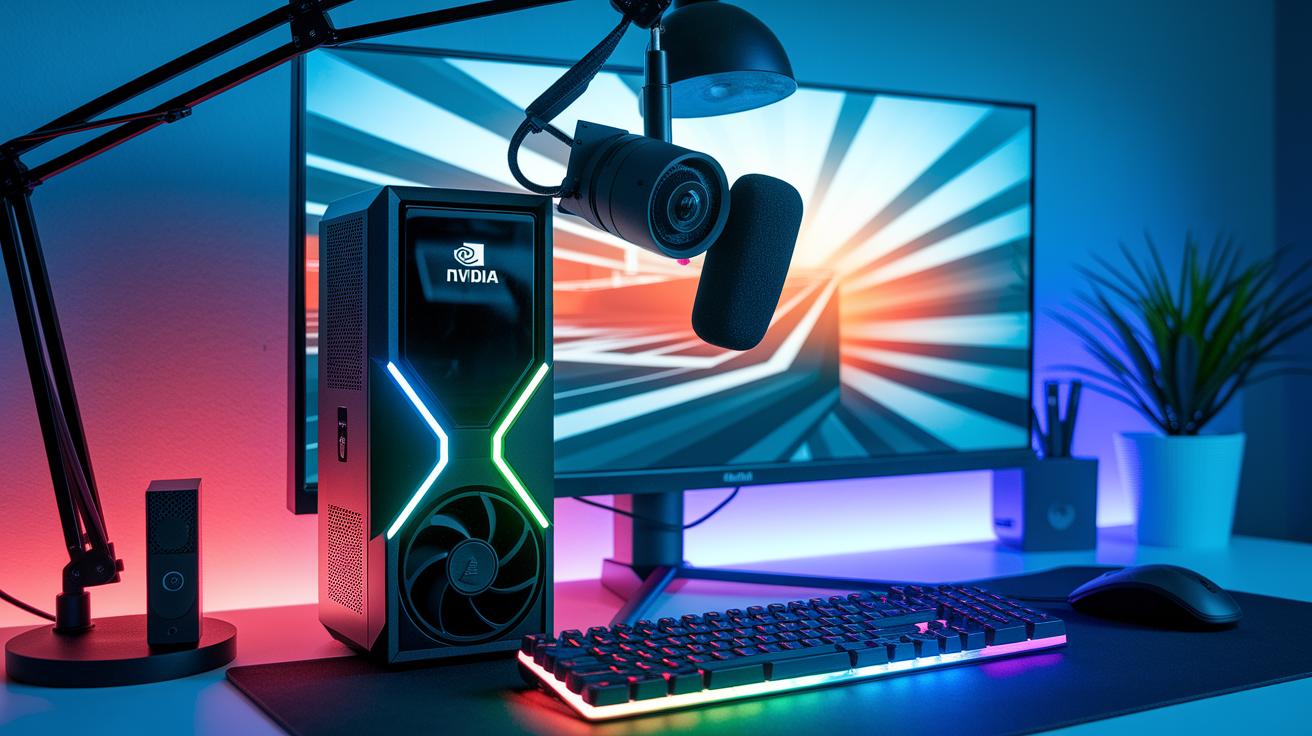
If you're putting together a streaming rig that looks as smooth as your gameplay, start with a rock-solid GPU and CPU. A strong graphics card like the Nvidia GeForce RTX 3060 Ti (it costs about $519.99) delivers buttery-smooth gaming, even when the action gets wild. Pair it up with a trusty CPU such as the AMD Ryzen 7 7700X (around $399.00) to juggle both your game and streaming software with no lag. Think of these as the heart and soul of your stream, keeping everything revved up.
Crystal-clear audio and video are a must when you want to draw in your viewers. To capture every word you say flawlessly, a USB mic like the Elgato Wave:3 (priced at $149.99) does the trick. And for showing your live reactions, a dependable webcam like the Microsoft LifeCam HD-3000 (just $39.95) keeps your face in focus. Streaming from a console or running a dual-PC setup? A capture card like the Elgato Game Capture HD60 S (about $261.97) makes sure your feed stays high quality.
| Device | Model | Price | Role |
|---|---|---|---|
| GPU | Nvidia GeForce RTX 3060 Ti | $519.99 | Smooth frame capture |
| CPU | AMD Ryzen 7 7700X | $399.00 | Handles gameplay and encoding |
| Microphone | Elgato Wave:3 | $149.99 | Voice capture |
| Webcam | Microsoft LifeCam HD-3000 | $39.95 | Video clarity |
| Capture Card | Elgato Game Capture HD60 S | ~$261.97 | Supports console feeds |
Configuring Streaming Software for Games
OBS Setup Walkthrough
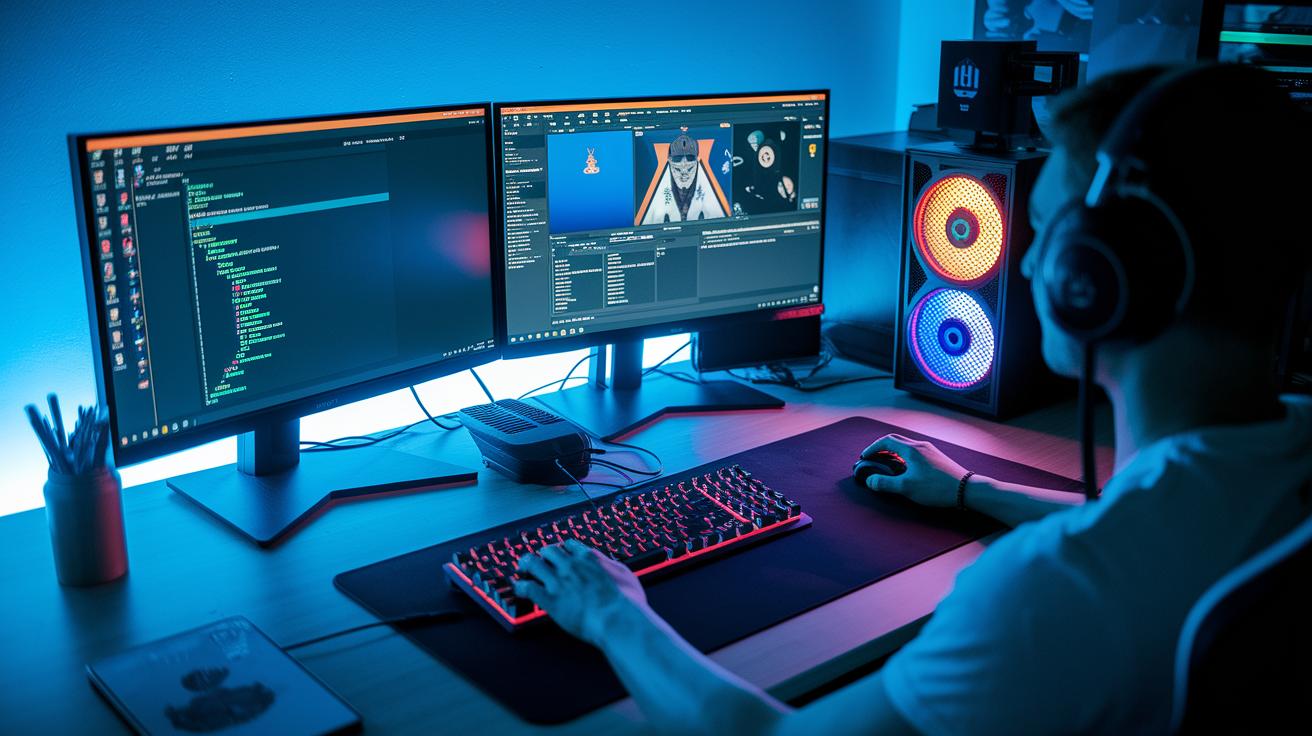
First, download OBS, the tool that lets you manage your sources, scenes, and encoding all in one. After installing, fire it up and get ready to set up your broadcast space. Click the + button under Sources to add your game, webcam, or any custom image you like. Don’t forget to add your audio, like your microphone feed, so your voice comes through crystal clear.
Next, set up different scenes for things like a "starting soon" screen, live gameplay, or even a break slide. Imagine each scene as a key item in your game inventory that makes your stream pop. Test your transitions to avoid any sudden cuts when you’re live. Fun fact: before OBS came along, juggling several video feeds was a real headache, now it feels as smooth as landing that perfect combo move.
Restream Studio Overview
Restream Studio offers a simple way to multistream right from your browser. Just log in and link your streaming accounts to go live on platforms like Twitch or YouTube all at once, without needing extra software. Its user-friendly dashboard lets you control every destination, tweak video quality, and adjust audio levels as you go.
Plus, the platform makes managing live chat a breeze so you can stay connected with your viewers. Think of it as having a mini control room right in your browser. It’s a quick and easy way to switch between streams and keep an eye on your performance without any extra hassle.
Optimizing Stream Quality and Reducing Latency
To make your stream look awesome and sound clear, start with a strong network connection. A fiber connection lowers packet loss and jitter (that’s when small data drops cause glitches), meaning your play-by-play won’t be interrupted. When the game gets intense, your viewers still get a smooth and steady feed. It’s a simple upgrade that makes a big difference.
Next, tweak your bitrate and encoder settings. Aim for an upload bitrate of about 3,000 to 6,000 kbps to balance clear visuals with your available speed. Pick settings like fast or medium in x264 (that helps ease the load on your CPU) so you still see crisp graphics. Also, turn on low-latency modes in your streaming software, like OBS, which keeps the delay low so your reactions hit right as the action unfolds.
Quick tip: If you run into lag or buffering, double-check your network speed and adjust your bitrate a bit. Small changes can fix those hiccups and keep your stream running smoothly for every epic moment.
Community Engagement and Monetization When You Stream Games
Just like getting ready for an epic match, you need to plan what your stream will look like. Mix in gameplay, Q&A sessions, and themed events to keep things fresh. Stick to a schedule, say, "Game night every Friday at 7 PM", and throw in special rewards, like badges for long-time fans. It’s like setting up the perfect strategy before the big play.
While you're live, use cool engagement tools to keep the chat buzzing. Add real-time polls and friendly chat bots (automated helpers that keep the conversation smooth) to make sure everyone feels involved. When you ask, "What game should we play next?" you spark that sense of community and get people hyped. Think of these tools as little power-ups that keep your stream interactive and fun.
Next, build up your monetization strategy with revenue streams like ads, subscriptions, donations, and affiliate marketing. Many top Twitch streamers earn between $200,000 to $500,000 a month because their community is tight-knit. Setting up donation alerts or offering extra perks is like landing a perfect combo move, it boosts your overall score while growing a dedicated fan base with every play.
Final Words
In the action, we broke down getting your stream off the ground, from picking the right hardware and software to testing your network for smooth play. We covered which platforms bring in your viewers and how to connect with your community. The post also shared tips on setting up alerts and income strategies. Now you’ve got a handy guide on how to stream games and boost your skills. Keep experimenting and have fun as you build your next broadcast.
FAQ
How do I stream my games on Twitch, PC, or laptop?
Streaming your games on these devices means connecting your gaming rig to software like OBS and linking it with Twitch. Use a strong internet connection, webcam, and mic to share your gameplay live.
How do I stream games on mobile?
Streaming games on mobile means using dedicated live apps on platforms like Twitch or YouTube. Ensure your mobile device is powerful enough and that your network connection is strong for smooth broadcasts.
How do I live stream a game on YouTube?
Live streaming on YouTube means setting up your channel and using YouTube Studio or similar software to capture your gameplay via your PC or console, then broadcasting live to your audience.
How can I stream games for free?
Streaming games for free means using platforms like Twitch, YouTube, or Facebook Gaming combined with free software like OBS. All you need is a gaming setup, basic gear, and a reliable internet connection.
What do I need to start streaming my games?
Starting a game stream means having a gaming device (PC, console), streaming software for capture and encoding, a webcam, and a microphone along with a stable internet connection to deliver quality content.
How do streamers broadcast their gameplay?
Broadcasting gameplay means connecting your gaming setup to streaming software that manages video capture, encoding, and live interaction. This setup helps streamers share their live action with minimal delays.