

Ever feel like your gear could do more? G Hub by Logitech is here to help. It puts you in charge of your whole setup. You can easily tweak mouse macros (custom shortcuts that boost your play) and set up cool lighting effects.
Think of it as your own gaming control center. It lets you make quick, simple changes to match any game or mood. With just a few clicks, your gear can become your secret weapon on the battlefield.
Ready to level up your setup?
g hub Overview and System Requirements
G Hub is Logitech’s tool to customize your gaming gear. It lets you adjust performance settings, change lighting effects, and tweak everything from your mouse to your keyboard and headset. Think of it as your one-stop shop that helps you set up your gear exactly how you like it.
With G Hub, you can create different profiles that switch settings when you jump into a new game or just match your mood. It offers everything from quick toggles to deep options that let you fine-tune macro functions (recorded key or mouse sequences) and sync those awesome lighting effects across all your devices. This kind of control can make every match feel uniquely yours.
Here’s what you need on your system:
- Operating System
- Processor
- RAM
- Graphics
- Storage
- USB port
- Internet connection
G Hub officially works on Windows 10, Windows 11, and macOS 10.14 or later. On Windows 11, some gamers have seen a hiccup where G Hub grabs the Blue Yeti microphone (that’s a popular mic for streaming), which might stop it from working in apps like Zoom. If you’re using a Blue Yeti, it’s a good idea to check for any updates or tweaks after installing the software. This info should help you make sure your system is ready while keeping an eye out for any potential snags.
G Hub: Elevate Your Gaming Setup

Head over to the official download page to snag the G Hub installer that replaces the old LogiCapture tool. This new utility makes upgrading a breeze, letting you tweak your gear’s performance and lighting without any hassle. Just a heads-up: you’ll need admin rights on both Windows and macOS so the tool can tap into all the right parts of your system.
- Pick your operating system: Windows or macOS.
- Download the G Hub installer.
- Run it as an administrator.
- Agree to the license terms and choose where to install it.
- Hang tight until the installation is done.
- Open G Hub from your desktop or Start menu.
If you’re on Linux, don’t worry, there’s still a way to join the fun. Community-made scripts on GitHub let you install G Hub. Although the official support is just for Windows 10/11 and macOS 10.14 or later, Linux gamers can still use these scripts. They might need a bit of extra tweaking (and some command-line know-how), but you can still tap into G Hub’s awesome settings and customization options. Enjoy powering up your gaming setup, no matter your platform!
G Hub: Elevate Your Gaming Setup
When you fire up G Hub, you’re greeted by a lively dashboard that instantly recognizes your Logitech devices. The main screen shows all your gear in real time, giving you quick status updates, just like logging into your favorite game lobby.
Then there’s the device sidebar, which makes switching between your gadgets a breeze. It neatly sorts your gear into a handy menu, so moving from your mouse to your keyboard feels natural. Think of it as a virtual toolbox where every item has its own spot, letting you tweak settings fast and with ease.
Here's what you'll find:
- device bar
- profile menu
- action list
- lighting editor
- settings icon
Getting to cloud sync and firmware updates is simple too. Just click the right buttons and you’re set to keep your profiles fresh and your hardware running at peak performance. The responsive design shows every change right away, making setup as smooth as landing a perfect combo in your game.
G Hub: Elevate Your Gaming Setup
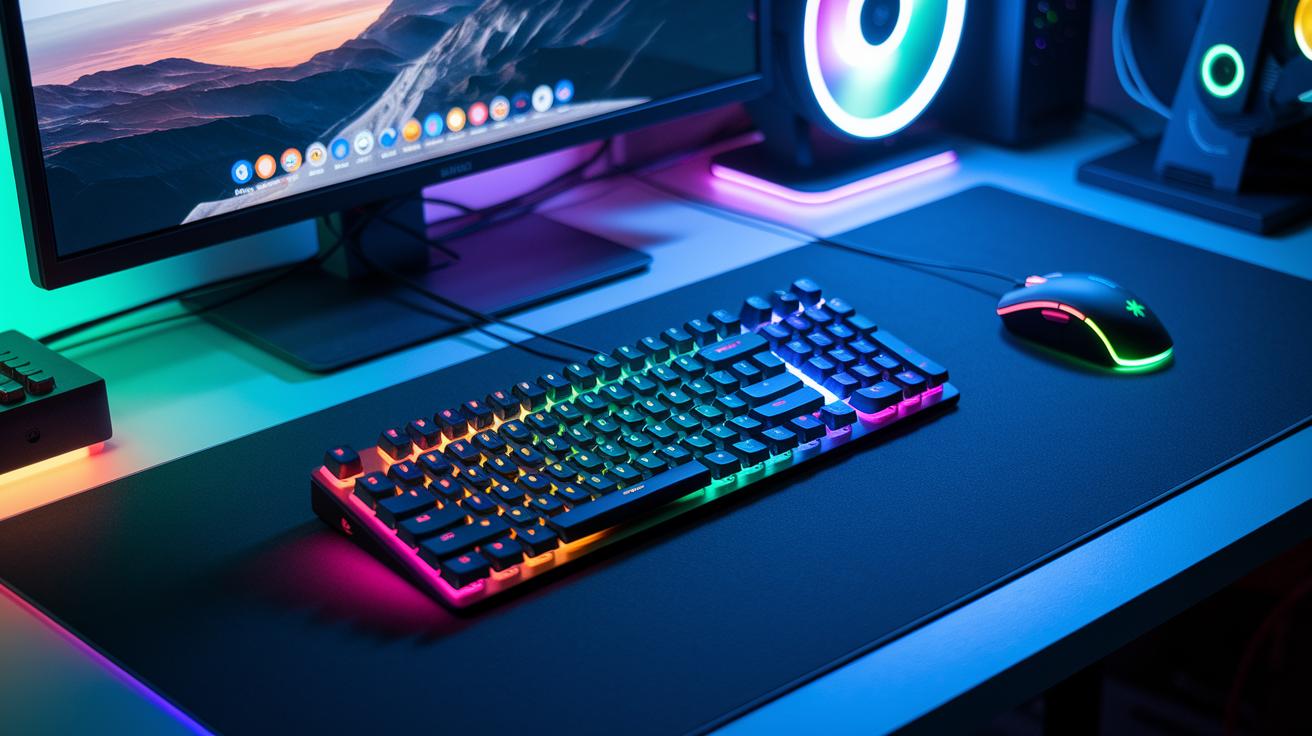
Profiles help you customize your gear so every match feels in sync with your style. With G Hub, you can quickly set up everything, from key sequences that pull off killer moves to lighting that matches your game’s mood.
Macro Creation
G Hub's macro editor lets you record cool moves on your keyboard or mouse and assign them to a button. This means you can chain actions together that hit just right when you need them. Imagine tapping one button to reload fast and dodge at the same time. Epic, right?
Lighting Effects Editor
G Hub also comes with a lighting editor (they call it LIGHTSYNC) that lets you design your own RGB light shows. You can choose specific zones on each device and have the effects work together. Picture a light pulse that speeds up as the game heats up, each flash echoing that next big play.
Game-Specific Profile Management
Each game gets its own look with G Hub. Set up one profile for your shooter and another for your strategy game, and have them ready in the cloud for whenever you jump in. Switching between styles is as easy as flipping a switch.
Device-Specific Settings (Mouse/Keyboard)
G Hub gives you options to tweak your mouse and keyboard settings, too. For your mouse, you can adjust DPI (which controls how fast your cursor moves), tweak acceleration, and even change surface sensitivity. On the keyboard, you can set up key bindings, control how fast keys repeat, and manage lighting layers. It’s perfect if you need higher DPI for fast shooters or a special layout for complex commands.
| Feature Module | Capabilities |
|---|---|
| Macro Editor | Record and assign complex key/mouse actions |
| Lighting Editor | Create custom RGB effects and sync devices |
| Performance Tuner | Adjust DPI, acceleration, and surface sensitivity |
| Profile Sync | Save and manage game-specific profiles in the cloud |
g hub Troubleshooting and Known Issues
Sometimes, G Hub can really mess with your gaming vibe. On Windows 11, it might grab USB devices like the Blue Yeti mic and stop them from working in apps like Zoom. It can even freeze during startup or crash unexpectedly. This usually happens because of messed-up drivers or leftover LogiCapture files. A quick fix is to clear your AppData folders and reinstall the software, while updating firmware in G Hub often gets your devices back on track.
- First, close G Hub and clear its cache.
- Uninstall and then reinstall it using the official installer.
- Remove any leftover LogiCapture files.
- Update your device firmware directly in G Hub.
- Check your USB connections and ports.
- Disable any services that might be clashing.
- If needed, reach out to Logitech support or hit up their forums.
If these steps still don’t do the trick, try tapping into community support channels. Gamers often swap fixes on forums and social media, and you might find a step-by-step guide that worked for others facing the same issue. It’s all about working together to keep your setup running smooth during those intense gaming sessions.
g hub Comparison with Legacy Software and Community Feedback

When you compare G Hub to the old LIGHTSYNC app, G Hub clearly offers a lot more features, even if it uses a bit more computer power. It comes with cool macros and lighting tweaks that let you customize things your way. The older software was simpler and had fewer options, but now the extra power sometimes means a few slowdowns or a glitchy screen.
-
Pros:
- advanced lighting
- cloud sync
- deep macro options (lots of ways to program buttons)
- firmware integration
-
Cons:
- some startup lag
- occasional bugs
- higher resource use
- a steeper learning curve
Logitech keeps rolling out updates with new features through regular beta releases. Gamers are quick to share their custom profiles and setups on community forums, swapping ideas and tweaks that actually work during big gaming sessions. This sharing makes it easier to overcome the learning curve. Even though G Hub gives you all those powerful tools gamers love, the trade-off in performance and the initial setup hassle might make you miss the old, more reliable system. Overall, each update pushes the software forward while community feedback keeps driving its evolution.
Final Words
In the action, we broke down the essential details of g hub. We covered how to check system requirements, perform the installation, and navigate its clean, interactive interface. We also looked at customization tools like macro recording and detailed lighting options. Plus, troubleshooting tips help smooth out hiccups that might pop up. Everything in the post is geared toward giving you a clear view of g hub so you can boost your gaming set-up with confidence. Stay sharp and keep your gameplay epic.
FAQ
What is G HUB used for?
The G HUB is used for customizing your Logitech devices, letting you set up lighting, macros, and performance tweaks that boost your gaming setup.
How do I install G HUB?
Installing G HUB means downloading it from the official Logitech site, running the installer with admin rights, and following the prompts to get your devices customized.
Is G HUB worth installing?
The G HUB is worth installing if you want an easy way to tweak your Logitech gear, offering creative lighting, detailed macros, and responsive performance adjustments.
What does it mean if Logitech G HUB is not opening or stuck on loading?
When G HUB doesn’t open or gets stuck loading, it usually points to a driver glitch or leftover files. Restarting, clearing cache, and reinstalling often solve the issue.
How does Logitech Gaming Software compare to G HUB?
Logitech Gaming Software is the older app, while G HUB offers deeper customization with advanced macros and lighting effects, giving you more control over your gear settings.
What can I use instead of G HUB?
If G HUB isn’t for you, consider using legacy Logitech Gaming Software or other community tools; just note they might not offer the same level of detailed device tweaks.
How do I sign in to Logitech G HUB?
Signing in means launching the app and entering your Logitech account details, which lets you sync your custom settings and access cloud profiles across devices.
Where can I download Logitech G HUB?
You can download Logitech G HUB directly from the official Logitech website by selecting your operating system, ensuring you get the latest version for your gear.