

Ever thought TikTok was only for dance routines? Think again. You can live stream your wild gaming plays and score a brand-new audience. This guide breaks it all down, from the basics to setting up streaming software like OBS (a free program to broadcast your game) or Streamlabs.
It’s kind of like building a layered sandwich; every part counts. Stick with us, and before you know it, you’ll be rocking a smooth, engaging live stream that pulls in fans and shows off your top plays.
Ready to level up?
TikTok Live Gaming Setup: Step-by-Step Stream Configuration
First, check that you meet the base rules. You need to be at least 16 years old. If you're streaming from your phone for live, you must have 1,000 followers. Streaming from your PC? That number jumps to 3,000 followers. Also, TikTok wants to see three posted videos from the last 30 days. And if you're in the U.S., complete the age check with a selfie and your legal ID.
Next, grab your stream key from TikTok's Live Center in the Creator Portal. Think of this key like a secret code. It lets your streaming software (like OBS Studio or Streamlabs) send your gameplay to TikTok.
Now, fire up your streaming software. In OBS Studio or Streamlabs, head over to Settings > Stream. Paste your stream key and the server URL that TikTok gives you. Then, set up your sources one by one:
| Source | What It Does |
|---|---|
| Game Capture or Window Capture | Shows your game feed |
| Video Capture Device | Adds your webcam view |
| Audio Input Capture | Catches your voice through your mic |
Picture this like making a layered sandwich. Start with your game footage, add your face cam for that personal touch, and top it all off with clear audio so your fans can hear you clearly.
On TikTok’s dashboard, set your stream title and choose the right category, like Gaming. This tells your viewers what to expect. Once everything looks good, hit the Start Streaming button in OBS and go live.
Before you dive in, double-check your internet is solid and all your gear (like capture cards and other devices) is connected right. This extra care makes sure your stream runs smoothly and keeps your audience engaged. Imagine typing a cool title like “Epic Battles in Gods of War” to get your fans excited.
Configuring Your TikTok Account for Gaming Streams

Before you start streaming, take a minute to check your account settings. It’s like prepping for a raid, you don’t want any surprises midway. Make sure your age and follower count are in order right away so you don’t face a last-minute hassle. And if you're a U.S. streamer, get that legal ID selfie done early.
Keep your profile settings up-to-date so everything runs smooth. Even a tiny mistake, like an old video record, can make your stream take longer to go live. Quick tip: if your stream suddenly shows as inactive, double-check your age and content settings.
Here’s a handy checklist to help you out:
- Make sure you're old enough (16+ for mobile; U.S. users need the legal ID process) as mentioned on the eligibility page.
- Check that your follower count meets the streaming starter requirements (1,000 for mobile; 3,000 for PC).
- Upload at least three videos within the last 30 days.
- Update your profile and privacy settings so nothing trips you up.
- Regularly peek at the account settings for any new prompts or updates.
Take a moment now to review your setup. You never know, a quick check might save you from any sneaky issues right before you go live.
Essential Equipment for TikTok Game Streaming
If you're setting up your TikTok gaming stream, your equipment can totally make or break your broadcast. It all kicks off with a quality webcam. Try options like the Insta360 Link 2 or Insta360 Link 2C, they deliver sharp 4K/30 fps video, track your head (that means it follows your movements), show your desk, and even let you control things with gestures. Imagine your face cam capturing every move as you nail that killer combo.
Next, if you're streaming from a console or PC, a capture card is a must. This gadget grabs your raw gameplay and streams it smooth as butter. Ever been in the middle of an epic moment and then hit lag? No one wants that.
Sound matters too. Whether you opt for a USB mic, a mix of XLR/USB (basically combining analog and digital for cleaner audio), or a wireless lavalier, your viewers need to catch every shout and tactic clearly. Team your mic up with an audio mixer to fine-tune your sound exactly the way you like it.
Good lighting can seriously boost your stream's vibe. LED panel lights help get rid of shadows and make your face pop, even in darker rooms. A solid, adjustable camera tripod keeps your webcam steady, and if you’re up for it, a green backdrop kit can add a cool, professional look.
Lastly, if you want to keep things easy, think about an all-in-one gaming kit that bundles these essentials. For more details on each piece, check out the streaming gear review scoop for extra tips.
Optimizing Streaming Software for TikTok Gaming

If your stream’s feeling choppy, try tweaking your bitrate. Play around with different numbers until you find a balance between quality and performance. For example, setting your bitrate to 4500 Kbps during fast action can really help cut down on lag.
Curious about smoother scene changes? Dive into OBS’s advanced scene transitions and plugins. You can use its built-in features or add extra tools to switch scenes seamlessly. Ever tried a quick fade when moving from game view to your webcam feed? It’s a cool trick that keeps your viewers hooked.
When you notice lag or glitches, check your encoding presets and keep an eye on your system’s resource use. Compare how your setup performs during intense moments, and adjust your settings if needed. I once switched the preset from "very fast" to "faster" and it made my stream run more steadily during the action.
If OBS isn’t your style, consider TikTok Live Studio. It offers an easier layout but keep in mind it needs at least 3,000 followers. I found its setup to be straightforward, even though it doesn’t pack all the advanced tweaks that OBS has to offer.
Mobile Game Streaming Tips on TikTok
For mobile gamers, streaming on TikTok is super simple when you set up your phone the right way. Use TikTok's in-app Live feature to share games like PUBG, Candy Crush, Among Us, or Pokémon Go with your friends. First, switch your account to a Business Account so you can unlock game streaming options. Just make sure you have at least 1,000 followers and have posted three recent videos.
Close any background apps to free up your phone’s power and stop those pesky notifications from interrupting your stream. Turn on Do Not Disturb to keep the focus on your gameplay. And don’t forget to keep your battery charged or plugged in so your stream doesn’t end unexpectedly.
Here are a few quick tips: Check your network connection because a strong Wi-Fi signal really matters. Test your audio and video settings before you go live. Use a stand or grip to hold your phone steady, and consider grabbing a portable charger for those longer streams.
These easy steps will help keep your stream smooth and engaging so you can concentrate on the game and chat with your viewers.
Engaging Viewers During TikTok Gaming Lives
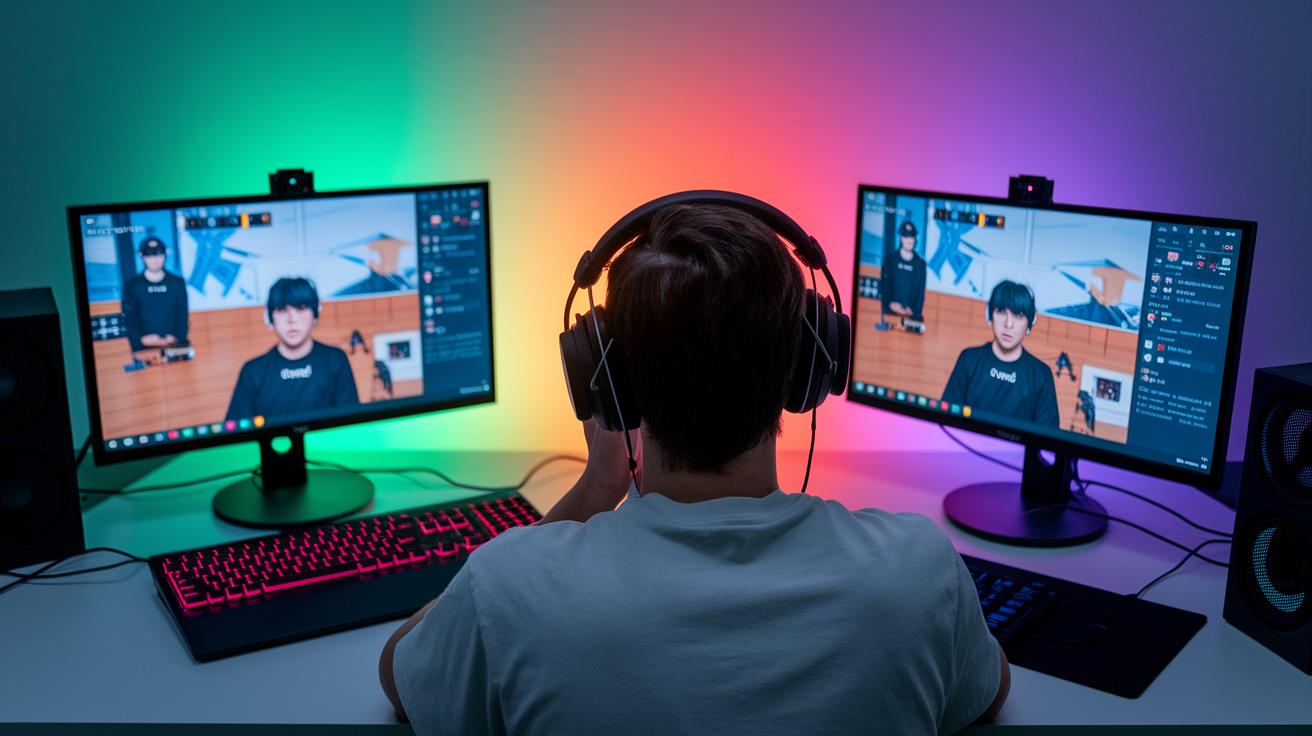
Boosting engagement on your TikTok gaming stream is a must if you want to build a tight-knit community. Try adding fun features like live polls and Q&A sessions. For example, ask your viewers, "Which character should I try next?" and then show the poll results right on your stream. It gets everyone chatting live and feeling part of the action.
On-screen alerts for new followers or gifts can really amp up the vibe. When a fan's comment or gift flashes on your screen, it gives off the same rush as the cheer from a packed stadium after a big play. It just makes the moment more exciting.
Keeping the chat safe is key, too. Set up filters to block out banned words and spam so that all interactions stay positive and focus on the game. And remember to use low-latency mode, it helps you reply to comments almost instantly, making your responses feel timely and personal.
Mix things up by adding multimedia elements or quick transitions. For instance, you could jump from a high-action gameplay clip to a behind-the-scenes look at your gear setup. It keeps the stream fresh and engaging.
Key tips:
- Use live polls and Q&A for real-time feedback.
- Set up visual alerts to celebrate viewer actions.
- Filter comments to maintain a respectful chat.
For more tips on building a streaming community, check out building an engaged streaming community scoop.
Troubleshooting and Quality Optimization for TikTok Streams
First off, check your internet speed. You need at least 5 Mbps for uploading, and using a wired Ethernet connection can really cut down on lag. Run a quick speed test before each stream to make sure everything's on track. Picture setting up your stream and watching that speed test come back with solid numbers. I once hit 6 Mbps and my stream felt rock-solid!
If you notice buffering or lag during the most action-packed moments, try lowering your resolution to 720p. You could also adjust your bitrate to between 2,500 and 4,000 Kbps. These tweaks can help keep your stream smooth even when the game gets intense.
Other handy tips include turning off background downloads and disconnecting any extra devices that might be sucking up your bandwidth. And if lag still bugs you, a quick restart of your router or modem can refresh your connection and smooth things out.
Don’t forget to check your CPU and GPU usage too. If your computer is working too hard, it might mean too many apps are running. Closing unnecessary programs or changing your streaming settings can make a huge difference.
| What to Do | How It Helps |
|---|---|
| Run Regular Speed Tests | Makes sure your connection stays strong |
| Adjust Resolution & Bitrate | Keeps your stream smooth during high-action scenes |
| Restart Your Router/Modem | Refreshes your connection when lag sticks around |
Keeping these checks in your routine will help you deliver a smoother and more reliable TikTok stream. Happy streaming!
Growth and Strategy for TikTok Gaming Live Streams
Start finding new fans on TikTok by dropping in trending hashtags and sounds that everyone’s buzzing about. For instance, try tags like #GameOn and hot sound clips that match the latest challenges. It’s like hitting a power-up in your favorite game, a small move that pulls in fresh viewers.
Keep a steady streaming schedule. Regularity helps your fans build a habit, much like knowing when your best combo lands. You can even tease epic events or showdowns in your stream titles so your crew is always pumped for the next session.
Use TikTok analytics to level up your reach. Check out peak view times, how long viewers stick around, and who’s tuning in. Sometimes a tiny tweak, like shifting your stream time or switching up your content, makes a huge difference. It’s like fine-tuning your game setup for that perfect play.
| Strategy | Tip |
|---|---|
| Trending Tags & Sounds | Add hashtags like #GameOn and popular sound clips |
| Consistent Schedule | Set regular streaming times and tease special events |
| Use Analytics | Track viewership to fine-tune content and timing |
| Cross-Promotion | Share your streams on Instagram, Twitter, and Discord |
Every small change helps grow your channel step-by-step. Think of each data point like a secret map leading to more engagement and a tighter community. With this plan, your TikTok gaming live streams will transform from casual sessions into epic, must-watch events.
Final Words
in the action, we've covered everything needed to set up your TikTok streaming. We walked through basic account requirements, gear setup, and fine-tuning software settings. We also touched on keeping your stream smooth and fun with viewer engagement tips and simple troubleshooting. This guide shows you how to stream on tiktok for gaming content with confidence. Keep expanding your skills and enjoy every epic moment on your next live stream.