

Have you ever wondered if Twitch alerts are as smooth as they seem? They may shine bright, but there's a neat setup behind every follow, sub, or cheer that turns them into pure excitement. Twitch uses smart tools like EventSub (a system that tracks live actions) to light up your stream every time someone interacts.
Imagine your stream coming alive with each alert, kind of like scoring a game-winning play. Let’s break it down and see how a couple of clicks can turn into an instant burst of energy on Twitch.
Understanding Twitch Stream Alerts: Core Mechanics
Twitch alerts are live pop-up messages that celebrate cool actions like follows, subs, or bits support. When a viewer interacts, Twitch sends out an event through EventSub or PubSub (they're just fancy naming systems) that gets picked up by services like Streamlabs. These services create an alert payload loaded with text, animation, and sound. Imagine your stream lighting up with colors and sounds when a new subscriber jumps in. That payload then refreshes a special Browser Source URL that links Twitch’s back-end action to your streaming setup.
Your streaming tool, like OBS or Streamlabs OBS, uses this URL to notice any new update. As soon as fresh data arrives, your alert overlay shows up quick as lightning, adding punchy visuals and sounds right on your stream. This whole process turns any viewer action into an instant, exciting moment. It smoothly supports all kinds of alerts so that every follow, sub, or bits cheer gets its moment in the spotlight. By linking the back-end events with on-screen action, Twitch alerts make every viewer interaction feel real and engaging.
Twitch Alert Types on Twitch: Follows, Subs, Cheers, and Donations
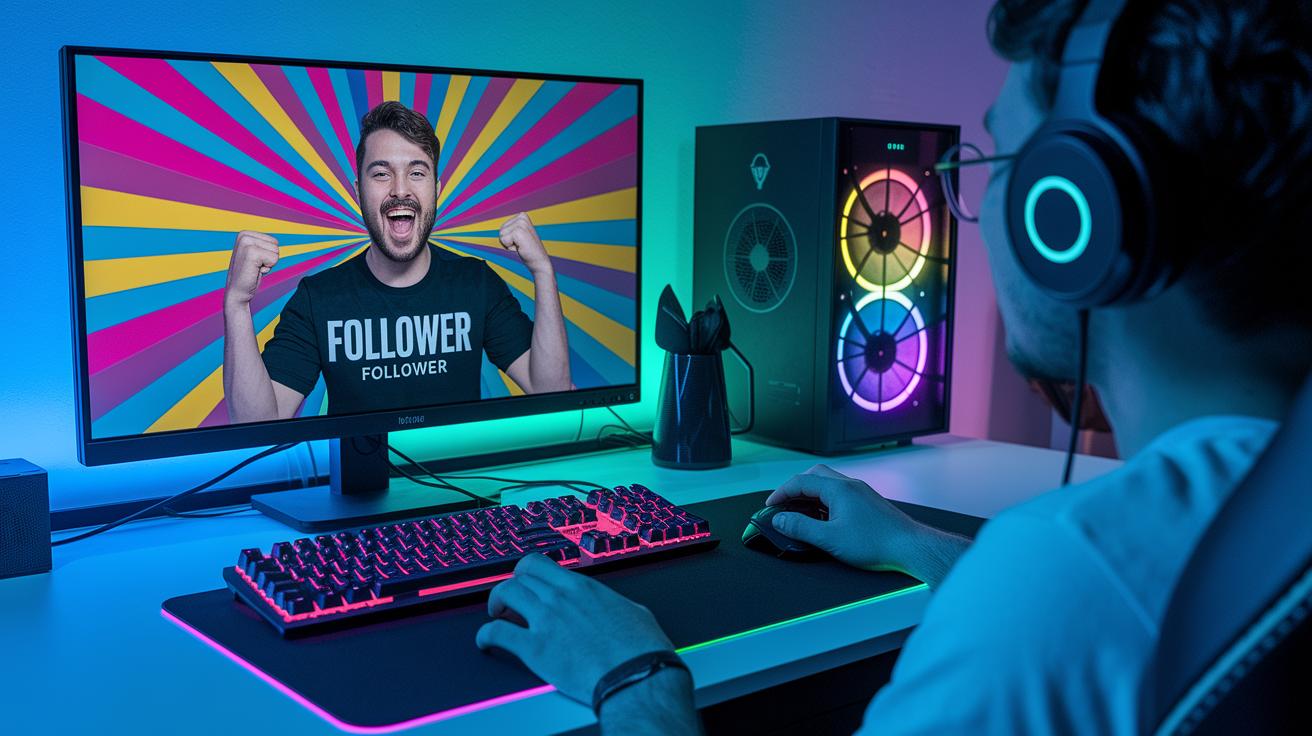
Twitch alerts give your stream a burst of energy every time someone interacts with it. They let you know right away when a viewer connects, adding a fun, live twist that feels just like a power-up in your favorite game.
- Follower alerts pop up when a new user clicks the follow button. It’s like the moment you hit that awesome combo and the screen lights up with a custom animation.
- Subscription alerts trigger when someone subscribes or renews their sub. Think of it as a quick celebration, complete with festive effects that thank your fans.
- Cheer (Bits) alerts flash when viewers use Bits (digital tokens meant to support creators) to back your channel. They bring extra sparkles and cool sound effects that add to the excitement.
- Donation alerts show custom messages and amounts from third-party tools. Every donation drops a special overlay on your stream, highlighting your fan’s generosity.
Each alert adds its own flavor to your channel, making every interaction feel unique. They create a community vibe where every follow, sub, cheer, or donation turns into its own mini celebration. It’s like turning regular notifications into epic moments that keep your stream buzzing.
Trigger Workflow of Twitch Stream Alerts
When a viewer follows, subscribes, or cheers, Twitch fires off a signal using EventSub or PubSub. It’s like pulling off that perfect combo where every move clicks. Imagine this: a fan takes action, and the alert system jumps in like a well-timed special move.
Next, the alert provider grabs that webhook, checking quickly to weed out spam or repeated triggers. Once it’s clear, it builds up the alert message with text, cool designs, and sound effects. It’s a lot like putting together your own custom game overlay, first verify the signal, then add in the flash and audio to make it pop.
Finally, the complete alert message is sent off to a Browser Source endpoint. Software like OBS keeps an eye on that URL and shows the alert overlay the moment it spots a change. Boom. With this smooth workflow, every viewer action turns into an exciting on-screen moment that keeps things fresh and engaging.
Configuring and Customizing Twitch Alerts

Setting up your Twitch alerts is as easy as pulling off your best combo. First, log in to Twitch and jump into your Creator Dashboard from your Profile in Settings. Then, tweak your setup like you adjust your controller before a big match – everything’s quick, simple, and ready to kick in with every viewer action. Just like you change your in-game graphics to match your style, you can make your alerts feel exactly like you.
Step 1: Sign in to Twitch and open your Creator Dashboard from Profile > Settings.
Step 2: Next, head to the Activity Feed or Automations section and click on Alerts.
Step 3: Copy the Browser Source URL shown for each alert type.
Step 4: Then, open your OBS or Streamlabs OBS, add a new Browser Source, and paste in that URL.
Step 5: Now, tweak the size, animation speed, volume, and any text fields to match your stream’s vibe, much like you fine-tune your game settings.
Step 6: Finally, set delays or enable moderator approval if needed, just like you adjust in-game controls to avoid accidental moves.
If you want to go even further, there are advanced options to push your stream setup to the next level. You can change the animation sequence for all alert types at once with one universal setting. One tweak can update every alert on your channel, making them all feel fresh and fit your style. It’s like unlocking a secret level or bonus that makes each viewer interaction feel extra personal.
Third-Party Tools for Twitch Stream Alerts
Popular tools like Streamlabs and Streamelements really ramp up your Twitch alerts. They let you customize every alert with cool themes, handy filters, and donation tracking, much like picking the perfect outfit before a major gaming match. These services offer settings that apply to all your alerts, block unwanted words, add badges for community wins, and use preset animations to keep the stream’s vibe consistent. Plus, OBS Studio can handle several Browser Source URLs at once so you can mix and match different alert services during your live session.
Streamlabs Integration
Connecting your Twitch account to Streamlabs is super simple. Once you sign in, you can choose from a load of ready-made alert themes or tweak your own to match your channel’s style. It’s like picking out the best skin for your in-game screen. The setup lets you adjust settings that keep your alerts in sync, blocking bad words, adding community badges, and keeping everything smooth. It feels as satisfying as sliding into your favorite gaming session.
OBS Studio Setup
In OBS Studio, you add Browser Sources for each alert service to layer them over your stream. Think of it like stacking power-ups to boost your on-screen performance. By pasting the unique URL from your alert provider into OBS, you create a live overlay that reacts right away to every viewer action. You can organize your alerts so each one pops up at just the right moment without getting in the way of the others. Tweak the animation speeds, delays, and more to perfectly match your gameplay action. For more tips on fine-tuning your overlay, check out the live stream setup for competitive gaming at live stream setup for competitive gaming.
Best Practices for Twitch Stream Alerts to Boost Engagement
Keep your alerts short and on-brand. Think of them like a cool game overlay, quick bursts of fun for every fan. A small burst for a new follower and a bigger, flashier show when someone drops a major donation.
Mix things up with different alert styles for small, medium, and large donations. For example, you can have a mini celebration for a modest tip and a grander animation when a viewer goes all in. And for high-value donations, you can set up moderator approval to block spam, sorta like fine-tuning your in-game settings.
Watch how often the alerts pop up and tweak the delays so each one hits at the perfect moment. It’s all about balancing steady style with a bit of surprise to keep your viewers buzzing. If you’re curious about linking your alert strategy to channel growth, check out some insider tips on boosting your audience.
Final Words
in the action, we broke down Twitch stream alerts from core mechanics to setting up custom messages. We explored real-time responses and detailed how each alert type, follows, subs, cheers, and donations, plays its part during a live session.
Our guide covered steps, tools, and tips to level up your streaming game. Now you know how do stream alerts work on twitch and how they amplify viewer engagement. Keep experimenting and enjoy every thrilling moment.
FAQ
How do stream alerts work on Twitch?
The stream alerts work by sending live notifications from Twitch when viewers follow, subscribe, cheer, or donate. An alert service receives these events and updates your broadcast overlay on software like OBS instantly.
How do Twitch warnings work?
Twitch warnings inform moderators and streamers when potential guideline violations occur in chat. Automated filters detect flagged content, so moderators can quickly address behavior that might harm the stream’s vibe.
How do I know if my Twitch alerts are working?
Testing your Twitch alerts involves triggering a sample alert from your service dashboard and checking your broadcast software. If the overlay shows the alert, your setup is working as expected.
How do I set up Twitch alerts with OBS and third-party tools like StreamElements or Streamlabs?
To set up Twitch alerts, copy your alert service’s Browser Source URL and add it in OBS. Then, adjust your alert settings on StreamElements or Streamlabs and test to confirm the overlay appears correctly.
How much money do 500 viewers make on Twitch?
Earnings for 500 viewers vary widely based on subscriptions, tips, ads, and other monetization methods. Engagement levels and sponsorships also influence income, so there isn’t a fixed amount for every channel.