

Ever been in the middle of a game when your Discord mobile stream suddenly goes mute? It really stinks not catching any audio when every sound counts. This guide walks you through some easy fixes. First, try updating your phone and the Discord app. Next, check your voice settings to see if anything needs a tweak. Hang tight and you'll be back to streaming with clear, uninterrupted audio before you know it.
Quick Solutions for No Audio in Discord Mobile Streams
First, make sure your phone is running a recent operating system. If you’re still on an older version like Android 9 or an outdated iOS, update to Android 10 or the newest iOS release. Sometimes old systems just can’t keep up with the latest streaming tricks.
Next, check that your Discord app is up-to-date. An older version might be missing key fixes that help catch your audio. Head to your app store, grab any updates, and then give your stream another go.
After that, peek into your Discord settings. Go to User Settings, then Voice & Video. Look over your microphone and speaker options and be sure the volume next to your avatar isn’t turned down. You might also see an “experimental audio capture” toggle, flip that on if you haven’t already for a quick boost.
Also, make sure your phone has allowed Discord to use your microphone and screen-recording features. Without these permissions, your audio might not show up at all.
Sometimes a simple restart does wonders. Close the app or even reboot your phone to clear out any little glitches that could be messing things up.
Here's a quick checklist:
| Step | Action |
|---|---|
| 1 | Update your mobile OS to the latest version. |
| 2 | Get the newest Discord app update. |
| 3 | In Discord, check Voice & Video settings for mic and speaker. |
| 4 | Toggle on experimental audio capture if available. |
| 5 | Confirm that screen-record and mic permissions are turned on. |
| 6 | Restart Discord or reboot your device. |
Finally, run a quick trial stream to see if these fixes work. With these steps, you should clear up any audio glitches and enjoy your stream with crisp, clear sound. Happy gaming!
Checking and Adjusting Mobile Discord Audio Settings
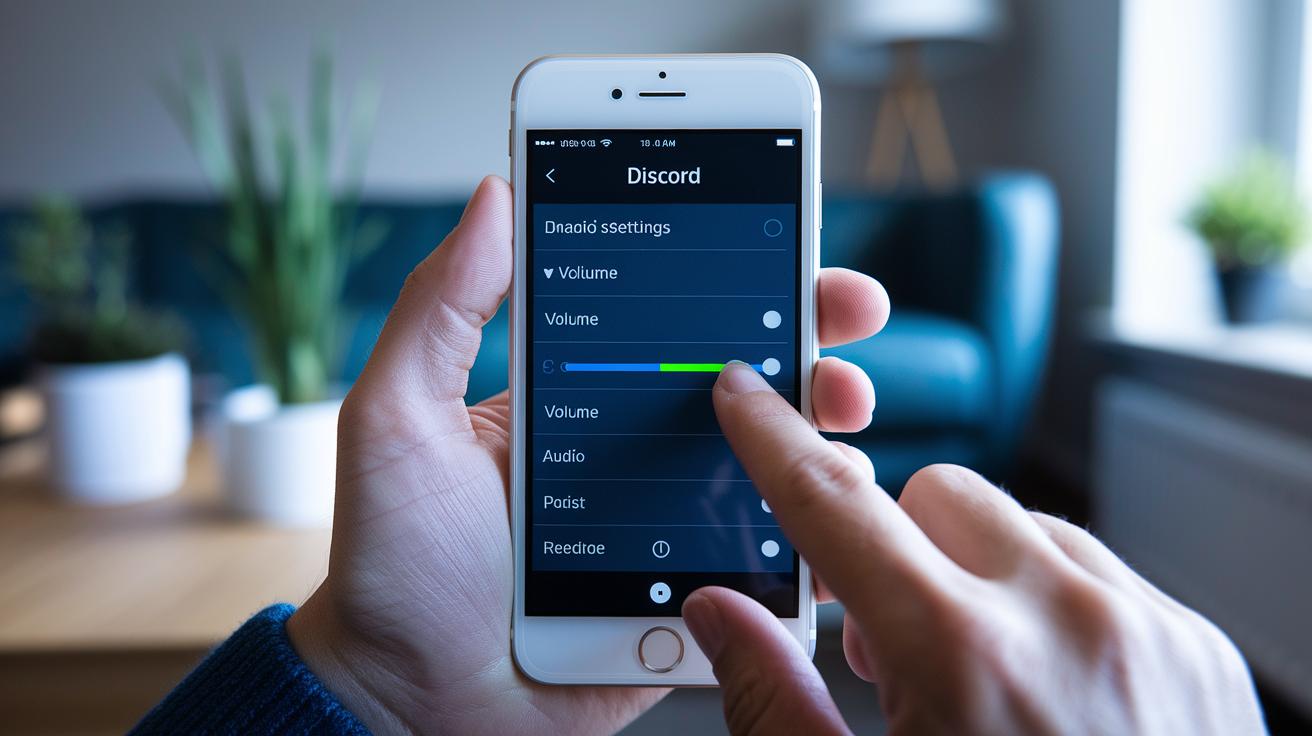
When you're on Discord, head to User Settings and then Voice & Video. Take a moment to make sure your mic and speakers are set up correctly, just like when you adjust your in-game music to catch every beat.
Next, check out the volume slider by your avatar and fine-tune it to your liking. It's a quick tweak that can make all the difference.
Also, if your device supports it, turn on the experimental audio capture. This helps Discord pick up system sounds better, so you never miss a cue during your play sessions.
For all the extra details, feel free to revisit our full checklist from earlier.
discord stream no audio mobile: Enjoy Clear Sound

Mobile streaming on Discord can go quiet if your phone misses the mark on capturing system sounds. Older Android models with versions under 10 often don’t support this feature, leaving your shared screen without any audio. And on some iOS versions, there are restrictions that block background audio for third-party apps. Imagine playing your favorite game and suddenly not hearing a single cheer.
If you hit this snag, try mirroring your phone to a PC. Screen-mirroring tools let your computer grab both the video and the sound, sidestepping limitations in your mobile OS. For instance, an app like iMyFone MirrorTo (a live stream app that helps bridge these gaps) can do the trick. Think about it: you set your phone to stream via the mirror tool, and every game sound comes through loud and clear.
Before you dive in, double-check that your phone’s OS is up to date and that your device has the latest updates. Also, make sure the app you choose has permission to access both your screen and your audio. Then, look into mirror-to-PC options for streaming, so you never miss an in-game cue again. This approach tackles issues with missing audio on Android and iPhone alike, letting you focus on the game without any unwanted silences.
Advanced Troubleshooting: Clearing Cache and Reinstalling Discord on Mobile
Sometimes your stream gets glitchy because Discord's cache is acting up or the app is outdated. This might cut off your audio when you're trying to stream on Discord. First, fix up the cache. On Android, go to Settings > Apps > Discord and hit Clear Cache. If you're on iOS, you can’t clear a cache directly, so just offload the app instead.
Next, remove Discord completely from your phone. This gets rid of any old bugs or issues from past versions. Once it's uninstalled, download the latest version from your app store. After that, sign back in and allow Discord to access your microphone and screen recording features so it can grab your audio without a hitch.
Think of it like prepping for a big game by starting fresh. Ever felt that rush when everything is tuned perfectly? This step-by-step plan is just like that:
- Clear Discord’s cache through your phone’s settings.
- Uninstall the Discord app entirely.
- Reinstall the newest version from your app store.
- Log back into your account.
- Reauthorize microphone and screen-recording permissions.
Preventing Future Audio Disruptions in Mobile Discord Streams
Make sure you keep both your Discord app and your phone’s operating system updated. When your phone gets a new update, jump in and check that your mic and screen settings are still good, kind of like checking your loadout before a big match.
Turn off any strict battery-saving modes that could mess with your background audio. These settings might kill your stream just when you need that perfect sound combo.
It helps to run through your settings each time you update your device. Here’s a quick checklist:
- Update the Discord app.
- Update your mobile OS.
- Check your mic and screen-recording settings.
- Disable battery-saving for Discord.
And don’t forget to peek at Discord’s status page for any streaming audio alerts. This way, you can dodge audio issues and keep the sound pumping in every match.
Final Words
In the action, we broke down quick fixes for silent mobile streams. We covered checking settings inside Discord, addressing device and OS limits, and even advanced troubleshooting like clearing cache and reinstalling the app.
These tips help keep your streams smooth and sound intact. Keep your device updated and permissions in check, and soon you'll say goodbye to the discord stream no audio mobile issue.
Happy streaming and game on!
FAQ
Why is there no sound on Discord mobile streams?
The no-audio issue on Discord mobile streams usually results from outdated OS versions, incorrect in-app settings, or missing permissions. Updating your OS and app, then checking voice settings, often restores sound.
How do I unmute my stream on Discord mobile?
The method to unmute your Discord stream on mobile involves accessing Voice & Video settings, ensuring the volume slider is active, and confirming that both microphone and screen-recording permissions are granted.
How can I stream with sound on Discord mobile?
Streaming with sound on Discord mobile means enabling the audio capture setting in Voice & Video options. If system limits block audio, consider switching to familiar third-party screen-mirroring tools that stream both video and sound.
What troubleshooting steps fix Discord mobile audio issues?
Troubleshooting Discord mobile audio involves clearing the app cache, reinstalling the latest version, and reauthorizing permissions. Restarting your device after these steps usually resets any glitches.
How do Android and iOS differ in handling Discord stream audio?
Android devices need version 10 or above for system audio capture, while iOS sometimes restricts background audio for apps. Updating the OS or using a screen-mirroring app can help work around these limitations.