

Ever thought about streaming Amazon Prime on Discord instead of missing out on movie nights? It might seem odd at first, especially with the watch party features gone.
But don’t worry, you can still bring the fun to your screens. Just open your favorite browser, share your screen on Discord, and you’re ready to go.
This guide breaks down the simple steps to get you streaming Amazon Prime videos on Discord, so you can kick back with friends no matter where they are. Ready to revive your epic movie nights with a few smart tweaks?
Quick Steps to Stream Amazon Prime on Discord
Streaming Amazon Prime on Discord is a cool trick since Prime’s watch party feature got removed this year. You just need your go-to browser like Chrome, Edge, Safari, or Firefox to open Prime Video. Then, use Discord’s awesome screen share to watch with your crew.
Discord works great for watching together because the voice chat is solid. You can share your Prime Video screen with your pals live, making those movie nights feel like you're all hanging out in the same room. Best part? It only takes a few simple steps to set this up.
- Fire up your supported browser and log into Prime Video.
- Pick a movie or show from the big library.
- Open Discord (app or browser) and sign in.
- Hop into a voice channel on your server or create one just for the night.
- Hit the "Share Your Screen" button, right between the camera and activity icons.
- Choose the browser window or tab where Prime Video is playing.
- Tweak the resolution and frame rate if you want. Then hit Go Live to start sharing with friends.
For the best experience, keep both your browser and Discord up to date. Also, turn off hardware acceleration (in Discord Settings under Advanced and in your browser’s system settings) so you don’t run into black or frozen screens. It’s a smart idea to test everything before inviting everyone over for the full show. Enjoy your movie night!
Prime Video and Discord Prerequisites
Before jumping into streaming movies on Discord, make sure you have everything in place. All you need is a device that's online and a modern browser like Chrome, Edge, Safari, or Firefox. Instead of a special Prime Video app, you'll just open Amazon Prime Video in your browser.
First, check that your device is connected to the internet and running one of these supported browsers. This setup makes sure Prime Video runs smoothly. Next, you'll need an active Amazon Prime subscription to get access to tons of shows and movies.
Then, download the Discord desktop app or use the web version and log in to your account. Also, make sure your Discord server has at least one voice channel set up. Think of that channel as your own mini virtual theater where you and your friends can hang out and watch together.
Do a quick run-through of these steps, and you'll be all set for an epic streaming session. Enjoy the show!
Registering Prime Video as a Game in Discord
Setting up Prime Video as a game in Discord is a neat trick to beat streaming limits. When you add Prime Video as if it's a game, Discord switches on special streaming settings for that window, so your movie nights get a smoother ride.
To get started, open Discord and click on the gear icon in User Settings. Then, head over to the Registered Games section and hit the "Add it" button. From the list, pick Prime Video. This simple move convinces Discord to treat Prime Video just like any other game, letting you share your screen without any issues.
Once you’re done, Discord will see Prime Video as a game. That means when you start screen sharing, it knows just how to optimize your stream. With Prime Video registered, you’re all set for live sessions and movie nights, free from those annoying streaming hiccups.
Initiating Screen Share for Prime Video on Discord

Discord's built-in screen sharing lets you stream Prime Video to your friends over a voice channel, making movie nights way more connected.
Once you're in a voice channel, look for the Share Your Screen icon between the video and activity buttons. It starts your stream by capturing your browser window where Prime Video is open.
Click the icon to open a menu where you can pick the Prime Video window or the specific browser tab showing your show. You can set your resolution and frame rate, try 720p at 30fps for a smooth, lag-free watch.
After you finish setting things up, click the Go Live button to start streaming Prime Video for everyone in the channel.
Hosting a Prime Movie Night: Inviting Friends on Discord
Start your movie night by setting up a special voice channel on your Discord server. This is your private virtual theater where you and your buddies can chill and stream Prime Video without any interruptions. Think of it as your own movie lounge, just hit the plus button and set up a channel that matches your vibe.
- Open Discord and either pick an existing server or create a new one, then hit the plus button to add a new voice channel.
- Tap the Invite option to pull up a shareable link.
- Copy that link and send it straight to your friends.
- Adjust the channel settings so only people with the link or a direct invite can join.
- Use @mentions in your chat to give your crew a heads-up about the movie night.
- Double-check that everyone’s settings let them catch the stream and join the chat.
During the movie, keep an eye on the chat and the list of players. It’s cool to make quick adjustments on the fly, if someone sneaks in or needs a reminder, you can tweak the settings. This way, everyone stays in the designated spot, making your movie marathon smooth and fun.
Troubleshooting Black Screens and DRM Issues When Streaming Prime on Discord
Ever tried sharing Prime Video on Discord only to see your stream suddenly go dark or freeze? It can be super frustrating. Most times, these hiccups happen because of DRM (that’s digital rights management, a kind of protection system) or because of hardware acceleration settings in both Discord and your browser. Picture this: you’re mid-stream and bam, the screen goes black for a split second, then lights up again. A buddy of mine described it exactly like that once during a live session.
To fix this, start by turning off hardware acceleration. Check the settings in your apps. Here’s a quick rundown:
| Application | Setting Path | Action |
|---|---|---|
| Discord | User Settings > Advanced | Disable Hardware Acceleration |
| Chrome | Settings > System | Turn Off System Hardware Acceleration |
| Firefox | Settings > General > Performance | Disable Hardware Acceleration |
| Edge | Settings > System and Performance | Disable Hardware Acceleration |
If problems stick around, like a persistent black screen or choppy playback, try running Discord as an administrator. Often, this clears up any permission issues that might be tripping your stream. Once you’ve made these changes, restart your stream and see if things run smoothly again.
Optimizing Quality, Performance, and Legal Best Practices for Prime Streams on Discord
To get your stream running smoothly, set your video to 720p at 30fps. This keeps your picture clear while using less of your internet bandwidth. Use a wired connection or a strong high-speed Wi-Fi to cut down on lag. Close any extra apps so your computer can focus on streaming without hiccups. It’s a good idea to test these tweaks before you start, so you don’t hit a snag in the middle of your movie.
Now, let’s cover the legal side of things. Make sure everyone watching has an active Prime subscription. Keep your stream limited to a select group by using private channels. This setup follows Amazon’s guidelines and helps avoid any subscription trouble. Double-check your channel permissions before you go live to keep unwanted viewers out. Following these tips not only boosts your stream’s quality but also makes sure you stay on the right side of the rules.
Mobile and Opera GX Methods for Streaming Prime Video on Discord
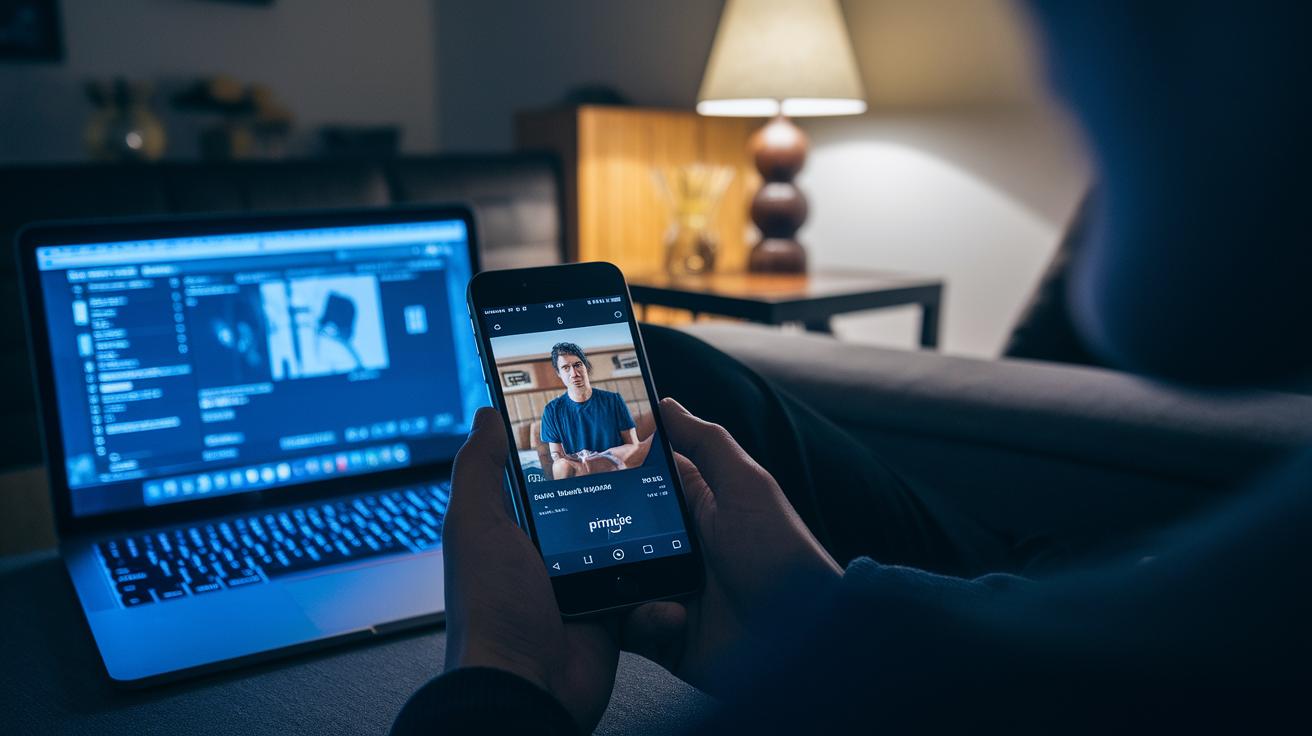
When you're out and about, you can still catch your favorite shows. Open up your mobile browser, head to Prime Video, and sign in with your Amazon account. Then, hop into a voice channel on Discord's mobile app and tap the Share Screen button. It's like turning your phone into your personal streaming hub, perfect for sharing cool movie moments with your friends on the go.
For those of you playing on desktop, Opera GX is a great pick for streaming through your browser. First, swing by Opera GX settings and turn off hardware acceleration so you don’t get any pesky interruptions. Next, register Opera GX in Discord’s Registered Games; just click the gear icon, hit Registered Games, tap on Add it, and select Opera GX from the list. Once that's set up, launch Prime Video in Opera GX and use Discord’s screen share option to broadcast your stream.
Cross-platform streaming like this gives you the freedom to choose your device. Whether you're on mobile or rocking a gaming browser like Opera GX, you can easily enjoy a movie night or binge your favorite series with friends, smooth and simple every time.
Final Words
In the action, we broke down the simple process of streaming Prime Video on Discord. We walked through setting up your browser, registering Prime Video in Discord, and sharing your screen. Step-by-step, you learned how to sort out common playback issues and fine-tune settings for smooth streaming. Using our guide on how to stream amazon prime on discord, you can set up a movie night or gameplay session hassle-free. Enjoy the boost this method brings to your streams and keep the fun and excitement rolling.
FAQ
How to stream Amazon Prime on Discord without a black screen?
The method to stream Amazon Prime without a black screen involves using a supported browser (like Chrome) and disabling hardware acceleration. Following these steps helps bypass DRM conflicts while screen sharing.
Can Discord stream Amazon Prime Video?
Discord can stream Amazon Prime Video by recognizing the browser window as shareable content. Registering Prime Video in Discord’s settings and choosing proper sharing options makes it work properly.
How do I stream Amazon Prime on Discord with friends?
Streaming with friends means joining a shared voice channel, starting screen share on the Prime Video browser window, and inviting your crew. This setup ensures everyone can watch together.
How to stream Amazon Prime on Discord mobile?
To stream on mobile, open Amazon Prime in your mobile browser, join a voice channel on Discord, tap the screen share option, and start streaming so your friends can join the viewing session.
How do I bypass the black screen when streaming on Discord?
Bypassing the black screen involves turning off hardware acceleration in Discord and your browser settings. Running Discord as administrator can also help clear permission conflicts during streaming.
How to screen share Amazon Prime Video on Discord?
Screen sharing Prime Video starts by clicking Discord’s share icon, then selecting your browser window running Prime Video while adjusting resolution and frame rate for a smoother stream.