

Ever wonder why some stream overlays fire up the crowd like nailing that perfect play? When your overlay lights up with every alert or stat, a simple match becomes something everyone wants to watch. It’s like a burst of energy that hits casual viewers and die-hard fans alike. In this post, we’re going to show you how to build overlays that catch the eye and keep the hype going strong, turning your broadcast into the ultimate fan magnet.
Essential Optimization Steps for Esports Stream Overlays
When you polish your stream overlays, viewer engagement spikes, they showcase key information in a fun and lively way during live matches. Every stat, alert, and notification pops in right on cue. It's like nailing that clutch play that clinches the win. Your fans will feel every moment.
Take a crisp overlay that flashes when a new follower joins; it instantly makes your audience feel part of the action. Good overlays also boost your broadcast by neatly mixing webcam views, info panels, and live alerts. This setup lets both casual viewers and hardcore esports fans follow every play with ease. Plus, a professional overlay builds your unique brand, making your stream both engaging and memorable.
Here are some tips to get it right:
- Asset resolution and format: Using a 1920×1080 canvas with PNG images (a type of clear image file) keeps every detail sharp, even during intense moments.
- Layout: Arrange your info panels smartly to avoid clutter so viewers can focus on the game.
- Branding: Match your overlay colors and style with your logo for a unified, sharp look.
- Dynamic alerts: Live pop-ups for followers, subs, and donations crank up the excitement.
- System performance: Regular checks help keep your system light, ensuring smooth graphics during gameplay.
Mixing these tips together gives you an overlay that's not just cool to look at but also works perfectly when you're live. With crisp visuals, smart layout, consistent branding, dynamic alerts, and smooth performance, your stream will keep fans hooked and coming back for the next epic match.
Technical Configuration for High-Definition Esports Overlays
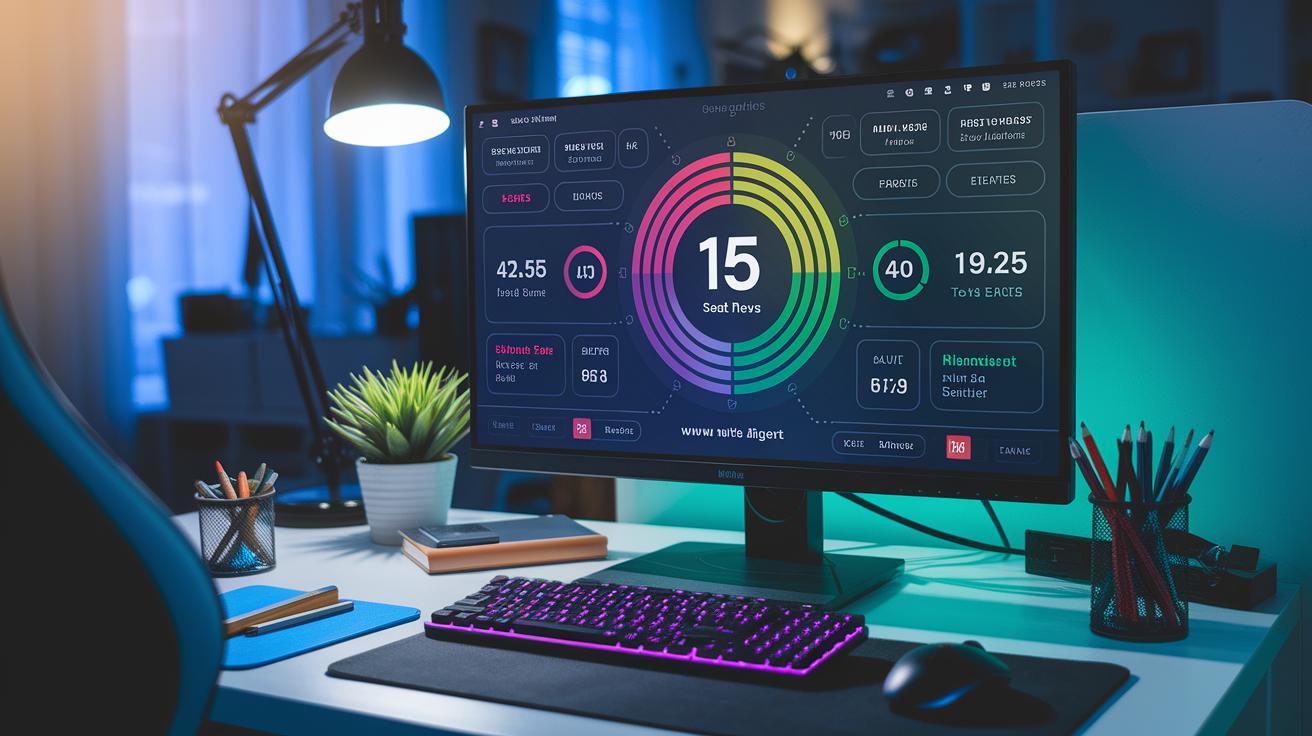
When you're setting up your overlay, start by picking the right resolution and file format. A native canvas like 1920×1080 at 60 fps keeps your visuals sharp and clear during those fast, thrilling moments. PNG and WebP files work great because they keep transparency and ease the CPU load, so you don't deal with lag during your epic plays.
| Platform | Recommended Resolution | File Format |
|---|---|---|
| OBS Studio | 1920×1080 @60 fps | PNG, WebP |
| Streamlabs | 1920×1080 @60 fps | PNG, WebP |
| StreamElements | 1920×1080 @60 fps | PNG, WebP |
Balancing awesome visuals with CPU and GPU power is key for a smooth stream. High-def graphics and cool effects like AI camera boosts (tech that sharpens your look) give your overlay that polished vibe, but they also use more processing power. Keeping each asset under 500 KB helps reduce lag and keeps your stream dynamic and responsive. In short, the right file sizes and resolution settings team up to deliver clear output that lets you focus on the game without missing a beat.
Design Strategies for Engaging Esports Broadcast Overlays
Start with a clear visual order for your overlays. Imagine it like setting up a cool dashboard where every stat finds its place and viewers can quickly spot live data. Use easy-to-read sans-serif fonts and generous spacing so key details pop against the background. For instance, put the score in a top corner and stick alerts to the sides so gamers never miss a beat during those high-pressure plays.
Next, nail the colors and contrast. Pick a color scheme that not only looks good but also keeps things readable. High contrast helps important alerts stand out from the game action, and a fun splash of neon can feel like a mini celebration when someone is on a winning streak. Stick with a simple, neutral background if you plan to use one strong accent color. This way, everything stays clear even when the game gets fast-paced.
Finally, make sure your overlay matches your game and brand vibe. Whether you're into FPS games, Valorant, retro pixel art, or a minimalist black and white style, let your design show off who you are. Every element, from cool icons to notification bubbles, should tie back to your logo and color choices. When your overlay reflects the energy of a hot shooter game, it instantly connects with your audience and boosts the overall feel of the broadcast.
Integrating Dynamic Elements for Live Esports Interaction
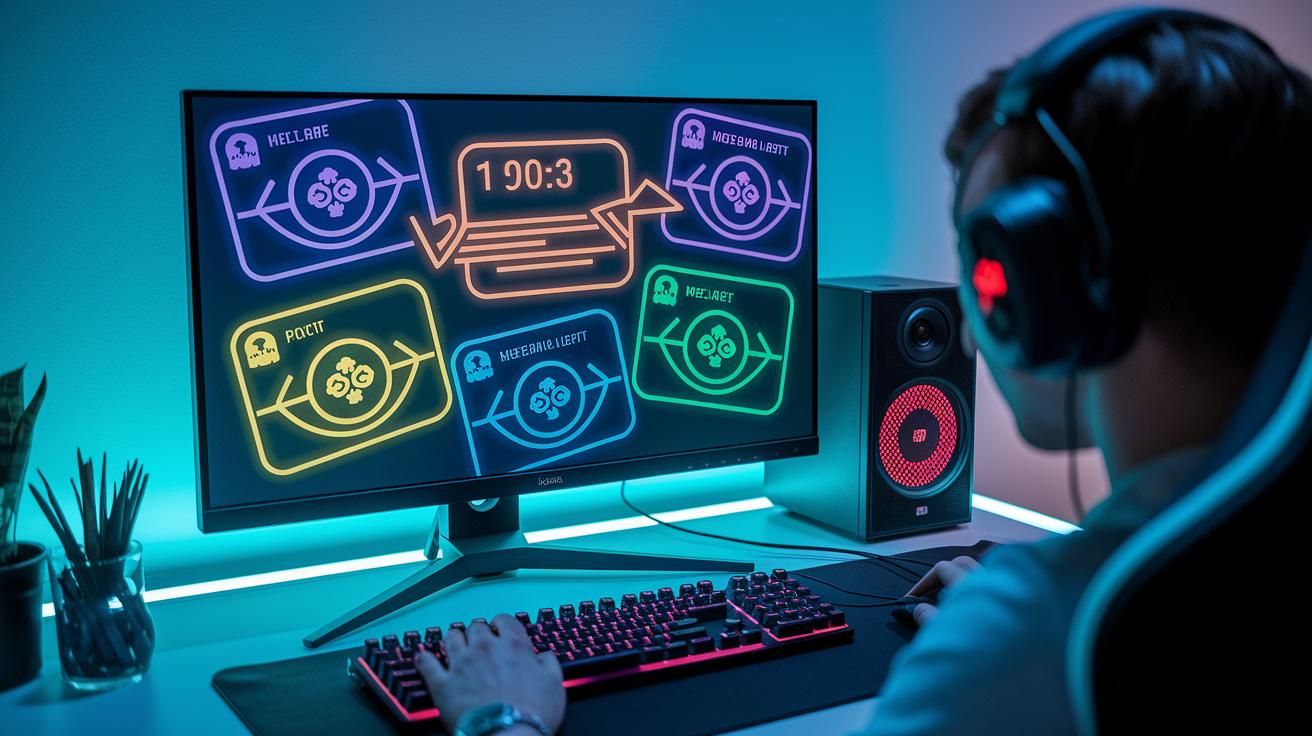
Flashing notification graphics add a burst of energy to your stream, pulling viewers right into the game. Imagine this: a new follower pops in and the screen lights up with a cool animated pop-up, making everyone feel like they're part of the party. These alerts work like instant shout-outs, inviting viewers to join in and celebrate. For example, when someone donates, let the alert slide in from the side – kind of like a bonus round in your favorite game.
On-screen goal trackers also boost the community vibe. They show subscriber targets and follower milestones so everyone sees how close you are to hitting the next big goal. This friendly competition turns each milestone into a mini celebration. Animated scene transitions add extra polish, making switches between game views feel as smooth as a perfect combo. It’s like getting a power-up that makes your stream look even more professional.
Real-Time Scoreboard Integration
Adding a live esports scoreboard (like the one on KEEPTHESCORE.com) to OBS is a breeze. Set your browser source to display live scores, and use the admin link to update game stats on the fly. In the setup, you can customize colors, team or player names, and logos. Every change updates instantly so your viewers always see the latest scores as the match unfolds.
Stream Overlay Management and Performance Optimization
When you’re live and in the heat of the game, catching overlay issues before they mess with your flow is key. Cut down on extra browser sources and limit those animated bits so your CPU and GPU don’t get overloaded. If things start drifting out of place or you see frame drops, check for duplicate sources or oversized files. A quick clean-up can smooth things out fast, like a fellow streamer once said, "Trimming down my animated widgets made my stream run like a dream." Keep an eye on your CPU load and frame rates to know what works best during those high-energy moments.
Every 3 to 6 months, give your overlay a refresh so it stays current with platform updates and looks fresh. Set aside some time to review your assets and trim file sizes for low-latency performance. Build a routine where you back up your current setup, try one tweak at a time, and test things out during practice sessions. Think of it like fine-tuning your gear before a big match, small tweaks prevent bigger glitches during the stream. This steady approach not only keeps your broadcast looking sharp but also helps it stay responsive, amping up the excitement for every epic play.
Testing and Iterating Esports Overlay Designs

Run some quick test streams on different devices and screen sizes. This way, you can see how your overlay looks whether someone is watching on a desktop, laptop, or mobile. Check if all parts are clear and easy to read, even with in-game lighting. Try testing in various light settings so you catch issues early – like a score that might seem too dim in a dark scene. For example, when using a smartphone, every alert and stat should be sharp enough for quick glances during those heated moments.
Next, ask your viewers for feedback using chat polls and post-stream surveys. Mix that with keeping an eye on performance numbers like CPU load, GPU usage, and frame rate. This blend of real feedback and hard data will help you figure out if any elements are confusing or if the stream shows any lags.
Keep tweaking and updating your overlay design based on what viewers say and the performance reports. In truth, this ongoing tune-up ensures your overlay stays fresh, clear, and ready to amp up the excitement for every live match.
Final Words
In the action, we broke down key steps from setting up clear layouts and choosing crisp assets to balancing dynamic alerts and performance tweaks. We looked at design choices that boost viewer engagement and real-time elements that bring the broadcast to life. Testing and refining are what keep the overlay fresh and impactful. All these tactics work together for optimizing stream overlays for esports broadcasts, pushing gameplay visuals to new heights. Keep experimenting and enjoy each upgrade along the way.
FAQ
Q: What are the essential steps to optimize esports stream overlays?
A: The essential steps include optimizing asset resolution, crafting a smart layout, keeping branding consistent, adding dynamic notifications, and monitoring performance to boost viewer engagement and stream quality.
Q: How does technical configuration impact high-definition esports overlays?
A: Technical setup uses native resolutions like 1920×1080 at 60 fps and file formats like PNG or WebP, which balance visual clarity against CPU/GPU load for a crisp, lag-free broadcast.
Q: What design strategies improve esports overlay readability and brand identity?
A: Effective design uses clear fonts, a visual hierarchy for quick scanning, coordinated colors, and themed elements that match the streamer’s brand, making the broadcast easy and appealing to watch.
Q: How do dynamic elements enhance live esports interaction?
A: Dynamic elements, like real-time notifications and on-screen scoreboards, keep viewers engaged by showcasing live updates and interactive features that add polish and personality to the broadcast.
Q: What practices help manage and optimize stream overlay performance?
A: Managing overlays involves reducing browser-source instances, troubleshooting misaligned elements, and refreshing assets regularly to maintain low latency and ensure a smooth viewing experience.
Q: Why is testing and iterating overlay designs critical?
A: Testing overlays across devices and gathering viewer feedback help pinpoint issues and refine layouts, ensuring clarity and continuous improvements that keep the audience locked in.