
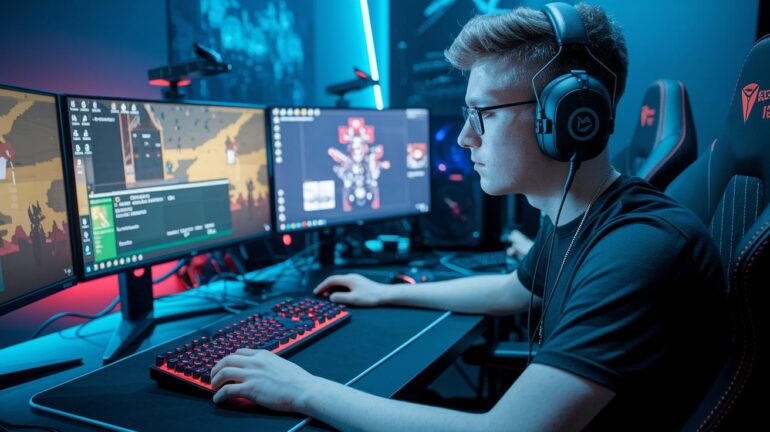
Ever noticed how some live streams fire on all cylinders while others just don’t hit the mark? In competitive gaming, having the right setup can grab your audience’s attention right from the first play. In this guide, we break down how powerful hardware and smart production tools can turn your stream into a smooth, lag-free showdown. Whether it’s a beast of a gaming PC or a capture card that never misses a beat, every piece matters. Get ready to upgrade your stream and keep your viewers locked in on every move.
live stream setup for competitive gaming: Winning Strategy
Setting up your live stream for competitive gaming starts with the best hardware. Get a solid gaming PC with a powerful CPU, 16+ GB of RAM, and a killer GPU (graphics card) so your high-res streams run smooth. Add a reliable 1080p60 webcam, a pro microphone, and an audio mixer to make sure your audience hears every play clearly. And don’t forget a capture card, it's like having a well-coordinated team that keeps every on-screen detail sharp.
Next, pick reliable streaming software that easily manages your scenes, transitions, and overlays. Bundled production tools simplify your setup and make switching scenes a breeze. Plus, hook up a stable, high-speed wired internet connection that can handle 1080p streaming with almost no lag. This combo keeps your stream smooth, even when the action heats up.
Aim for a flawless broadcast with zero lag and top performance. Streaming is on fire, with projections jumping from $8.40 billion in 2025 to $13.85 billion by 2030. That means nailing your video, audio, and overall delivery is a must to keep your crowd locked in. Investing in quality gear is your winning strategy to staying ahead in competitive gaming.
Hardware Selection and Configuration for Competitive Live Streaming

If you’re serious about live streaming and want every play to shine, having solid hardware is a game changer. A setup that can handle fast-paced gameplay and smooth streams makes capturing epic moments a breeze.
- Gaming PC: Your PC is the engine of your stream. Make sure it’s packed with a mid- to high-range processor like an Intel i7 or AMD Ryzen 7 (both deliver great speed), 16–32 GB of RAM to keep things running smoothly, and an RTX 30/40-series GPU that can handle both your game and your stream without a hitch.
- Video Capture: Good visuals matter. Look for capture cards that support USB 3.0 for 1080p60 or USB 3.1 for 4K60 so you can capture every detail. Pair these with webcams that deliver 1080p at 60fps or 4K60 HDR to keep your image crisp.
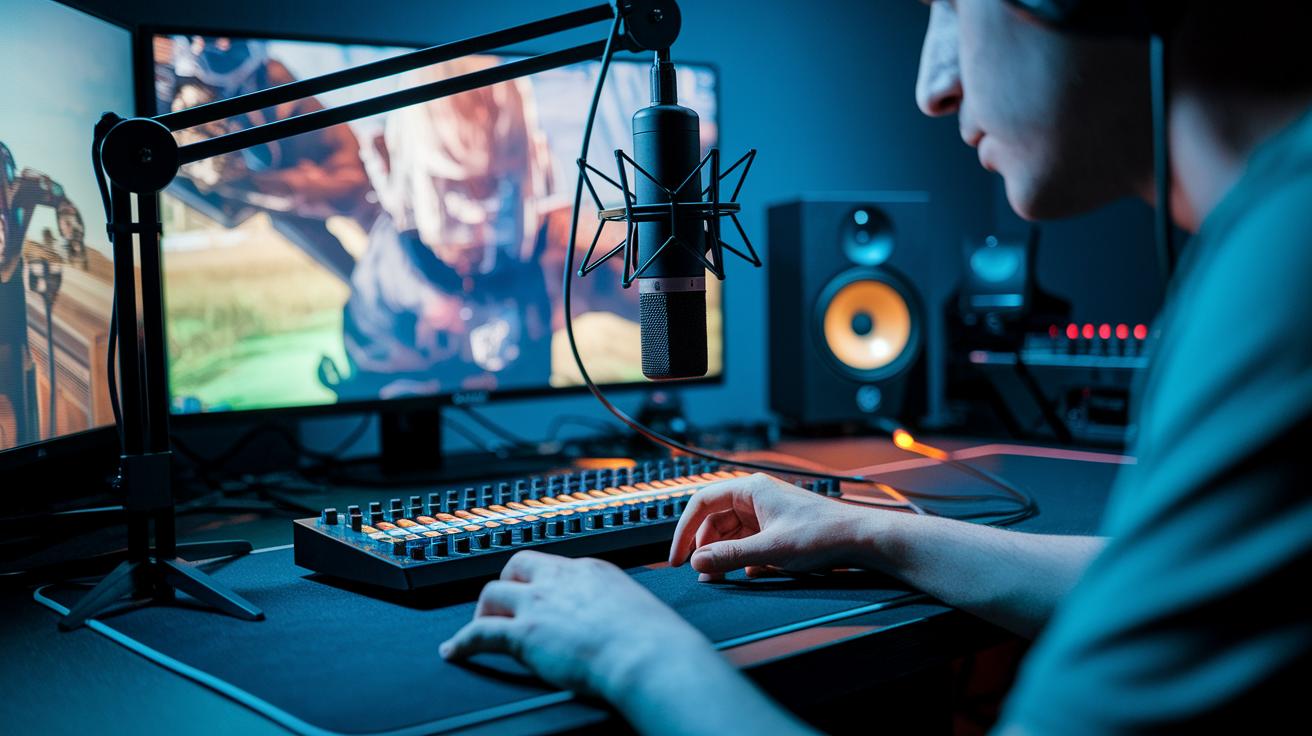
- Audio Capture: Clear sound is key for your viewers. Choose a USB condenser mic for an easy setup or go for an XLR mic with an audio mixer if you want more control over your sound. Either way, you’ll balance game audio and commentary like a pro.
- Displays: A dual-monitor setup really helps. Use one screen to run your game and the other to manage your stream, this way you never miss an important update.
- Lighting & Background: Create a vibe with LED panel kits and adjustable green screens. They help you build a cool, immersive background that catches your audience’s eye.
- Cable & Power Management: Keep your space tidy by managing your cables well and ensuring a steady power supply. It cuts down on clutter and unwanted interference.
On a budget, you can start with a basic range of $300 to $400 for your streaming gear. If you’re ready to go pro, you might spend between $500 and $700, plus around another $1,000 for a powerful gaming PC. This lets you start small and level up as your crowd grows.
Core PC Components
Focus on a solid CPU like the Intel i7 or AMD Ryzen 7, teamed up with an RTX 30/40-series GPU to handle both your game and streaming tasks. With 16–32 GB of RAM, you’ll keep your stream and game running smoothly even during intense moments.
Video Capture Devices
Go for capture cards that support USB 3.0 for 1080p60 or USB 3.1 for 4K60. Match these cards with webcams that deliver 1080p@60fps or 4K60 HDR so your audience gets crystal-clear visuals.
Audio & Mixing Gear
Sound quality can make or break your stream. A USB condenser mic works great if you want simplicity, but an XLR mic paired with an audio mixer gives you that extra control for balancing game noise with your commentary. It’s all about making your stream sound just right.
Studio Environment
Set up your studio with LED panels to brighten your space and kick those shadows away. An adjustable green screen can add a cool, dynamic background. Plus, keeping everything organized and comfortable makes those long streaming sessions way more enjoyable.
Configuring Streaming Software for Pro-Level Production
Getting your streaming software right is the secret sauce behind a smooth, pro-level broadcast. Whether you’re rocking OBS, XSplit, or the NearStream App (which comes with cool firmware management), it’s all about creating a lively, engaging experience. A tidy setup not only speeds up your workflow but makes quick scene changes a cinch when the action heats up.
- Install and update your streaming software – Like patching your favorite game, getting the latest version means you unlock fresh features and performance boosts.
- Connect your video and audio sources – Hook up your capture cards, webcams, and mics so every bit of your gameplay and chat comes through loud and clear.
- Build your scenes with smooth transitions – Think of it like arranging game levels: each scene should flow naturally to keep your stream exciting.
- Add overlays, alerts, and chat integration – Toss in custom banners, live alerts, and interactive chat panels to give viewers that extra edge.
- Select your output platforms and bitrates – Choose your stream spots smartly and set your bitrates just right, like fine-tuning your in-game settings to dodge lag.
Advanced Scene & Overlay Management
Managing your scenes is like pulling off the ultimate combo move. Set up hotkeys for quick switches and design custom graphics that scream your brand. Tools like the Overlay Lab let you polish your transitions and make sure every alert pops at just the right moment. Tinker with different layouts until your stream feels as lively and intense as a clutch play. Enjoy the ride, perfecting your setup can be as thrilling as landing that game-winning shot.
Optimizing Network and Latency for Smooth Competitive Streams
Wired Ethernet is your best bet when you want to beat lag during a high-stakes stream. For smooth 1080p60 streaming, you should have upload speeds of at least 5 Mbps and download speeds of 10 Mbps. Set up your router with QoS settings (Quality of Service, which helps prioritize streaming traffic) so your stream gets the bandwidth it needs, even if other devices are connected. Tuning your network by reducing the number of hops between your system and the streaming servers cuts down on lag and packet loss. Think of it like taking the quickest shortcut in a race, your stream stays fast and responsive.
Reducing lag means being ready for anything. Adjust your settings to cut out extra data traffic and clear out network bottlenecks. Keep a backup connection ready with a cellular hotspot or another ISP so you won’t get caught off guard by sudden issues. Testing your backup before going live can help you catch problems early. This failover plan makes sure you stay in the game even if your main network slips up, keeping your competitive stream running in the fast lane.
Audio and Video Performance Calibration for Competitive Casting
Get your audio sounding crisp by fine-tuning your game and mic levels with analog or digital mixers. Clear game sounds and smooth comms keep your viewers locked in. A good mixer lets you adjust volumes separately so your commentary stands out while the game stays energetic. Tip: set up one channel just for game effects and another for your voice.
Next, take a look at your video encoder configuration. Use hardware encoders like NVENC or AMD VCE (basically tools that take the load off your CPU) so your system can focus on the gameplay. Aim for 1080p at 60fps and a bitrate around 4,500 to 6,000 Kbps. This setup helps your stream look clear and smooth. Play around with resolutions and bitrates until you hit that competitive sweet spot.
Finally, tune up your video performance. Adjust your webcam’s color, brightness, and contrast to get a look that pops without being too bright. Use your streaming software to tweak settings until it feels just right. It might take some trial and error, so don’t sweat making a few changes. Also, remember to fix any lip-sync issues by adjusting the sync offset in your software, making sure your voice lines up perfectly with the on-screen action, like landing a flawless combo move.
Professional Troubleshooting and Contingency Strategies for Competitive Streams

Dropped frames, audio drift, and sudden bitrate spikes can wreck your live stream in seconds. Keep an eye on your system's CPU and GPU using in-app stats or even Task Manager to catch issues fast. Updating your streaming software often and protecting your stream keys helps dodge unexpected hiccups. Testing your stream privately before you go live is a smart move that lets you spot problems early.
When things start to go sideways, having a backup plan is a real lifesaver. Keep a second encoder or a local recorder handy in case your main setup crashes. Redundant signal backups give you extra flexibility, so your broadcast keeps running even if one piece fails. Tweak your settings and check your system load to make sure every part of your setup can handle competitive streaming. This strategy not only cuts downtime but also boosts the overall quality of your stream when it matters most.
Rapid Troubleshooting Checklist
- Keep an eye on system load using in-app stats or Task Manager
- Test private streams to spot issues before going live
- Reset network connections if you notice lag or dropouts
- Make sure all software is updated and your stream keys are secure
- Watch for hardware issues during critical moments
Scaling and Customizing Your Competitive Live Stream Setup
Boost your basic stream by adding a few extra cameras that capture every cool angle, your gameplay, your desk, and everything in between. This way, you get real-time switching that feels like editing your gameplay on the fly. It’s like having a split-screen that shows off your epic moves on one side and your live commentary on the other. Imagine hitting that perfect play while viewers get a fresh view every second.
Deck your stream out with overlays that buzz with tournament energy. Add custom graphics like team logos, live scoreboards, and pop-up alerts that shout out game updates or those game-changing moments. And hey, why not bring in some interactive fun like polls or mini-games? It turns watching into a full-on experience where every viewer can jump in on the action. Picture your stream lighting up every time you hit a critical win, exciting, right?
Plan your events like you’d plan the ultimate raid. Use social media to tease upcoming matches and share cool previews with your fans. A solid content calendar can make your broadcast feel like a full-blown tournament event. Keep your community informed and hyped about each new challenge, and watch that excitement build game after game.
Final Words
In the action, our guide broke down essential steps, from choosing solid hardware pieces to setting up seamless streaming software. We chatted about optimizing network speed and calibrating audio-video settings to keep your stream smooth.
We also covered troubleshooting tips and creative tweaks to help you shine during your streams. Each part is designed to gear you up and boost your gameplay.
Keep experimenting, stay sharp, and enjoy setting up that live stream setup for competitive gaming!
FAQ
Q: What is the live stream setup for competitive gaming on Xbox Series X and Xbox?
A: The live stream setup for competitive gaming on Xbox Series X and Xbox includes a capture card, strong audio gear, and a capable PC if needed for encoding, plus high-speed internet and solid streaming software for quality broadcasts.
Q: What is the live stream setup for competitive gaming on PS5?
A: The live stream setup for competitive gaming on PS5 requires a reliable capture device that supports 1080p60, quality audio equipment, and robust streaming software paired with fast, wired internet to keep your stream smooth and engaging.
Q: What equipment do I need for a live stream or to stream video games?
A: The equipment needed to stream video games includes a high-performance PC or console, capture devices, professional microphones, and a solid network connection to maintain high-quality, lag-free broadcasts.
Q: What is the best live stream setup for competitive gaming?
A: The best live stream setup for competitive gaming blends top-tier hardware, premium capture devices, pro audio gear, and optimized streaming software with reliable, high-speed internet to deliver a smooth, responsive broadcast experience.
Q: What gaming streaming setups do streamers and beginners use for PCs?
A: The gaming streaming setups used by both pros and beginners feature powerful PC builds with strong CPUs, impressive GPUs, ample RAM, essential capture devices, and user-friendly streaming software to create engaging, professional broadcasts.
Q: Do I need 1000 subscribers for YouTube live stream?
A: The YouTube live stream requirement does not depend solely on subscriber count; meeting channel verification and community guidelines is key, so focus on fulfilling those criteria instead of needing 1000 subscribers.
Q: How much does a streamer setup cost?
A: The cost of a streamer setup varies widely, ranging from a few hundred dollars for budget setups to several thousand dollars for professional rigs, depending on hardware quality, software needs, and production level enhancements.