
Ever thought there might be an easier way to turn your streams into unforgettable highlights? Imagine a tool that grabs your best moments with just a couple of clicks. It cuts, tags, and polishes your top plays so you can stay in the middle of the action. Whether you're just starting out or already a streaming pro, these tools blend simplicity, quality, and power all at once. Ready to boost your editing and show off your epic moments like a champ?
Top Picks: Best Software for Stream Highlights
When picking the best software for stream highlights, quality, ease of use, and performance really come first. We’re talking about tools that let you trim clips crisply, offer simple interfaces, and pack a punch with features, making them a great fit for everyone from casual creators to seasoned pros.
- Framedrop: What started as a gaming-clip tool has grown into an AI buddy that tags those epic moments automatically (saving you loads of time). This makes it super handy for media teams who want to repurpose content without hassle.
- Adobe Creative Cloud (Premiere Pro): This top editor offers nail-on-point clipping controls and lets you work with multiple cameras (multicam means handling more than one camera angle at once). It also blends in visual effects smoothly.
- Movavi Video Editor: Perfect for those watching their wallet, this tool costs just $49.95 one time. It comes with built-in presets to help you whip up highlights in a snap, ideal for quick edits.
- DaVinci Resolve Studio: For a one-time fee of $295, you’re getting advanced color grading and fusion effects (fusion effects mix video elements) that help you create polished, professional reels.
- OBS Studio: This free, open-source software captures HD footage using a plugin-based replay buffer. It’s a solid pick if you don’t mind spending a little extra time learning its ropes.
All these options shine by combining easy-to-use designs with solid performance. Whether you need precise editing for that pro touch or a budget tool loaded with essential presets, each one offers a dynamic way to create amazing stream highlights.
Dedicated Highlight Extraction Tools for Stream Highlights
Framedrop began as a simple way for gamers to share cool clips, letting you show off those epic moments in seconds. Then on May 20, 2025, it leveled up by turning into an AI helper for stream highlights. This change meant that instead of just sharing clips, the tool now automatically marks the best bits as they happen. It quickly scans through long hours of footage and picks the must-see moments, saving you tons of time. Early users even mentioned that the AI helper cut down manual editing from hours to minutes.
Creators report that Framedrop speeds up content repurposing by ten times and slashes editing costs by 30 to 50%. This awesome boost comes from its automatic tagging, which spots exciting segments in real time. With the AI working in the background, you don't have to waste hours scrolling through long videos. Instead, you get perfect clips ready to post almost instantly. Imagine the rush of watching your raw footage get transformed into shareable highlights, it's like magic!
Today, Framedrop works for a wide range of creators, from gamers to podcasters and talk-show hosts. Whether you're fighting bosses in epic raids or recording dynamic interviews, this tool adapts to your style. No matter what niche you're in, Framedrop brings out your best moments and makes sure they shine every time.
Video Editing Suites Tailored for Stream Highlights
When you're streaming, you need tools that let you grab your best moments. These editing programs let you pick and choose the perfect parts of your stream, frame by frame. Imagine chopping a long game into quick, heart-racing highlights that keep your viewers glued to the screen. It’s like turning raw footage into a slick montage that feels super engaging.
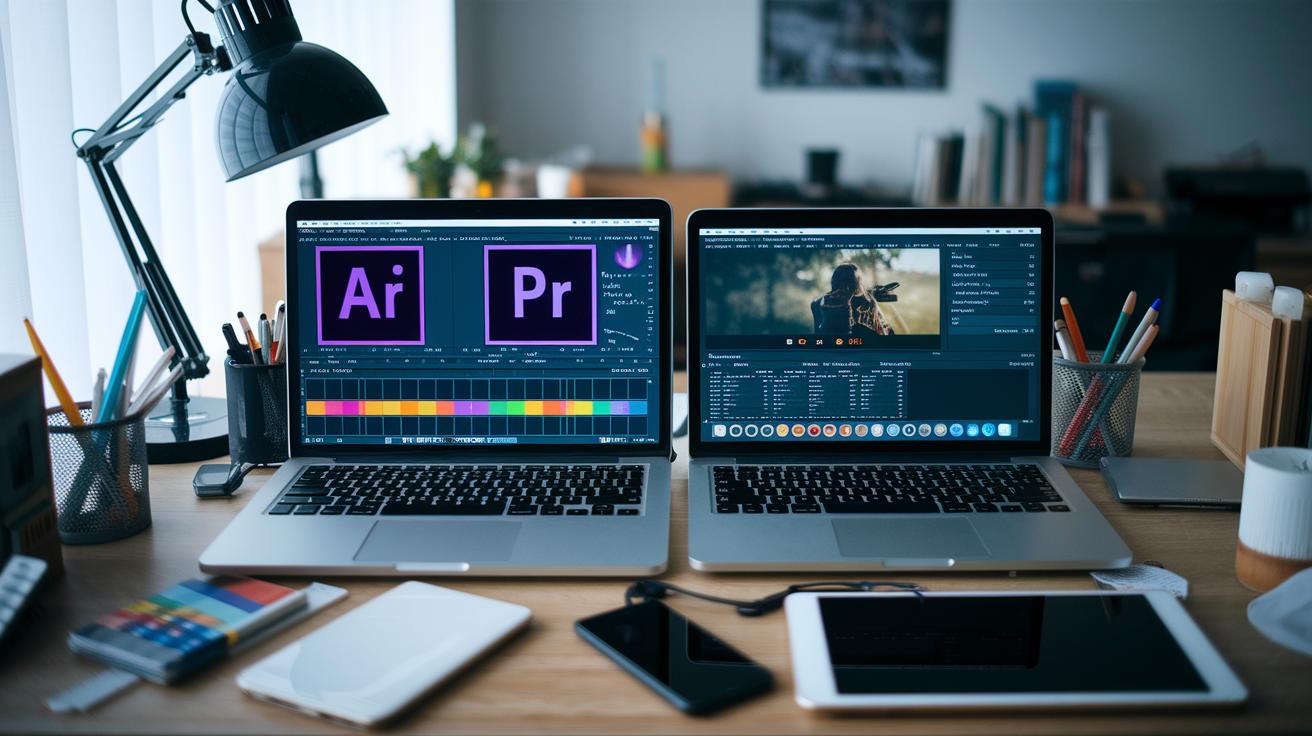
There are some cool options out there. Adobe Premiere Pro is perfect if you love fine-tuning every detail (plus it works great with After Effects for extra flair). Movavi Video Editor offers handy one-click trims and preset highlights, ideal if you're keeping an eye on your budget. And DaVinci Resolve Studio brings pro-level color grading and fusion effects into the mix with a one-time payment. At the end of the day, the best pick depends on your editing comfort and how much you're willing to invest.
All-in-One Streaming Platforms with Highlight Features
Want to capture your best gameplay moments without missing a beat? An all-in-one streaming platform can really change the game. These solutions let you stream live while giving you built-in tools to grab and save your most epic highlights. Here are some top picks that mix HD capture with easy clip editing.
OBS Studio
OBS Studio is a free, open-source tool that lets you record in high definition. It even supports cool add-ons like replay buffers (which automatically save live-action moments) for more control. Sure, beginners might feel a bit lost at first, but many seasoned streamers love it for the complete control it offers, even if it takes a little extra time to learn.
XSplit Broadcaster
XSplit Broadcaster runs on a freemium model and shines with its Layout Wizard, which makes setting up clips super easy. It keeps things simple while still letting you record and export high-quality streams. And if you grab the premium license, you get more advanced recording and exporting options as you gradually boost your production level.
vMix
vMix is built for pro-level live streaming, supporting up to 4K inputs, built-in conferencing, and overlay controls. It's perfect if you're looking for serious production features, though its heavy system requirements might be a drawback if you're not running a high-end rig. With its rich feature set, you can create dynamic highlight reels that truly capture your best plays.
Restream Studio
Restream Studio is a cloud-based solution designed for streaming on multiple platforms. With a free plan that handles basic clip exports and a $49 per month Professional plan that unlocks full HD exports, it's great for streamers who want an easy, behind-the-scenes tool that does the hard work for you.
No matter if you’re after total control, a simple setup, crisp HD quality, or the ease of cloud-based streaming, one of these platforms can streamline your workflow and ensure your best moments are always just one click away.
Browser and Mobile Tools for On-the-Fly Stream Highlights

When you need to quickly grab and trim your stream highlights, a lightweight browser tool can really change the game. Lightstream Studio is a top pick because it uses little hardware and cuts clips fast. With just a few clicks, you're right in the thick of it, perfect for those split-second moments. But if you need advanced editing tools to polish your clip, it might not cover all your needs.
For creators who like switching between devices, Prism Live Studio works on both desktop and mobile. It even has cool beauty filters and a virtual chroma key (a tool that lets you remove the background) to spice up your clips. While it offers real-time tweaks, it doesn’t come with pre-made highlight themes, meaning you might have to do a bit more manual work to get things just right.
There are also free Windows apps like SplitCam and FFSplit as simple alternatives. SplitCam not only supports streaming on different platforms but also mixes audio on the fly, though it adds a watermark that might not suit every pro setup. FFSplit lets you capture from multiple sources for a fuller view, but it works only on Windows, which could limit your options on the go. For a flexible live stream app that captures highlights when you need them, explore different live stream app solutions to find the perfect fit for your workflow.
Comparison of Highlight Software for Stream Highlights
Looking for a tool that quickly chops your stream videos while adding cool extras? These options have some fresh upgrades for both casual gamers and pros alike.
| Software | Price Model | Key Highlight Features | Best For |
|---|---|---|---|
| Framedrop | Free plan, plus an AI boost starting at $9.99 | Auto-tags highlights with trending filters | Quick highlight cuts with a creative spin |
| Adobe CC | $52.99 per month | Smooth timeline trimming and new cloud sync | Precision edits for professional-grade clips |
| Movavi Video Editor | $49.95 one-time fee | Ready-made presets, voice-over support, and extra effects | Budget-friendly projects looking for creative flair |
| OBS Studio | Free and open-source | Upgraded replay buffer with customizable plugins | Advanced users who love detailed replay options |
The chart shows how Framedrop now brings in trending filters with an optional AI upgrade, while Adobe CC steps up its game using slick cloud syncing for sharper edits. Movavi offers more effects to play with, and OBS Studio remains a top pick for advanced users wanting improved replay features.
How to Extract and Edit Stream Highlights: A Step-by-Step Guide
First off, record your entire session using OBS Studio’s high-definition capture. Set your resolution to at least 1080p and use a common format like MP4 for easy sharing. Check that your recording settings balance quality with file size and always test your audio levels before you go live. A common mistake is skipping on the proper bitrate, which can make your clips look choppy. Did you know many top streamers count on OBS to capture every epic moment so nothing gets missed?
Next up, load your footage into your favorite editing tool, like Adobe Premiere Pro or Movavi Video Editor. Drag the video onto the timeline and use the preset tools to mark the key moments fast. Trim out the boring bits and keep the parts that really pop. And seriously, back up your project files often, you know how annoying it is to lose your work right in the middle of editing. Think of each cut as a chance to spotlight that game-changing play that hooks everyone.
Then, give your clips a boost in DaVinci Resolve Studio. Polish the look by applying color grading to make the visuals pop and tweak the audio so every sound effect and voice is crystal clear. Use the built-in tools to keep the volume steady and avoid sudden jumps that could distract your viewers. Always preview your edits to make sure the mood and pace match the energy of your live stream. Spending a few extra minutes fine-tuning here can really capture the vibe of an unforgettable match.
Finally, export your finished reel in a popular format like H.264 in an MP4 container. Pick the best resolution for your target platform, whether it's YouTube, Twitch, or another streaming site. Watch out for export settings that might drop the quality, and give your file a quick play before you hit share. Enjoy your streamlined highlights ready for a killer showcase!
Evaluating Ease of Use and Performance in Highlight Software
We combined this info with the Top Picks, Video Editing Suites, and All-in-One Streaming Platforms sections so you don’t get the same details twice.
Now, if you're curious about how easy the software is to use and how it handles performance, just check out those sections.
Final Words
In the action, we broke down top tools that help create epic gaming clips. We covered everything from automated AI highlights to budget-friendly editors and all-in-one streaming options.
Each tool offers clear benefits, and the guide showed you how to trim, polish, and share your best edits. Use these insights to find the best software for stream highlights and boost your gameplay.
FAQ
What is the best software for stream highlights across platforms?
The best software for stream highlights depends on your needs. Tools like OBS Studio offer free, solid recording, while options such as Adobe Premiere Pro and Movavi Video Editor provide precise editing for Reddit, Twitch, and YouTube.
What are top options for AI-powered stream clipping?
Top AI-powered clipping tools like Framedrop use smart tech to detect key moments automatically. This helps gamers quickly tag highlights and cut down editing time with accurate, efficient results.
How can I create Twitch highlights?
Creating Twitch highlights starts with capturing your stream, either using built-in Twitch features or programs like OBS. After recording, trim and refine your clips in an editing app like Movavi Video Editor for the perfect moment.
How do you make stream highlights?
Making stream highlights involves recording your gameplay, reviewing the footage for epic plays, and trimming your best moments in editing software. This process lets you polish clips for sharing on platforms like YouTube or Twitch.
What is the best software to use for streaming?
The best streaming software varies by setup. OBS Studio stands out as a free, open-source option with robust features, while XSplit Broadcaster offers user-friendly layouts and built-in clip features for a seamless streaming experience.