

Ever notice how some streamers pull you in right away while others barely get a look? It’s not just about hitting “Go Live” on Twitch. You need to set up your account, grab your gear, and tweak your settings so everything runs smooth. This guide walks you through the whole process, from signing up to testing your sound and video, so you can build a stream that’s full of passion and totally secure. Ready to level up your broadcast and really leave a mark?
Twitch Stream Setup: A Complete Step-by-Step Guide
Jumping into Twitch is like entering an epic arena where every move matters. If you’re just starting out, the first step is making your Twitch account. Click the Sign Up button at the top right, fill in your info, and boom, you’re in. And hey, take a moment to read Twitch’s community guidelines to keep your channel safe and cool.
Next, it’s time to set up your gear. Hook up your microphone, webcam, and any other devices you plan to use. Think of it like getting your loadout ready for an intense match. Also, lock in your security by enabling two-factor authentication (that extra layer to keep your stream secure). Pick the streaming software that fits you best, whether it’s OBS Studio, Twitch Studio (beta), or Streamlabs Desktop.
Here’s the game plan:
- Create your account.
- Check out the community guidelines.
- Enable two-factor authentication.
- Download and set up your streaming software.
- Enter your stream key.
- Start your first stream.
Once these steps are done, spend a little extra time fine-tuning your setup. Adjust your software settings to find the perfect balance between video quality and smooth performance. Test your mic and webcam to make sure your audio is crisp and your video is clear. Tweak your overlays and alerts to match your channel’s vibe. Every little tweak brings you closer to an engaging live broadcast that shows off your passion for gaming.
Optimizing How to Stream on Twitch with Technical Broadcasting Settings
Want your stream to hit just the right notes? Pick settings that match your goals. Whether you’re chasing that smooth 60fps 1080p action or keeping it chill with 720p at 30fps, your choice makes a difference. Use an encoder like NVIDIA NVENC (it shifts some workload from your CPU to your graphics card) so your game keeps running strong. Give the auto-optimize feature in Streamlabs Desktop a try, it tweaks your settings based on your hardware. Plus, a wired fiber connection keeps your stream steady with low lag.
| Resolution | Recommended Bitrate | Frame Rate |
|---|---|---|
| 720p | 2500-4000 kbps | 30fps |
| 1080p | 4500-6000 kbps | 30fps |
| 1080p | 6000-9000 kbps | 60fps |
Keep tweaking until you find the sweet spot between video quality and smooth performance. Try a quick stream test with different bitrates to catch any lag or quality drop early. Adjust your resolution to match what your audience watches on and consider their internet speed. Mess around with your encoder settings and CPU presets in OBS until everything clicks. A small change, like switching to a wired connection, can really boost your broadcast and set you up for those epic gameplay moments.
Equipment & Software Essentials for How to Stream on Twitch
Your streaming setup is what makes everything click. Whether you're on a desktop, laptop, console, or even your phone, a solid rig keeps your broadcast smooth. Devices like the Razer Blade 15 ($1,499.99) or the MacBook Pro ($1,999.99) pack enough power to handle your favorite games and streaming programs. Basically, you need a system that can juggle your game and the broadcast software (like Streamlabs Desktop, that's a tool to make streaming easier, and Twitch Studio, a friendly guide for Twitch).
To set up a pro-looking broadcast, focus on the right gear. Here's what you'll need:
- A high-performance computer
- A clear microphone
- A quality camera or webcam
- Good lighting solutions
- A capture card for console integration
Picking from a variety of devices means you can craft a setup that fits your budget yet still delivers top-notch streams. A clear mic and a solid camera capture every sound and image, making your channel way more engaging. And if you're watching your spending, there are plenty of budget-friendly options that don’t skimp on performance.
Match your hardware with reliable software for smooth integration. Whether you're streaming from a PC or a mobile device, your chosen software should work well with your gear. Tools like Streamlabs Desktop and Twitch Studio give you an easy, user-friendly experience so you can focus more on your gameplay and less on tech hassles.
Enhancing Audience Engagement on Your Twitch Stream
Turn up the energy on your Twitch channel by adding live Q&A sessions and interactive polls. Chat with your viewers like you would with a friend, ask them about their best gaming moments or recent wins. Use built-in chat features so they can vote on game challenges or pick what you do next. For instance, try saying, "Hey, type your ideas in the chat!" to get everyone involved. This makes your stream feel like a party where everyone’s part of the action.
Build a strong channel vibe with custom overlays, fun alerts, and visuals that match your unique style. Think cool panels and banners that show off your gaming personality. Schedule your streams when most players are online for maximum impact. Mix casual chats with planned interactive segments, and every once in a while, run a poll like, "What game should we tackle next?" It’s a great way to keep the excitement high.
Expand your community outside of Twitch by hopping onto social media. Share your best highlights on Twitter and keep the conversation alive on Discord when you’re off duty. Promote upcoming streams and special events so even people who aren’t in your live chat get a reason to join later. This steady buzz doesn’t just increase viewer interaction, it helps build a tight-knit, enthusiastic channel community.
Troubleshooting & Advanced Tips for Seamless Twitch Streaming
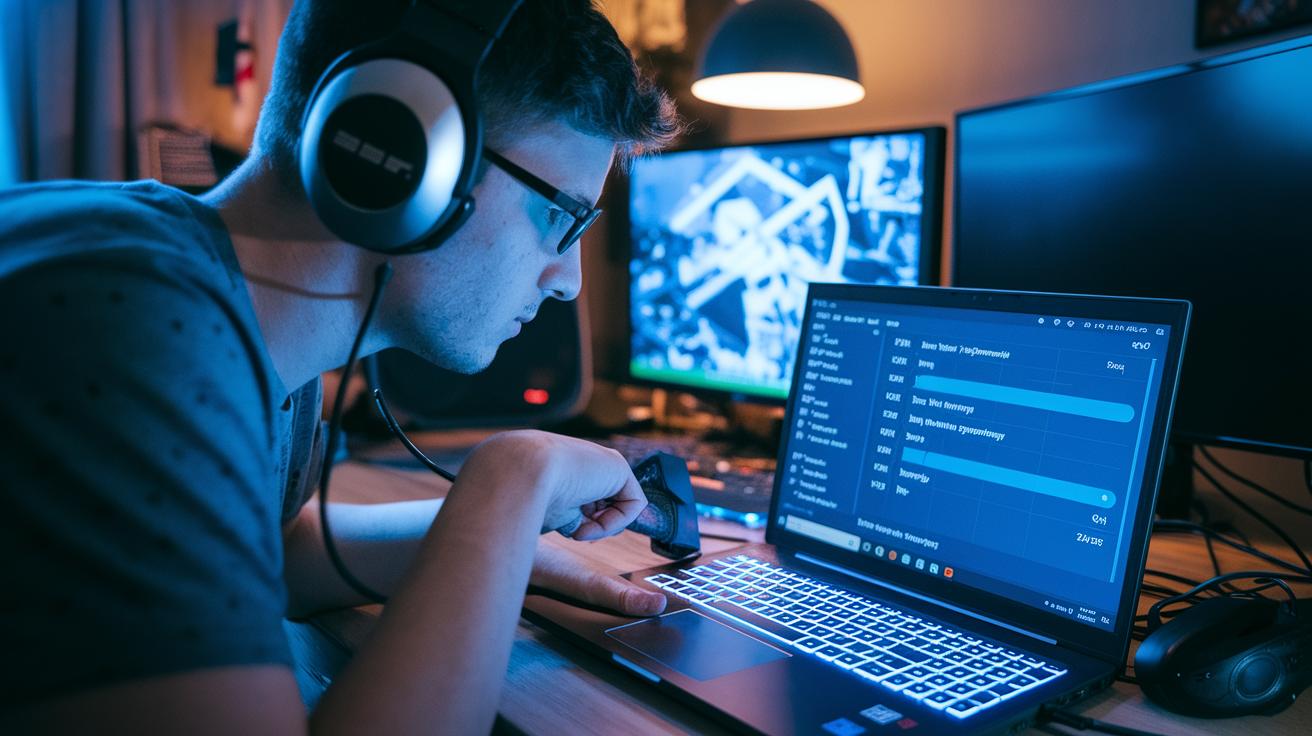
Ever experienced that moment when your stream starts lagging or dropping frames, and it feels like your game is glitching straight into your broadcast? It can be super frustrating. First, check your setup and settings, sometimes switching your encoder does the trick, while other times you might need to adjust your CPU usage presets. Tools in OBS Studio or Streamlabs Pro can give you real-time numbers so you know exactly where things are off. A few small tweaks might be all you need to keep your broadcast as smooth as your best in-game moves.
Try this quick checklist to fix common streaming issues:
| Step | Action |
|---|---|
| 1 | Test your internet connection |
| 2 | Double-check your stream key |
| 3 | Adjust your bitrate and encoder settings |
| 4 | Watch your performance metrics |
For those looking to step up their game, dynamic bitrate adjustments let your stream handle network changes on the fly. And if your encoder's struggling, consider switching from a software encoder like x264 to a hardware option such as NVIDIA NVENC (this move shifts some processing work from your CPU to your graphics card). Balancing these settings is key, especially during epic gameplay moments where every frame counts. So, experiment, test, and adjust until everything clicks perfectly, you deserve a streaming experience that's as flawless as your epic in-game wins.
Final Words
In the action, we walked through setting up your live stream from scratch. We broke down account creation, the right gear and software, and fine-tuning your broadcast settings. We also shared tips to engage your viewers and troubleshoot common issues.
These steps give you a clear roadmap on how to stream on twitch. Embrace the process, level up your gameplay, and keep enjoying every live moment.
FAQ
Streaming software for Twitch?
The streaming software for Twitch means using apps like OBS, Twitch Studio, or Streamlabs Desktop that let you broadcast your gameplay, add overlays, and manage alerts all in one place.
How to stream on Twitch on laptop?
Streaming on Twitch with a laptop means setting up your account, installing your chosen streaming software, and connecting your webcam and mic. This approach helps you share gameplay easily even on the go.
Twitch Studio?
Twitch Studio is Twitch’s own streaming software. It offers a simple setup, built-in templates, and easy controls for adding overlays and chat, making it a solid choice for beginner streamers.
How to stream on Twitch PS5?
Streaming on Twitch with a PS5 means linking your PlayStation account, using the built-in broadcast option, and adjusting settings to capture gameplay. This makes sharing your gaming moments quite straightforward.
How to stream on Twitch 2024?
Streaming on Twitch in 2024 follows a similar method as before but with updated software features. You need to set up your account, configure modern streaming tools, and keep your content fresh to engage viewers.
How to stream on Twitch with OBS?
Streaming on Twitch using OBS means setting your scenes, entering your stream key, and fine-tuning your settings for a quality broadcast. OBS remains a favorite for its flexibility and advanced features.
How to stream on Twitch on Xbox?
Streaming on Twitch from an Xbox involves using the Twitch app, signing into your account, and adjusting broadcast settings via your console’s interface, making it a handy option for console gamers.
How to stream on Twitch PS4?
Streaming on Twitch with a PS4 means downloading the Twitch app on your console, logging in, tweaking your broadcast options, and going live. This method offers a direct way to share your gameplay.
How to stream on Twitch on PC?
Streaming on Twitch using a PC means creating an account, downloading streaming apps like OBS or Twitch Studio, and connecting your gear. A PC setup provides more customizability and advanced options.
Can you make $1000 a month on Twitch?
Making $1000 a month on Twitch is possible with regular streaming, engaging content, and a solid fan base. Success relies on growing viewership and using monetization tools like subscriptions and ads.
How do you stream on Twitch for the first time?
Streaming on Twitch for the first time means setting up your account, choosing your streaming software, testing your setup, and going live. This gradual process builds confidence and smooths out technical details.
How much money is 1000 views on Twitch?
Earnings from 1000 Twitch views vary by factors like ad revenue, donations, and subscriptions. Typically, it provides a modest income that depends on your overall engagement and monetization setup.