

Ever felt a stream that makes your heart skip a beat? Twitch Live shows your favorite games in crystal-clear 4K (super sharp, like seeing every detail) that just pulls you in. Live chat and co-streaming, imagine hanging with your buddies, let you jump into the action right away.
In this guide, we're breaking down how to launch your own broadcast so you can soak up every cheer and epic moment as it happens. Ready to dive into the fun and level up your streaming game? Stick around and see why Twitch Live is a total game changer for every streamer.
Interactive Twitch Live Streams: Viewing and Engaging
Twitch live streams deliver smooth 4K video paired with crystal-clear audio. It’s like watching your favorite game in ultra-high definition, catching every little detail. They even include simple guides to get you streaming from Twitch Studio, your desktop, or your mobile device. This means you can dive right in and interact from the moment the stream starts.
Here are some cool features designed to boost your experience:
- Real-time chat lets you share your thoughts instantly.
- Guest co-streaming lets you team up with other streamers or special guests for fun collabs.
- Live editing tools (which are simple to use) help make broadcasts more dynamic.
- Customizable overlays let you personalize your channel’s look.
- Shareable clips make it easy to capture and spread those epic moments.
These features make sure everyone, whether you’re just starting or have been playing for ages, feels like a vital part of the stream. Whether you’re there for a gaming session or just hanging out for live entertainment, Twitch’s interactive tools bring the community together, keeping every moment engaging from the very first second.
Twitch Live: Setting Up Your Personal Broadcast
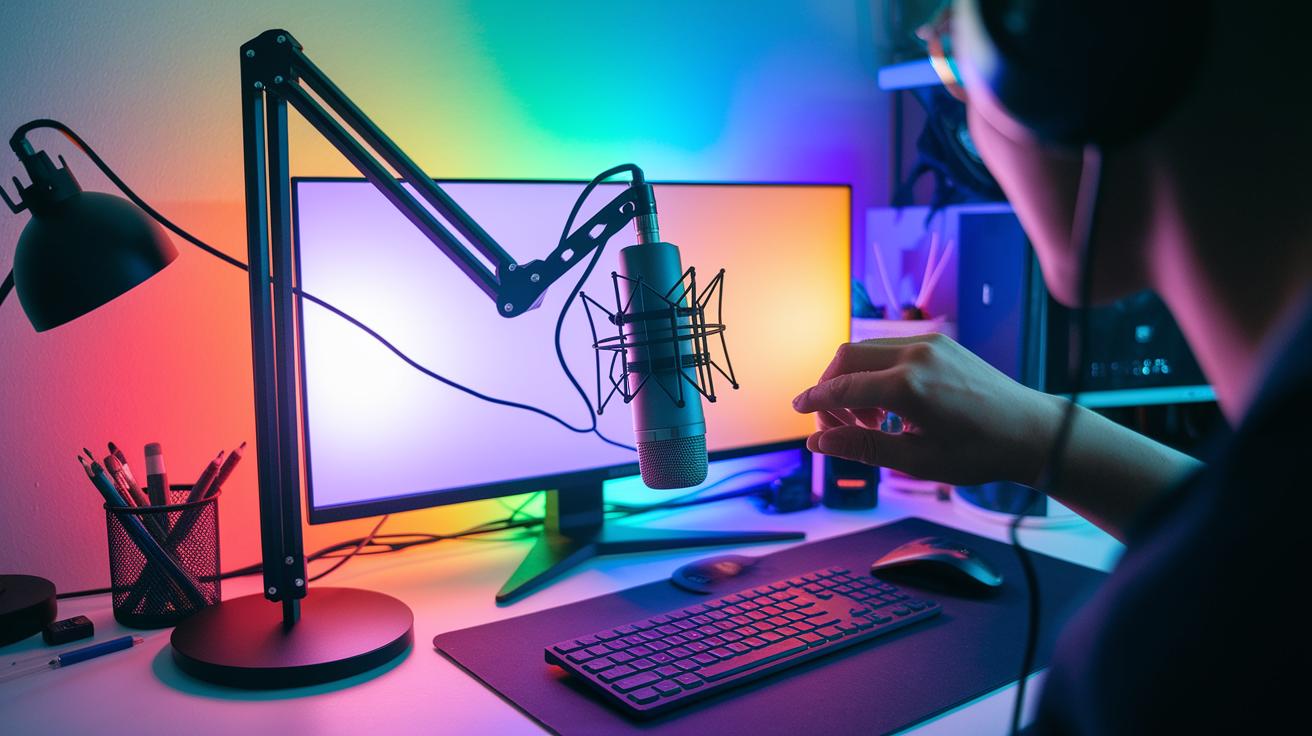
Getting ready to go live on Twitch is a blast. Start by picking the tool that matches your style. Whether you're into Twitch Studio, OBS, or Streamlabs, your setup should work well with your PC or mobile device. Make sure you have a stable system with HD video capture and separate audio channels for clear sound.
Step-by-Step Setup Process
Step 1: Invite your co-hosts and guests using Twitch’s built-in options. It helps you bring friends into your live session easily.
Step 2: Connect your streaming software to your camera, mic, and overlay setups. Once everything’s hooked up, hit the "Go Live" button and jump in!
Step 3: After the stream, edit and download your recording. This way, you can keep those epic moments and share them with your community.
Before you hit that start button, double-check that your hardware meets the demands of live broadcasting. A solid PC or a reliable mobile setup is a must for a smooth stream. Consider investing in a quality camera and microphone since they’re the key to crisp visuals and clear audio.
Using great streaming software makes your session feel interactive and engaging. Tools like Twitch Studio, OBS, and Streamlabs offer customizable settings and easy-to-follow steps, helping you kick off your broadcast with confidence and plenty of creative options.
Twitch Live: Enhancing Viewer Engagement During Streams
Twitch gives you cool tools to fire up your chat without falling back on the same old tricks. Use live chat moderation to cut out spam and shine a spotlight on the awesome stuff your viewers say. Custom emotes are like secret handshakes, little icons that greet your fans in a way only your channel can.
Scheduled broadcasts feel like you’re inviting everyone into your own special clubhouse. They help you steer clear of the same old chatter and spark fresh interactions. And when you bring in a guest for co-streaming, it’s like unlocking a bonus level in your favorite game, each session gets a new twist.
By blending smart moderation with a personal touch, you boost your viewer participation. Think about adding fun emote explanations and cool overlays that show off your style without repeating past details. This mix turns every stream into a lively session that your fans just can’t get enough of.
Twitch Live: Optimizing Stream Quality and Performance

Twitch streaming rocks with crisp HD and 4K video plus clear audio that catches every sound. By tweaking your video settings, you can boost the picture quality and keep the action smooth, even during fast gameplay. A few small adjustments in your software can stop stuttering and lag, just the kind of fix you need when the game heats up.
A stable network is a game-changer for your stream. Keep an eye on your upload speeds and tweak your bitrate to cut down on delays. This helps keep your stream steady, even when the chat gets wild. Use simple network tools to spot any lags before they ruin the vibe, so your viewers can soak in every live moment without annoying pauses.
Upgrading your gear can also up your streaming game. A new graphics card or more RAM can handle encoding tasks more smoothly, cutting down on dropped frames or off-sync audio. Fine-tuning your setup ensures both your visuals and sound hit the mark every time. With a bit of smart troubleshooting and targeted upgrades, those tricky technical glitches become nothing more than tiny hurdles in your streaming journey.
Twitch Live: Comparing Streaming Tools and Software Options
When you're setting up your stream, there are lots of tools to shape your unique broadcast vibe. You can go with Twitch Studio for a user-friendly setup that packs built-in live editing and cool overlays. Or, if you love tweaking every detail, OBS (that’s open-source, meaning it’s free and super flexible) lets you fine-tune everything to match your play style. And then there's Streamlabs, which throws in extra perks like multi-streaming and a built-in chat so you can keep your community right by your side.
PC setups are usually the go-to for pro streaming, but don’t count out laptops, they’ve come a long way in handling live broadcasts. Your choice really matters when you’re mixing high-definition video with that crisp audio, thanks to features like separate audio tracks and smooth encoding. At the end of the day, it’s all about pairing your hardware with software that clicks with your workflow.
Software Comparison Overview
Twitch Studio and Streamlabs are perfect if you want a quick, hassle-free setup without losing quality. On the other hand, OBS stands out for letting you dive deep into settings and push your broadcast to the edge.
When you pick your streaming tool, think about what matters most: live editing, customizable overlays, or multi-stream options. Also, weigh your system's power and your comfort level with fiddling around in different settings. Nail that balance, and you’re all set for a smooth streaming session on Twitch.
Final Words
In the action, you’ve seen practical tips covering interactive streams, setup processes, viewer engagement, and optimizing performance. We broke down each step, whether it’s powering up your broadcast tools or connecting with viewers, to give a clear path for upgrading your gameplay. Appreciate the simplicity of each strategy and keep experimenting with new techniques. Apply these expert strategies in your twitch live sessions and see your skills soar. Here’s to more smooth streams and epic wins ahead!
FAQ
What do Twitch live download, Twitch live Studio, and Twitch live App refer to?
The terms refer to different ways to connect with live Twitch broadcasts. Twitch live download lets you capture streams for later viewing, Twitch Studio is the official broadcasting tool, and the Twitch App lets you stream or watch on mobile.
What is Twitch live game streaming?
Twitch live game streaming means airing your gameplay in real time, letting you interact with viewers and share the thrill of gaming moments as they happen.
What does Twitch live Bigg Boss mean?
Twitch live Bigg Boss refers to live broadcasts or discussions about the popular show, where streamers share real-time reactions and commentary with fans.
What does Twitch live Kai Cenat indicate?
Twitch live Kai Cenat indicates watching live streams by Kai Cenat, a well-known content creator known for entertaining with gaming, chatting, and humorous antics.
What is a Twitch live extension?
A Twitch live extension adds interactive elements like overlays, polls, or chat tools to a broadcast, making it easier for streamers to enhance viewer engagement.
Who are Twitch live streamers?
Twitch live streamers are content creators who broadcast live videos on Twitch, offering gameplay, discussions, and creative content while interacting with their audience in real time.
How do you watch Twitch live?
Watching Twitch live involves visiting the Twitch website or using the mobile app, selecting a stream you enjoy, and clicking play to view the live broadcast instantly.
How do earnings, such as making $1000 a month or getting revenue from 1000 views, work on Twitch?
Earnings on Twitch vary. While 1,000 views tend to bring in modest revenue, combining subscriber support, sponsorships, and additional income streams can help some streamers make $1000 a month.
Does it cost money to go live on Twitch?
Going live on Twitch is free. Streamers only need to invest in essential hardware, software, and internet services to broadcast their content without any platform fees.