
Ever feel like your alerts are a bit plain? Tweaking your Twitch notifications is like adding a secret power-up to your live show. Imagine every pop-up as a mini celebration that grabs everyone's eye.
With tools like Streamlabs giving you quick, easy control, you can boost the energy in your stream and build a tighter community. Ready to turn those simple alerts into epic moments? Keep reading and see how a few small tweaks can ramp up your stream's excitement.
Why customizing Twitch stream alerts boosts engagement and brand identity
Customizing Twitch stream alerts really brings your live show to life by making each notification uniquely yours. Picture this: when a new follower joins, an alert bursts onto the screen with bright colors and cool vibes, throwing a mini celebration that shows your community really matters. This small tweak can seriously boost viewer interaction and keep your stream buzzing with energy.
You can set these up easily using pre-made templates from Placeit, which guide you through five simple steps: search for a template, pick your colors, add your text, place your graphics, and hit download. Or, if you're feeling creative, you can manually edit your alerts on platforms like Streamlabs or StreamElements. This way, every visual detail, from the background color and text to the icons and layout, matches your channel's vibe perfectly. For example, imagine setting up a follower alert with a bold backdrop and a playful text animation that feels just like a high-five from your channel.
Over 20,238 streamers trust these methods to create alerts that not only catch the eye but also build a strong community spirit. Think of these alerts as mini power-ups that boost engagement while reinforcing your channel’s look. They even spark creative ideas for stream notifications that help keep viewers coming back, much like the top tips in popular gaming stream engagement and viewer retention strategies.
Choosing an alert customization platform for Twitch stream alerts
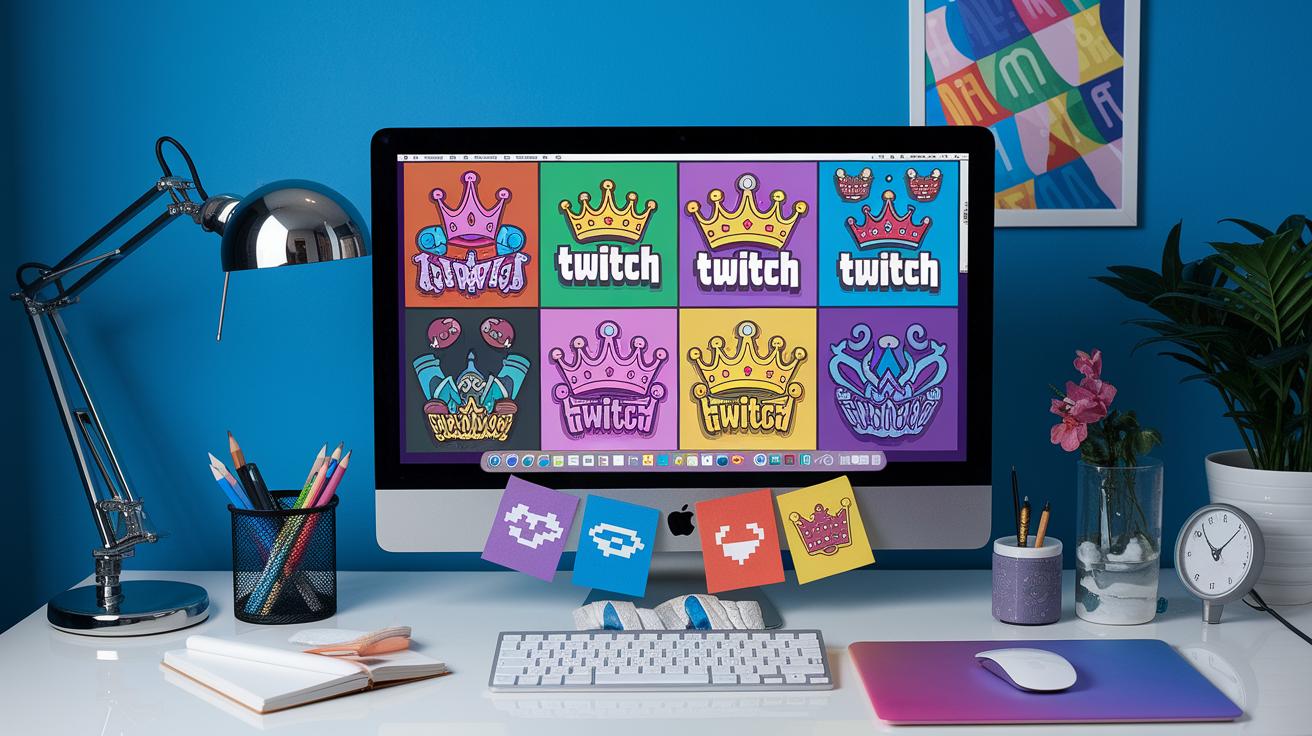
Placeit’s Twitch Alert Box Maker gives you slick, ready-to-use templates. You can pick from bright color schemes, eye-catching alert graphics, and pre-set layouts. It’s super quick, thanks to its drag-and-drop design. Picture selecting a template with fun icons, like crowns or magic potions, then adding your text and tweaking elements until it feels like your channel’s signature move. Epic, right?
But if you love getting hands-on, check out widget tools in Streamlabs or StreamElements. These let you edit alerts directly from your dashboard and show a live preview of your custom overlay. Whether you’re setting up follower alerts or cheering notifications, you can adjust every detail. It’s like fine-tuning your controller before a big match!
| Platform | Main Features |
|---|---|
| Placeit | Ready-made templates, drag-and-drop editing, downloadable file exports |
| Streamlabs/StreamElements | Live dashboard editing, real-time preview, direct integration with broadcasting software |
So, if you like a quick and tidy setup, Placeit’s tool might be perfect for you. But if you enjoy live tweaking and a custom feel, then the widget-based editors are more your speed. Either way, you’re on your way to leveling up your stream’s look!
Customizing Twitch Stream Alerts: Energize Your Live Show
First, log in to Twitch and jump into your Creator Dashboard. Then, head to your channel settings and click on "Alerts." It’s as simple as selecting a widget for follower alerts and tweaking its look, text, and sound, almost like customizing your in-game avatar.
Next, do the same for subscription and cheering alerts. You can even set up variations for different tip levels (think of it like unlocking special moves). Tinker with delay settings, approvals, and filters to get everything just the way you like it.
Now, copy the Browser Source URL and add it to OBS as a browser source. Finally, give your alerts a test run on a private or test stream. This way, your setup works like a well-planned strategy, ensuring your audience feels that adrenaline rush every time an alert pops off.
Imagine a follower alert that flies onto the screen with rapid color bursts and a cool sound, like scoring a clutch win in your favorite game. Each alert, whether it's for a subscription or cheering, adds its own unique flavor to your stream, keeping the vibe fresh and engaging.
Before you go live, double-check every detail. Small adjustments like alert delay and profanity filters may seem minor, but they really polish your overall performance. Get ready to thrill your viewers with alerts that feel as dynamic and exciting as a game-winning play.
Designing unique and branded Twitch stream alerts

When you're setting up your Twitch alerts, it's all about matching every detail to your channel's vibe. Instead of using regular icons, swap them out for custom drawings that capture your stream's energy.
Fun fact: a small tweak in your design boosted viewer engagement by 30% once. Just goes to show that little changes can pack a punch.
Try playing around with letter spacing and different font weights to give your alerts a personal spark. And maybe add a touch of animation, a little glow on your custom icon during a hot gameplay moment can really add that extra dash of energy.
Test your new designs with your overall overlay. When everything clicks, your alerts become a natural extension of your channel’s style.
optimizing stream overlays for esports broadcasts
Advanced CSS animations for Twitch stream alerts
Let's kick things off by setting up the HTML for your Twitch alerts. First, wrap your alert in a div with a class like "alert-container" and add inner spans for your icon and text. This simple structure lets you target each part easily when styling. For example:
<div class="alert-container">
  <span class="alert-icon"></span>
  <span class="alert-text">New follower!</span>
</div>
This basic setup gives you neat spaces to style the background, fonts, and layout.
Next up, bring your alert to life with CSS keyframe animations. Try a smooth fade-in effect with this code:
@keyframes fadeIn {
  from { opacity: 0; }
  to { opacity: 1; }
}
.alert-container {
  animation: fadeIn 0.5s ease-out;
}
You can also mix it up with other animations. For a slide-up effect, consider:
@keyframes slideUp {
  from { transform: translateY(20px); opacity: 0; }
  to { transform: translateY(0); opacity: 1; }
}
Or add a little extra zing with a pulse:
@keyframes pulse {
  0%, 100% { transform: scale(1); }
  50% { transform: scale(1.1); }
}
These animations can work alone or together to create more dynamic and exciting motion.
Finally, put your CSS to work by embedding it in your alert widget. In platforms like Streamlabs or StreamElements, find the Custom CSS tab in your widget settings. Then, paste in your animations and style rules. Save and test your stream to see your alert come alive, adding that extra burst of energy to your broadcast.
Troubleshooting common issues with Twitch stream alerts customization

When your alerts don't work right, check your notification design tips. Sometimes a delay makes notifications show up too late, kind of like when your stream lags.
Handler approvals and profanity filters might also stop interactive alerts from working. Look over these settings to make sure nothing gets blocked by mistake. And if you're using Global Editing (Apply to All Alerts), it could erase your custom tweaks, so check each alert separately.
Sound effects can also mess up if the Browser Source URL has a typo or is missing the HTTPS prefix (that secure code you need). Double-check your URL so both sounds and visuals trigger just right.
Another common hiccup is messing up the Alert Variations. Wrong donation thresholds, like entering letters instead of numbers, can break viewer alerts. Make sure you enter the right numbers so everything stays consistent.
Fix these issues, and your alert system will run as smoothly as landing the perfect combo move.
Final Words
In the action, we broke down the art of customizing twitch stream alerts, from setting up basic edits to layering in CSS animations for a slick, branded look. We ran through step-by-step methods, from tweaking visuals to syncing these changes in OBS, so every alert pops just right on stream.
It all ties back to keeping viewer engagement high and your channel style on point. Give these tips a try, and watch your alerts level up your gameplay vibes.
FAQ
How do I customize Twitch alerts for free?
The process for customizing Twitch alerts for free uses online tools and widget editors. You can adjust graphics, text, and sound to make the alerts match your channel’s vibe.
How do I change stream notifications on Twitch?
The way to change stream notifications on Twitch involves editing settings in your Creator Dashboard. You update the alert preferences, sounds, and display options to suit your style.
How do I change my Twitch alert volume?
Adjusting the Twitch alert volume means modifying the sound settings for each alert. This lets you control the audio level so that it complements your stream without overwhelming your viewers.
How do I add widgets to my Twitch stream?
Adding widgets to your Twitch stream is done by placing an Alert Box widget from platforms like Streamlabs into OBS. You copy the browser source URL and insert it in OBS for live alerts.
How to create stream overlays?
Creating stream overlays starts with designing a visual layout using tools like Placeit or OBS. Overlays incorporate custom alerts and graphics to boost viewer engagement and brand cohesion.