
Ever thought about turning your live stream chaos into a killer highlight reel?
Imagine cutting a 10-hour editing grind by 70% with just a few smart tweaks.
In this guide, I'll show you how to grab your best gaming moments, mark important timecodes with AI (a tool that turns spoken words into text), and stitch clips together into one epic library.
This streamlined method means you can spend more time playing and less time editing. Every win will feel even more epic.
Streamlined Workflow for Assembling Gaming Stream Highlights Library
When you’re gearing up to build your gaming highlight reel, your setup is everything. Start by capturing your gameplay on popular streaming platforms so you get clear, top-notch footage from the start.
After your live session, the work kicks in. A long video, say, 5 hours, might normally take around 10 hours to edit by hand. But here’s a cool trick: using an AI transcript method can cut that time by about 70%. That means less boring editing and more game time.
First, generate a transcript with tools like Davinci Resolve or Adobe Premiere. They automatically add timecodes for every moment. Imagine reading, “At 1:23:45, that surprise move lit up the match.” It makes spotting key moments a breeze.
Next, convert these transcripts into a highlight reel by picking segments near those timecodes, and add a 5-second buffer before and after. This gives a little extra context to keep the action flowing smoothly. Then, stitch these clips together with ffmpeg, kind of like snapping your best plays into one epic montage.
Lastly, consider having a buddy review the stream live to mark the standout moments. Their fresh perspective might catch that burst of excitement software can miss. Together, these steps create a streamlined and smart workflow for assembling an awesome collection of gaming highlights, ready to share with your crew.
Selecting and Configuring Tools for Building Your Highlights Library
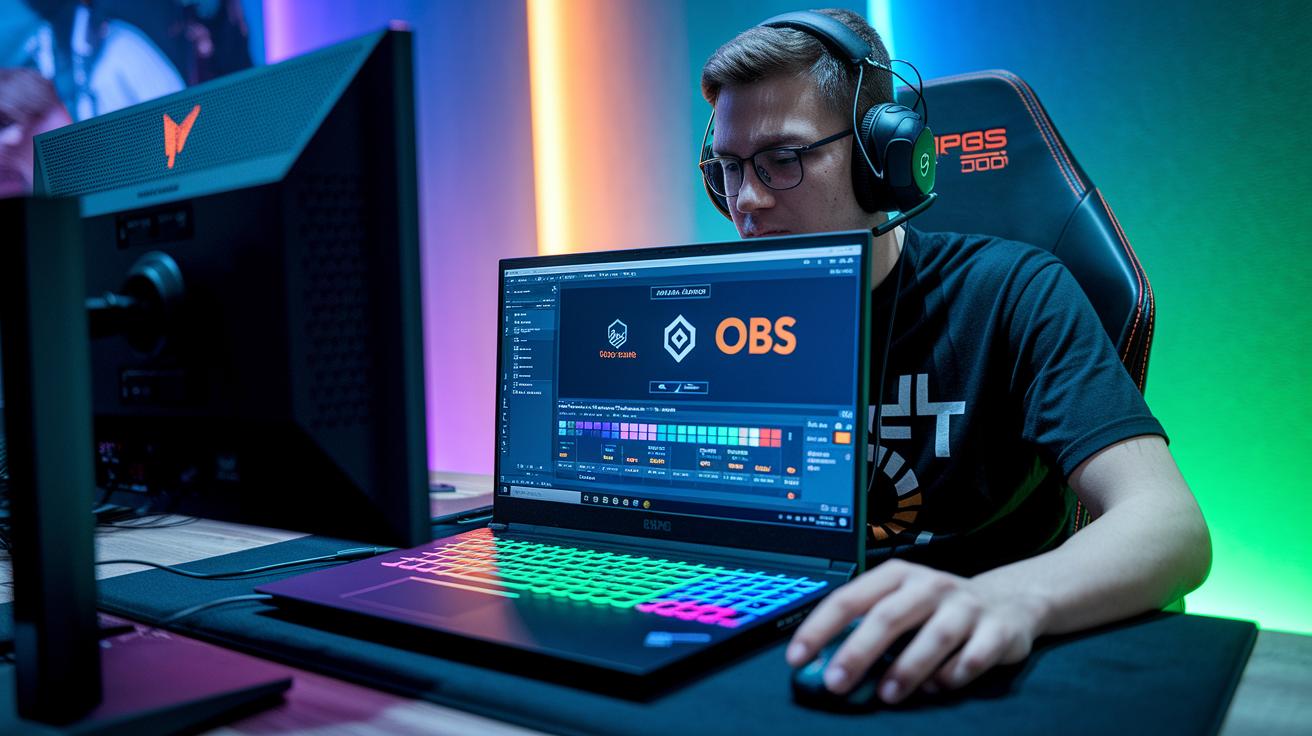
When it comes to capturing your best gaming moments, pick the right tool that fits your setup. OBS Studio gives you total control over settings, Nvidia ShadowPlay (which keeps your game running smooth for Nvidia users) minimizes lag, and Twitch’s Clip tool is great for quick, on-stream recording. Ever had that perfect win captured without any slowdown? That’s what Nvidia ShadowPlay can do for you.
Eklipse really stands out by working with over 300 games. It even offers a free version with no watermark if you’re starting out, or you can go premium for $19.99 a month or $149.99 a year. It makes editing a breeze by turning long game sessions into focused clips with just one tap.
Using time-coded transcripts from DaVinci Resolve or Adobe Premiere helps you lock in those key moments without any fuss. Every important phrase gets tagged so you can trim your clips right where you need them.
Then, ffmpeg steps in to automatically stitch your clips together. It handles buffer settings for those smooth transitions we all love.
| Category | Tool Options & Rationale |
|---|---|
| Capture |
|
| AI Edit |
|
| Transcript Generation |
|
| Clip Stitching |
|
To sum it up, choose your capture tool based on your rig and what you need performance-wise. Use Eklipse for quick, AI-powered edits with easy pricing options. Mark your best moments with transcripts, then let ffmpeg take care of stitching the clips together. Happy gaming!
Implementing Advanced Clip Curation Techniques in Your Gaming Highlights Repository

We've just leveled up our clip curation by adding a cool feature called HypeScore. It's a smart, AI-based rating from 1 to 100 that instantly picks out the most epic plays. We built it on top of the transcript details and manual timestamp checks we used before.
This HypeScore really ups the game. Imagine a clip scoring 85 because a game-changing play, like that sniper shot at 18:03, flipped the match. It helps you zero in on the moments that truly matter.
- We let AI assign a HypeScore to highlight key game moments.
- We mix in old-school transcript details and manual checks for extra accuracy.
- We use the score to quickly sort and focus on only the standout highlights.
Structuring a Dynamic Gaming Highlights Database for Efficient Access
Begin by picking a clear way to name every highlight. Try a format like [Game][YYYYMMDD][ClipID]. For instance, if you grab a cool moment from League of Legends on August 15, 2023, name it LoL_20230815_001. This makes it super easy to track down your favorite clips later.
Next, set up a metadata system that covers the basics. Note down key details such as Title (what the clip is about), Game (which game it comes from), Date (when it happened), Duration (how long it runs), HypeScore (a number from 1 to 100 to show excitement, kind of like your hype meter), and Tags (keywords that capture the vibe). These details help you keep everything neat and searchable.
Now, think about where you'll store your clips. You can use a local drive if you like keeping files close, a NAS (Network Attached Storage) for shared access and a bit of extra security, or even cloud storage so you can grab your clips from anywhere. There’s also the option to use AI-generated tags to save time, but don’t forget to add your own touch to catch all the gaming details.
| Field | Description |
|---|---|
| Title | Clip’s descriptive name |
| Game | Name of the game |
| Date | Recording date (YYYY-MM-DD) |
| Duration | Clip length |
| HypeScore | Rating from 1 to 100 |
| Tags | Keywords related to the clip |
Using this structure makes your clips easier to store, find, and backup. Plus, you can hook it up with digital asset management tools to level up your clip organization. Enjoy capturing and sharing every epic play!
Integrating Highlights Library with Streaming and Social Platforms
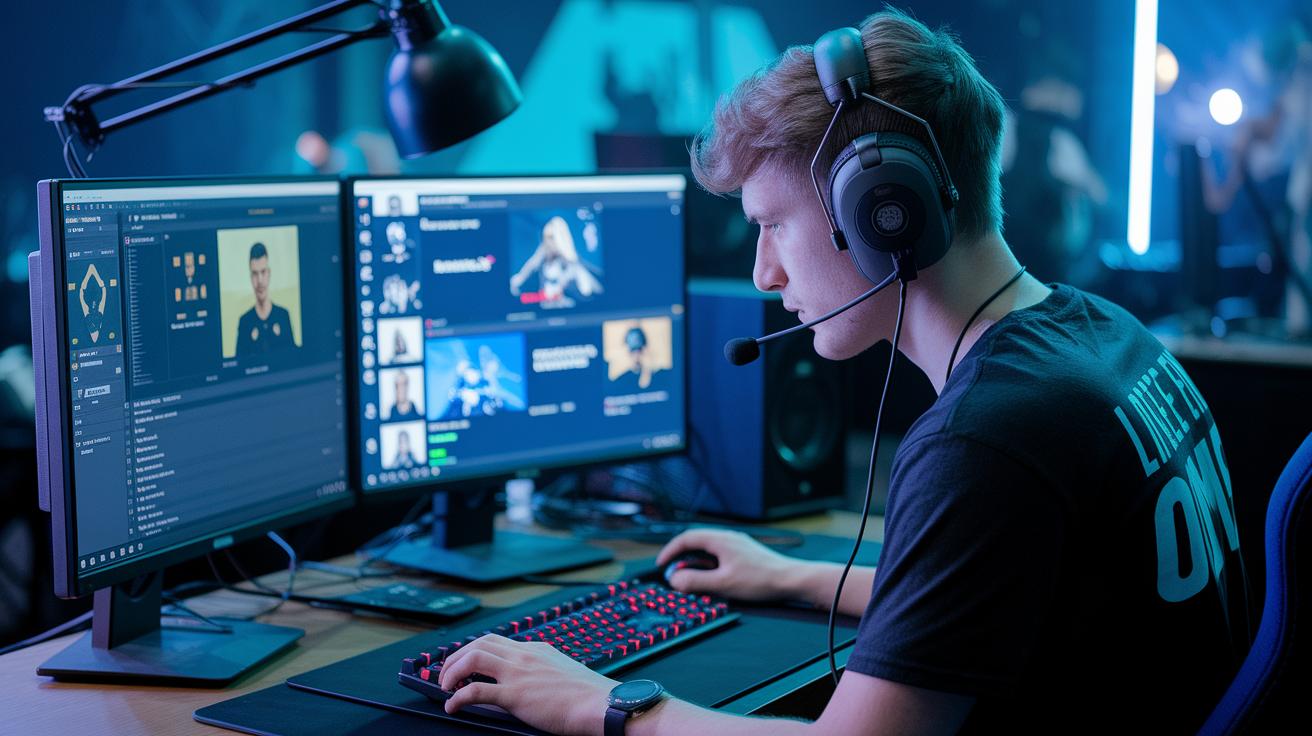
Linking your highlights library to your social and streaming channels makes sharing your top game clips super easy. For example, Twitch Highlights pulls your saved clips right to the front, and YouTube chapters chop up long streams into clear parts so fans can jump straight into the best moments.
Facebook Reels and TikTok let you create quick, fun snippets that grab attention fast. And with Kick, viewers can watch your clips instantly without waiting for downloads.
Eklipse takes care of scheduling your posts across different platforms, which means fewer manual uploads and more time to game. The no-download sharing feature keeps your workflow simple while getting your clips to fans without any extra steps.
As more people watch these clips, new ways to earn money pop up naturally. Automated linking from Twitch to TikTok and other platforms keeps your highlights library fresh and engaging. In short, this setup boosts your online presence and even helps turn awesome gameplay moments into extra revenue.
Automating the Pipeline: AI and Scripts for Streamlined Library Updates
Transcript-Based Clip Automation
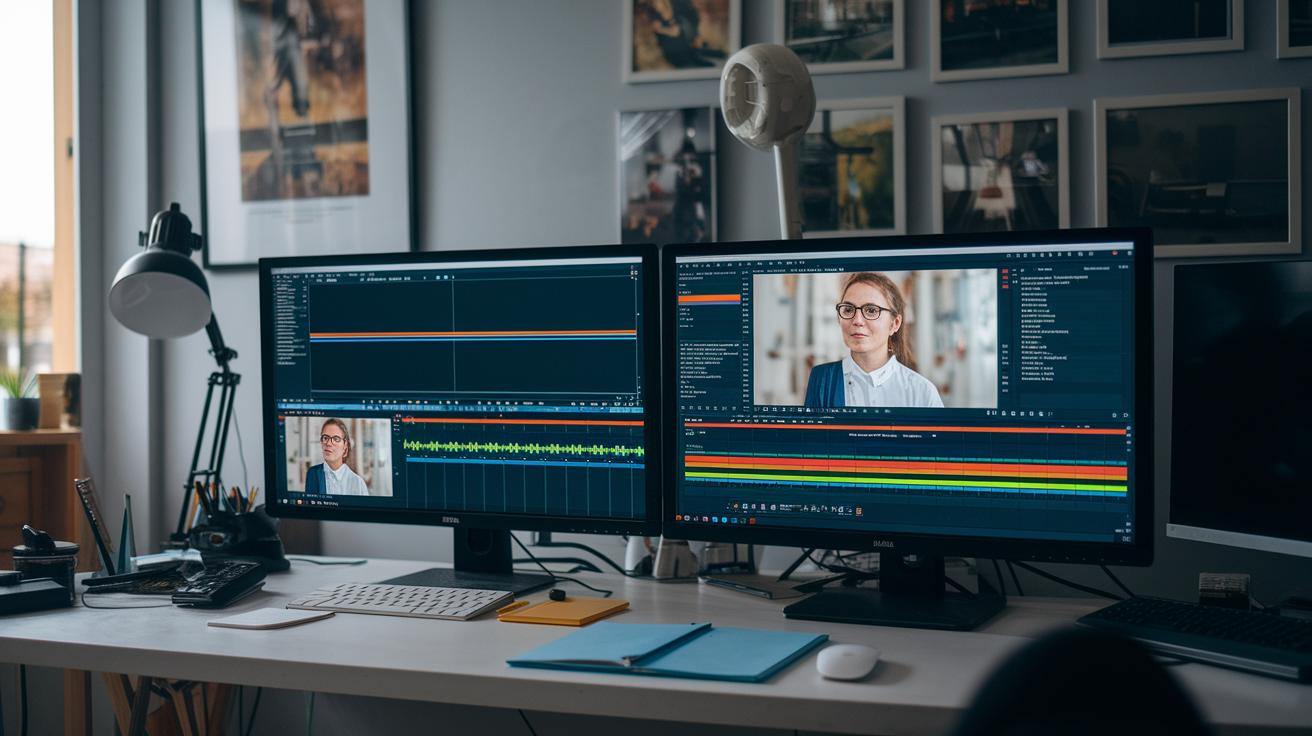
Imagine using cool transcription tools built into Resolve or Premiere APIs that jot down every word with a time stamp. These transcripts capture every moment, like "At 00:15:32, a game-changing play unfolded", automatically flagging epic clips for you. And yep, we cover more of that magic in our Streamlined Workflow section.
ffmpeg Scripting for Batch Processing
We use scripted commands with ffmpeg and Edit Decision Lists to handle batches in a snap. They check your file order, add a buffer of around 5 seconds before and after important parts, and then auto-name everything. Think of it as turning raw footage into neatly tagged clips like "Match_20230815_001." This smart step cuts out extra work by syncing perfectly with our advanced clip curation tricks.
AI-Driven Segment Analysis
Our setup even teams ChatGPT with tools like Eklipse to give each segment a HypeScore (from 1 to 100) along with helpful metadata. This means cool features like auto-captions, voice-command clipping, and even sticker insertion are all built right in. It’s all about keeping your library up-to-date without the usual hassle.
Maintaining and Scaling Your Gaming Highlights Library Over Time
Keep your collection tidy by backing up your clips every week. That way, you won’t lose any of your hard-fought moments. Label your files with version numbers (like GameName_20230815_v2) to track every update and change. And if a clip is no longer in the spotlight, move it to an external drive so you free up space while keeping your library safe.
Every few months, take a moment to check your metadata. Look over details like Title, Game, Date, Duration, and Tags. This quick review helps you see if you need to adjust your tagging, kind of like tweaking your loadout when new game patches drop.
- Back up your collection weekly.
- Use versioned filenames for every update.
- Store old clips on external drives for extra room.
- Review your metadata every quarter.
Following these simple steps makes sure your highlight library stays organized and easy to search. Little routines like these add up over time, keeping your library as smooth and impressive as your best gaming plays.
Final Words
In the action, the article broke down the process to build a library of gaming stream highlights. We explored each step, from capturing long VODs to using AI to cut manual work and organizing clips with smart tools. Every section offered handy tips to make editing and sharing your best moments effortless.
The guide showed how to keep your clips fresh and easy to find. This roadmap not only helps improve your gameplay but also turns epic highlights into must-watch content. Enjoy the process and level up!