

Ever wonder if you really need bulky editing software to capture your best game moments? Lightweight video editors can give your older rig a fast boost, making your stream highlights look epic.
These tools let you clip and trim your plays in a flash. They smooth out your clips so you stay in the gaming zone without any lag. In short, you can focus on the thrill of the game while your setup stays stress-free.
Leading Lightweight Video Editors for Stream Highlights
If you're a streamer working with basic hardware, these lightweight video editors are your best buddy. They keep your system stress-free while letting you capture and edit your killer moments fast. With low strain on your setup, you can focus on the rush of the game without worrying about lag when editing on the fly.
For streamers with older computers or limited memory, these editors pack all the must-have features without demanding too much from your system. They let you cut and combine clips quickly, so you can save that surge of adrenaline from your epic plays without any drag.
- VideoProc Vlogger: Uses your GPU (the part of your computer that handles images) to slash export times.
- OpenShot: Provides an open-source, no-watermark, multi-track workflow.
- Shotcut: Gives you swappable panels and solid green-screen support.
- Lightworks: Offers beginner-friendly visual effects (VFX) and smart timeline caching to speed up your edits.
- VideoPad: Sports an easy drag-and-drop setup that makes clipping together scenes a breeze.
- CapCut: Focuses on simple, TikTok-style cuts for super quick edits.
These tools nail the balance between cutting-edge editing and low system load. They let you quickly trim, crop, and polish your videos, perfect for building epic montages or speedy reels. Whether you're chopping out the dull parts or stitching together your best stream highlights, these editors deliver a fast, smooth experience just right for live-stream capture.
Feature Comparison of Slim Clip Cutters and Speedy Broadcast Slicers
Picking the right video editor is a big deal when you’re crafting your stream highlights. You need a tool that can trim and crop quickly but also pack in some cool extras. Some editors have neat built-in AI features, like taking out extra retakes or fixing your eye-contact, which makes the whole editing process feel smoother. Others rely on tricks like hardware acceleration (using your computer's extra muscle to work faster) or proxy editing (editing using lower-quality files to keep things snappy). Choosing one that fits your system can really cut down on lag and keep your workflow tight.
| Editor | System Load | Key Tools | Pricing |
|---|---|---|---|
| VideoProc Vlogger | Low due to GPU acceleration | Hardware acceleration, efficient trimming | Mid-range |
| OpenShot | Moderate, leverages FFmpeg | Open-source workflow, fast exports | Free |
| Shotcut | Low with proxy editing | Proxy editing, customizable panels | Free |
| Lightworks | Light thanks to timeline caching | Multi-format caching, beginner-friendly VFX | Subscription-based |
Each editor brings its own vibe depending on your style and system. VideoProc Vlogger is a solid choice if you’re after fast exports without pushing your hardware too hard, plus, its AI smarts are a neat bonus. If you’re into free, open-source routines, OpenShot might be your jam, racing through exports with FFmpeg. On the flip side, Shotcut shines if you want smooth proxy editing and flexible controls. And then there’s Lightworks, which keeps things light with timeline caching and offers beginner-friendly visual effects. Picking the right tool means you can focus on capturing those epic moments and making your stream highlights shine.
System Requirements and Performance Benchmarks for Rapid Montage Builders

VideoProc Vlogger runs best on systems with a decent GPU. A good graphics card can slash export time by 40%, so even older computers can whip up a video quickly. OpenShot uses FFmpeg (a free tool for video processing) to export 1080p clips in under 2 minutes on most dual-core processors. It’s a great pick if you’re not rocking a high-end CPU. Shotcut has a neat proxy editing feature that keeps playback smooth even on machines with only 4 GB of RAM, making it perfect for less powerful systems. And then there’s Lightworks, which uses timeline caching to cut out half the lag, helping those setups that might not look super powerful at first.
When it comes to performance, these benchmarks speak for themselves. VideoProc Vlogger’s GPU boost means less waiting and more time nailing those epic game moments. OpenShot’s FFmpeg foundation shows off its speed, letting you drop a quality clip almost in a flash. Shotcut’s proxy editing lowers the strain on smaller memory systems, so your editing flows without your computer begging for a break. And Lightworks’s timeline caching smartly handles busy timelines on lighter hardware, chopping overall render times. These insights help you pick the perfect tool to build rapid montages while keeping lag at bay and leveraging hardware acceleration wherever you can.
Download Sizes and OS Support for Portable Showreel Assemblers
For hardware streamers, lightweight apps make all the difference. These portable tools download fast and take up barely any space, so you can edit your gaming highlights without any fuss. They clearly show you the installation sizes and work on multiple operating systems, letting you pick the best match whether you're on desktop or mobile.
- VideoProc Vlogger: This desktop app works on Windows and Mac and comes with a 180 MB installer. It also uses GPU acceleration (your graphics card helps process videos faster).
- OpenShot: Available on Windows, Mac, and Linux, this tool fits into a 150 MB installer. Its open-source nature means fast exports and a reliable editing process.
- Shotcut: Running on Windows, Mac, and Linux, it uses a 220 MB installer and offers proxy editing (lower-resolution clips for smoother editing) plus customizable panels.
- Lightworks: Ideal for keeping the load light on your system, this desktop editor is available for Windows, Mac, and Linux with just a 100 MB installer.
- VideoPad: A mobile option for iOS and Android, sized at 50 MB, known for its simple drag-and-drop style that makes editing a breeze.
- CapCut: Perfect if you're into quick, TikTok-style edits, this mobile video cutter works on iOS and Android and measures in at 80 MB.
Knowing these details can save you time and keep your device humming along nicely. Choose the tool that fits your system and editing vibe, and spend more time making epic stream highlights.
Step-by-Step Guide to Highlight Editing with Quick Content Montage Makers
Editing your stream highlights is a bit like dropping into your favorite game, each move counts. Imagine piecing together a mini movie where every clip shows off your best plays. Whether you’re dragging clips into a timeline or using smart AI to trim the fat (that means cutting unwanted parts automatically), having a clear plan keeps things moving fast.
Start by adding all your gameplay and stream clips into your editor. Fun fact: some editors let you drag whole folders straight into the timeline, which saves a ton of time. Then, watch your footage closely and mark those game-changing moments, you know, the ones that give you that rush when you nail a perfect shot.
Next, use a split tool to trim away the boring parts, leaving only the epic seconds that really show off your skills. After that, spice things up by adding smooth transitions and cool text or graphics to emphasize the most important plays.
Don’t forget to tweak the sound, too. Adjust your audio levels so that your gameplay and commentary blend perfectly, making every shout and soundtrack hit feel just right. Finally, choose an export preset that's tailor-made for platforms like Twitch or YouTube, and then share your video with the world.
For the best export results, aim for a 1080p resolution to keep your visuals sharp, and use a bitrate of around 8-12 Mbps. Formats like MP4 are great because they balance quality with file size, so your edits load quickly and look awesome on any device.
Cloud-Based Snippet Trimmers versus Offline Content Arrangers
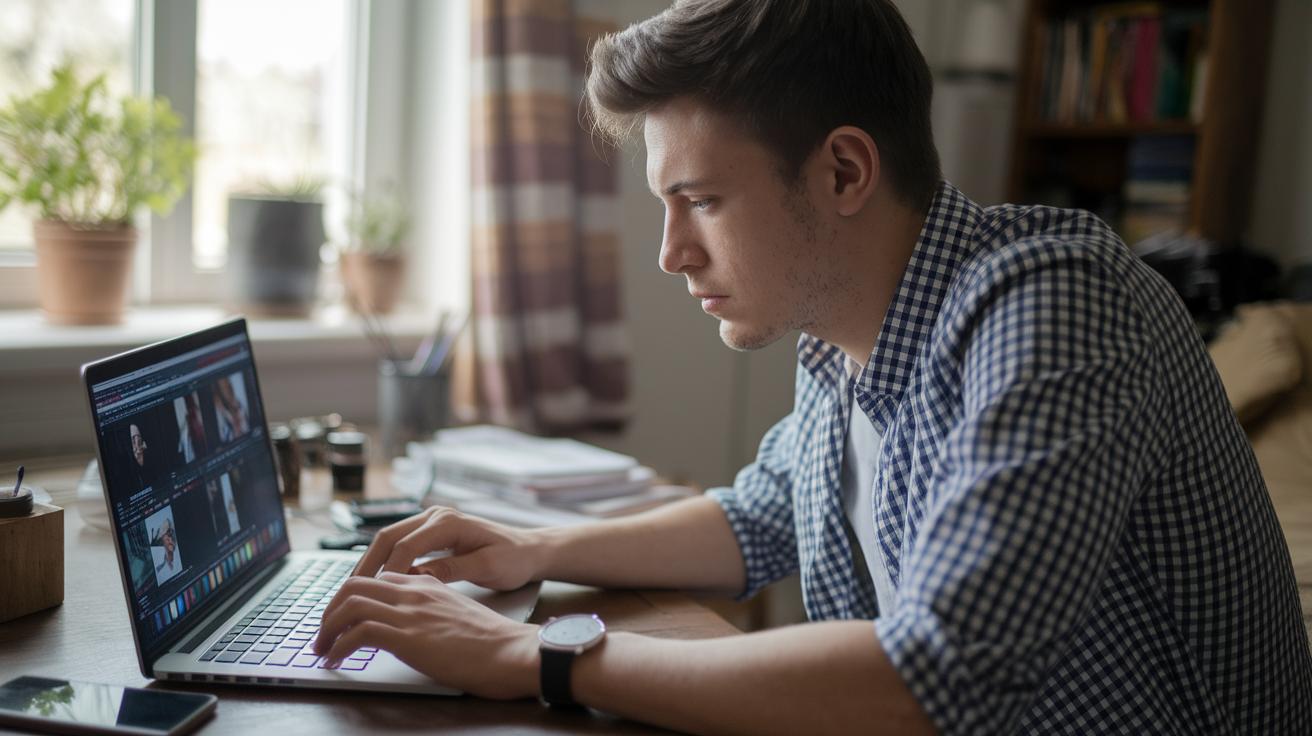
When you're itching to polish your stream highlights on the fly, choosing between a cloud-based trimmer and an offline arranger can really save you time and computer power. Cloud editors make it a breeze to work with your crew, they come with built-in media libraries and smart AI tools (basically, software that auto-cuts unwanted clips) to speed things up. But they also lean a lot on your internet speed and upload limits, which can slow you down sometimes. On the other hand, offline apps install right on your computer, so they run fine without any internet. Even if your rig isn’t top-of-the-line, you still get steady performance.
| Pros | Description |
|---|---|
| Team Collaboration | Share thoughts and feedback live with your team. |
| Built-In Media | Access a ready stash of royalty-free visuals. |
| Smart AI Trimming | Automatically snip out the extra footage. |
| Anywhere Access | Edit on any device as long as you have internet. |
| Cons | Description |
|---|---|
| Internet Reliance | Needs steady, fast uploads or things can lag. |
| Latency Issues | Lag can break your editing flow. |
| File Limits | Big videos might hit upload restrictions. |
| Performance Variability | Your experience can bounce with connection quality. |
If you’ve got a solid internet setup and really dig team features and built-in resources, a cloud-based editor might be your best bet. But if you're running on older hardware or dealing with spotty connections, offline arrangers offer a smooth, lag-free experience no matter what. In truth, it all comes down to whether you lean towards easy access and collaboration or steady, reliable performance on your own machine.
Final Words
In the action of crafting your stream highlights, we've taken a deep look at top video editors. We ran through features like low-resource design, quick trimming, and speedy exports, covering everything from system benchmarks to easy drag-and-drop workflows.
These lightweight video editors for stream highlights help you get more done with minimal fuss. They offer solid performance, friendly interfaces, and clear paths to better edits. Enjoy your newfound editing superpowers and keep pushing your skills to the next level.
FAQ
Q: What are some lightweight video editors for stream highlights on Reddit and GitHub?
A: This question means lightweight editors backed by community favorites. They’re often simple tools shared on platforms like Reddit and GitHub that let you trim and boost stream highlights without taxing your system.
Q: How can I find the best free lightweight video editors for stream highlights?
A: The inquiry asks for free, low-resource tools ideal for editing stream highlights. These programs let you make quick cuts and adjustments without expensive hardware or subscription fees.
Q: What is the lightest video editor available?
A: The query refers to video editors with minimal resource requirements. The lightest options use very little system power while still providing basic editing functions, making them perfect for modest setups.
Q: What video editors do most streamers use for editing their clips?
A: The question rephrases which free programs many streamers pick. Many opt for user-friendly software like OpenShot, Shotcut, or Lightworks because they balance ease of use and low system demands.
Q: Which video editor works best for soccer highlights?
A: This inquiry means editors that can easily crop and arrange fast-paced sports clips. While many can adapt, some users find programs like OpenShot or Shotcut effective for capturing the energy of soccer highlights.
Q: What are some of the easiest video editors to use?
A: The question suggests a search for programs with a straightforward interface. Editors such as CapCut or VSDC Free Video Editor often feature drag-and-drop timelines and clear controls that are beginner-friendly.
Q: How do Lightworks, Shotcut, DaVinci Resolve, and CapCut compare for stream video editing?
A: The query bundles several names and asks how they fare. Each offers distinct features—Lightworks for VFX, Shotcut for green-screen support, DaVinci Resolve for color grading, and CapCut for quick, social media-ready edits.
Q: What should I consider when downloading a lightweight video editor for stream highlights?
A: This question points to factors like download size, OS compatibility, and system load. Look for tools that clearly list minimal requirements so you can enjoy smooth performance on your hardware.