
Ever thought streaming your Xbox on YouTube might be a pain? It could be easier than you expect. This guide walks you through setting up your stream, step by step.
You can go with the Xbox app for a simpler setup or choose a capture card for crisp, clear visuals (that’s a little piece of tech that grabs your game footage). Either way, we’ve got you covered with the basics.
Soon enough, you’ll be sharing your game moments live with hardly any fuss. Ready to turn your play into a live show? Let’s get you streaming!
Hands-On Tutorial: Stream Xbox to YouTube in Minutes
Ready to jump into live streaming? This guide will help you set up your Xbox stream in just a few minutes. Whether you go with the affordable Xbox app or choose a capture card for crisp, lossless recording (that means no quality loss), the process stays simple for everyone, whether you're a seasoned pro or just starting out.
First, make sure your Xbox and PC share the same network. A wired Ethernet connection is best if you want a smooth, lag-free stream. Now, let’s break it down:
- Gather your hardware and confirm your network is good.
- Install the Xbox app on your Windows PC.
- Connect your YouTube channel and grab your stream key.
- Set up OBS Studio (or your chosen streaming software) by adding the Xbox app as your source.
- Tweak your video and audio settings until they feel just right.
- Hit start and go live.
- Keep an eye on performance and chat using the YouTube Live Dashboard.
Once these steps are done, you'll be all set for a stable streaming session. Using a wired connection helps keep your gameplay super smooth, and you can choose between the wireless simplicity of the Xbox app or a high-quality capture card (starting at about 59€) to boost your stream's quality. Take a quick test run to check all settings in OBS Studio. Soon, you'll be sharing your best game moments live on YouTube and chatting with viewers while you play. Isn't that awesome?
Essential Equipment and Software for Xbox-to-YouTube Streaming
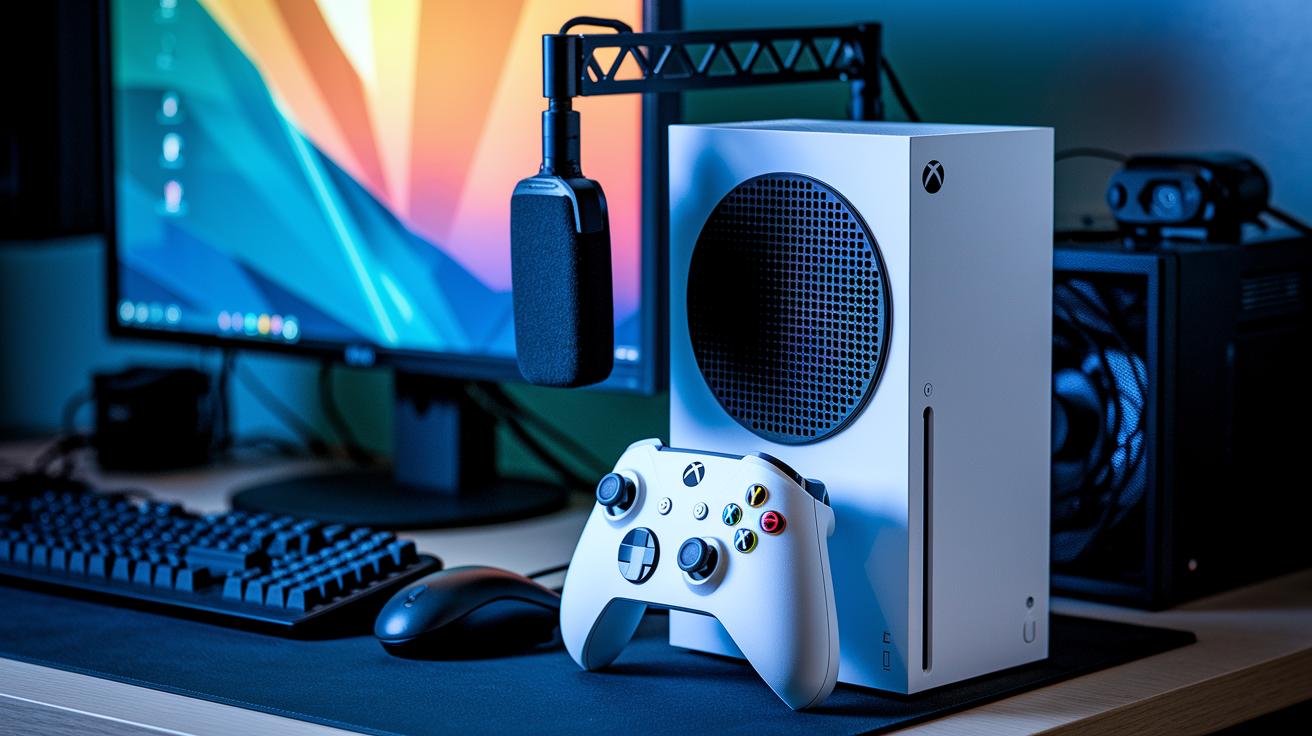
Start with your Xbox as the main game hub and use a reliable PC or streaming computer to handle encoding and broadcast. Using a wired Ethernet connection is best for keeping lag low and your stream smooth. This setup makes sure every gaming moment is captured perfectly.
If you're chasing high-quality visuals, a capture card is a smart pick. It connects your Xbox's HDMI output straight to your PC, giving you slick visuals without losing detail. Add an external mic to catch your voice clearly and think about a webcam if you want to chat face-to-face with your fans.
Then, use streaming software like OBS Studio or Streamlabs to manage your stream (these are popular tools among gamers for running broadcasts). And don't forget to verify your YouTube channel for live events before you go live. With these tools, you'll be ready to deliver a pro-level stream that truly impresses your viewers.
| Equipment | Purpose |
|---|---|
| Xbox Console | Main game hub |
| PC / Streaming Computer | Handles encoding and broadcasting |
| Capture Card | Grabs lossless video directly |
| Microphone | Delivers clear commentary |
| OBS Studio / Streamlabs | Stream management software |
Wireless Streaming: Using the Xbox App to Broadcast to YouTube
Ever wanted to stream your Xbox gameplay live on YouTube without all the extra gear? You can now send your Xbox feed straight to your PC using the Xbox app along with OBS Studio. It works best when both devices are on the same home network, and it means you won't need to buy a capture card.
Enabling Game Streaming on Xbox
First, open your Xbox settings. Go to Devices & Connections and then select Game Streaming. Flip the switch to enable streaming. This simple step lets your console send its video to your PC over Wi-Fi, making your setup both flexible and budget-friendly. Think of it like inviting your console to a party; once it's on, you're all set for a wireless connection.
Configuring OBS Studio for Xbox Live Input
Next, fire up OBS Studio on your PC. Add a new source by choosing Window Capture, and then pick the Xbox app window to capture your live gameplay. After that, head into OBS's Stream settings and paste your YouTube live stream key. This key links OBS with your YouTube channel so your gameplay goes live. You can also tweak settings like the resolution to match your Xbox output, it's like selecting the perfect game mode for a smooth play.
Starting the YouTube Broadcast
When everything’s ready, click "Start streaming" in OBS Studio. Then check your YouTube Live Dashboard to see your stream come alive. Keep an eye on things like frame rate and stream quality to make sure everything runs smoothly. If you notice any hiccups, make quick adjustments, just like reacting during an intense match. And don’t forget to watch the chat to interact with your viewers, keeping the streaming session fun and engaging.
Professional Quality: Capture Card Setup for Xbox-to-YouTube Streams
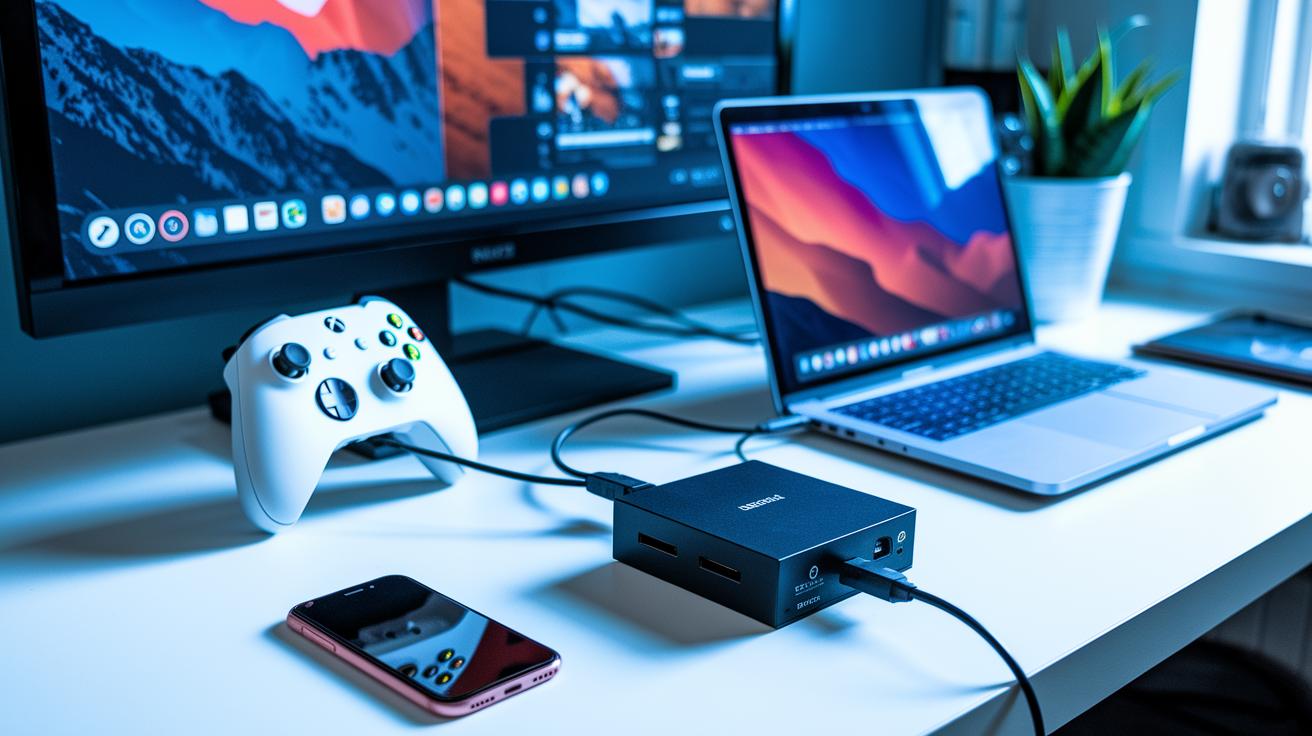
Using a capture card like the Elgato HD60 S (it costs around 59€ or more) totally ups your streaming game. It lets you record without losing any detail and supports 1080p60 so your gameplay looks crisp. This setup cuts down on lag and keeps your stream looking smooth and pro.
Plus, a capture card gives you a lot more control over your stream. You connect your Xbox with an HDMI cable into the card, then hook the card up to your PC with a USB cable. This win-win setup is a favorite for streamers who want their content to really stand out.
Here’s how you can get started:
- Connect the HDMI cable from your Xbox to the capture card’s input.
- Hook the capture card up to your PC using a USB cable.
- Install the drivers and software that come with the card.
- Launch OBS or Streamlabs and add the capture card as your video source.
- Pick your resolution (like 1080p60) in the software.
- Enter your YouTube stream key and hit broadcast.
Following these steps gives you a stable setup that captures every epic moment in high definition. With a capture card, your stream runs smoothly, letting every intense play shine through while keeping your viewers on the edge of their seats.
Optimizing YouTube Live Settings for Xbox Streams
When you're streaming your Xbox gameplay on YouTube, picking the right video bitrate and resolution is key. For a 1080p30 stream, aim for a bitrate between 4500 and 6000 Kbps. For example, setting it to around 5000 Kbps gives you a great mix of clear visuals and smooth performance, kind of like gearing up right before a big match.
When it comes to encoder options, you have two paths: x264 or NVENC. x264 uses your CPU to process the video, which means fantastic quality but can put a strain on your system. Meanwhile, NVENC taps into your GPU power, freeing your CPU to focus on other tasks. Keeping your keyframe interval at 2 seconds helps maintain a steady flow in your stream, like the regular beat of your favorite game soundtrack.
Switching your YouTube Dashboard to low-latency mode is a smart move if you want real-time chat with your viewers. Plus, enabling the DVR option lets your audience rewind and re-watch cool moments without interrupting your live broadcast.
For audio, go with a bitrate of 128 Kbps. This setting makes sure your commentary stays clear and sharp without eating up too much bandwidth. And don’t forget to keep an eye on your chat via the YouTube Live Dashboard so you can quickly jump in and share the banter, just like trading tips with your team after a clutch play.
Troubleshooting Common Issues in Xbox-to-YouTube Streaming
Ever been in the middle of an epic gameplay session and suddenly your stream starts glitching? Frames drop, the screen blacks out, or the audio just doesn’t match up with your action. It’s super annoying, right? Usually these hiccups come from a shaky network or old software and drivers. Try doing a quick private stream test on YouTube to catch any issues early. And hey, updating your console and PC can really cut down on these pesky bugs.
Sometimes, the capture card might not connect right, or OBS might have its settings mixed up and drop your feed. In these cases, try re-adding your sources in OBS and double-check those settings. A few quick fixes can boost your stream’s performance, like switching to a wired connection or tweaking some technical settings.
Here are a few handy tips:
| Tip | Action |
|---|---|
| Use Ethernet | Connect your console or PC using a cable instead of Wi-Fi. |
| Lower Output Bitrate | Reduce by 500–1000 Kbps to ease the load. |
| Update Drivers | Make sure all your console and PC drivers are the latest version. |
| YouTube Stream Key | Verify it and re-enter it for a stable connection. |
Keep these tips in mind, and you’ll be back to streaming like a pro in no time!
Advanced Tips for Engaging Xbox Live Streams on YouTube
Try jazzing up your stream with cool overlays. You can add game stats, webcam frames, and alert widgets so your broadcast feels dynamic and fun. Imagine an overlay flashing your score or showing your best match highlights right when you nail that win. It gives your stream a professional vibe while keeping it personal, just the kind of touch fans of the xbox series x will love.
Keep your chat lively and friendly by using moderation tools to filter out spam. Set a steady schedule for your streams so everyone knows when to drop by, building up some real excitement. And don't forget to announce your upcoming streams on social media; it's a great way to spread the word. A dual-monitor setup also works wonders: one screen for your gameplay and another to keep an eye on chat. That way, you can jump in quick when your community needs you.
Final Words
In the action, we broke down a simple guide that showed both the Xbox app and capture card methods. We covered hardware tips, setup steps, and how to optimize YouTube live settings. With clear steps like gathering gear, configuring OBS, and checking your network, your stream will be up and running in minutes. Now it's time to put your new skills to work and boost your gameplay. Enjoy every moment of going live and remember, knowing how to stream xbox to youtube can be a total game booster.
FAQ
Frequently Asked Questions
How can I stream my Xbox to YouTube without a PC or capture card?
Streaming directly from your Xbox to YouTube isn’t available. Instead, connect your Xbox to a PC using the Xbox app or a capture card and use free streaming software to broadcast.
How do I stream my Xbox gameplay to YouTube for free?
Streaming your Xbox gameplay for free is achieved by using the Xbox app on a PC paired with free software like OBS Studio. This method keeps costs down while still delivering great quality.
How do I stream on YouTube using Xbox Series X or Series S?
Streaming on Xbox Series X or Series S involves connecting your console to a PC via the Xbox app or with a capture card. Both options let you start the live broadcast with your preferred settings.
How can I stream on Xbox with Twitch or avoid using Twitch?
While Xbox has built-in options to stream with Twitch, you can easily avoid it by connecting your console to a PC and using streaming software that directs your feed straight to YouTube instead.
How do I stream my gameplay directly on YouTube?
Direct streaming from an Xbox to YouTube isn’t supported. Instead, use a PC with streaming software that takes in your Xbox feed (via the Xbox app or a capture card) and sends it live to YouTube.
Can I use a capture card to improve my Xbox-to-YouTube stream?
Using a capture card enhances your broadcast by delivering lossless video quality. It connects your Xbox to a PC, letting you manage your live stream through software like OBS Studio for a smoother feed.