
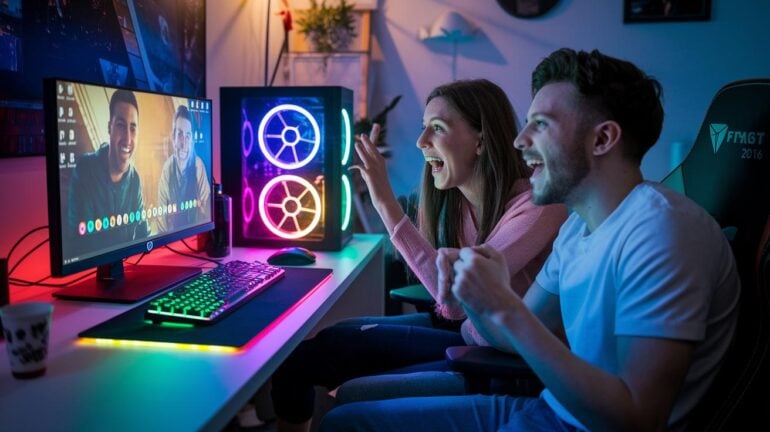
Ever wonder why some streams get you hyped while others just don’t click? Discord flips the script by turning live gaming into a full-on interactive show with a one-click streaming tool (a simple way to start streaming without fuss).
With just a few easy tweaks, you can boost your video quality and ramp up the gameplay excitement. This guide lays out simple tips to catch every thrilling moment and keep your audience locked in.
Ready to turn your Discord stream into an epic, share-worthy experience? Let’s dive in.
Discord Streaming Tips: Step-by-Step Technical Setup for Gaming Communities
Discord’s Go Live tool is a game-changer for streaming. It hooks you up with voice, video, and text channels so you and your crew can stay connected and pumped up. It’s as easy as diving into your favorite game, with auto-detection that lets you hit one button and start streaming without annoying setup hassle.
First, make a server just for your team. Create a voice channel with the right permissions, then set up roles so only the right folks can join. Let Discord spot the game you’re about to stream, then click the Go Live button (you’ll see it by the monitor icon). Keep it simple: use 720p at 30 FPS to start, or upgrade to 1080p at 60 FPS if your PC can handle it (just make sure you have a 10 Mbps upload speed). Finally, invite everyone to watch and join in on the fun.
Switching between full-screen and app share is even easier, just flip the option in your streaming settings. Tweak your audio and video so everything looks and sounds just right, and you’re set to keep your audience locked in on every play.
Discord Streaming Tips: Video & Audio Quality Optimization
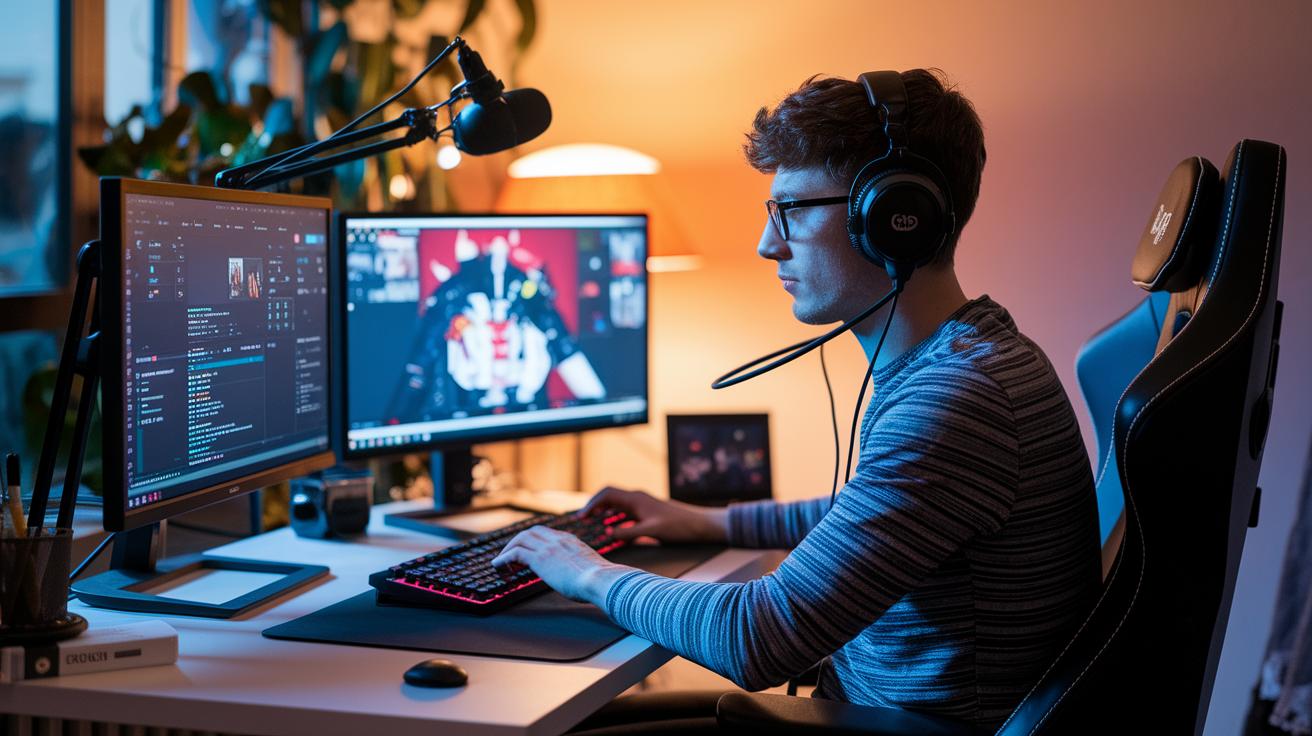
When you're streaming on Discord, quality makes all the difference. Your audience deserves smooth video and crisp sound so every play feels epic. Tweak your streaming bitrate and enable GPU acceleration (that helps give your PC a little extra muscle) in Discord's Voice & Video settings to keep your stream in top shape. Try switching from the standard 720p at 30 FPS to a slick 1080p at 60 FPS, it's like going from a rerun to a blockbuster. And if you want your voice to cut through the game noise, using an external mic to separate game sound from chat is a total game changer.
| Component | Recommended Setting |
|---|---|
| Video Resolution | 1080p |
| Frame Rate | 60 FPS |
| Bitrate | Adjust according to your network speed |
| Audio Input | External microphone |
Before hitting that "Go Live" button, run a few private test streams. This helps you check if your CPU and GPU can handle the load without lagging behind, and it makes sure your audio stays in sync with your video. Getting the balance right between your system sounds and your mic input is key, too much background noise can easily drown out your callouts. Play around with the settings until everything feels just right. Trust me, a little extra testing now can save you from annoying hiccups during the stream, making your gameplay look and sound as smooth as a well-executed strategy.
Discord Streaming Tips: Hardware & Equipment Recommendations
Getting your setup right is key to a smooth Discord stream. If you’re streaming from a console, grab a good capture card, something like the Elgato HD60 S works great if it’s running the latest firmware and has solid HDMI/USB links. PC streamers, make sure your rig has at least a quad-core CPU and a decent mid-range GPU. A dual-monitor setup is awesome, letting you watch the chat and keep an eye on your stream at the same time.
To make your stream shine, choose gear that fits your style. Crisp camera feeds and clear external mics (think USB cardioid mics) can really up your game.
| Component | Tip |
|---|---|
| Capture Card | Helps stream your console smoothly, e.g., Elgato HD60 S |
| PC Specs | Use a quad-core CPU and a solid mid-range GPU |
| Camera | Look into options like the VM20 4K Wired or VM33 Wireless with 10× zoom |
| Mic | Opt for an external USB cardioid mic for clear audio |
| Monitors | A dual-monitor setup lets you follow both chat and your stream |
| Lighting | Good lighting boosts on-screen clarity and overall quality |
If you switch between devices, no worries. Discord works well on PC, Mac, iOS, and Android. This means you can manage your stream wherever you are, making sure everyone in your community gets to enjoy every epic moment.
Discord Streaming Tips: Layout Optimization & Creative Overlays

A creative overlay can transform your Discord stream into an exciting experience. It shows off cool animated alerts, live chat, and custom branding all at once. Using tools like OBS Studio or Streamlabs OBS makes putting together fun scenes simple and enjoyable. These overlay elements not only spotlight key moments but also guide your viewers’ eyes when you're not in the heat of the game.
Start by setting up your scene. Arrange your overlay so your gameplay and extra info work well together. Picture your game on the left and your chat and stats on the right. This setup keeps things clear and organized.
Next, blend a live chat window right into your stream. This helps everyone feel like they're part of the live action and chatting together with you. It adds a real community vibe to your show.
Then, add animated alerts that pop up during cool moments, like a GIF or widget when a subscriber or donor gives you support. Imagine an alert exploding on the screen during a winning streak. It brings energy and fun into the mix.
Don't forget your branding. Toss in subtle logos or mix in themed colors that match your community’s style. It makes your stream look uniquely yours.
Finally, smooth out your transitions. Use gentle fades or swipes so switching scenes feels like a natural part of your broadcast. The right transition keeps the action flowing and makes your stream look polished.
So, have fun experimenting with these tweaks. Every change helps draw viewers in and makes the gaming experience even more engaging.
Discord Streaming Tips: Engagement Strategies for Gaming Communities
When you're live on Discord, it’s all about making your stream feel like a cozy hangout with friends. Bots like MEE6 or Poll Bot can run live polls, giveaways, and quick announcements that get everyone involved (polls are short questions that let viewers pick their favorite answers in real time). The more you bring your viewers into the mix, the more they feel like they’re part of your gaming squad.
Mix in media from Twitch, YouTube, or even Spotify to keep things fresh and energetic. And using a pop-out chat on a second screen means you never miss a cool shout-out or question from your crew.
- Polls
- Giveaways
- Stages
- Role rewards
- Media integration
- Chat prompts
One smart move is to use Stage channels for Q&A sessions or mini-tournaments. These audio-only hangouts let you dive into chats without the usual video distractions. In a way, Stage channels become your secret spot to share behind-the-scenes updates or run special contests that make your community feel like true insiders.
With these real-time loops of feedback and hands-on interaction, your stream turns into a high-energy event that keeps viewers coming back for every epic play.
Discord Streaming Tips: Troubleshooting & Connection Stability
Nothing ruins a good game like a laggy stream. A steady connection keeps your viewers locked in and lets you show off your best plays without interruption. When your stream flows smoothly, you can focus on the game and chat with your crew. Quick fixes for connection glitches are as vital as your gaming skills, so it pays to have a plan ready.
| Issue | Troubleshooting Steps |
|---|---|
| Connection Drops | Switch to a wired Ethernet connection, close background apps, disable hardware acceleration |
| Audio Glitches | Review your audio settings and check your external mic connections |
| Frame Rate Drops | Lower your stream resolution or FPS (frames per second) when CPU/GPU usage spikes, and do a test in a private channel |
| Capture Card Failures | Ensure cables are secure, update drivers, and check for firmware compatibility |
Staying on top of your tech is all about being proactive. For example, using a wired connection helps cut down on lag, and keeping your capture card in excellent shape prevents those annoying freeze-ups mid-game. Testing your stream in a private channel and tweaking your settings now and then means you can spot problems before they become game-stoppers. This prep work lets Discord’s auto-reconnect feature handle quick hitches on its own, so your broadcast stays smooth and fun. Keep monitoring your system and enjoy a steady stream every time you go live.
Discord Streaming Tips: Community Moderation & Management
When you kick off your stream, start by setting clear community rules. Lay out what’s allowed and what isn’t, and assign roles so trusted friends can keep an eye on the chat. For example, you might say, "Only verified members can chat during live streams." Keeping rules short and clear makes everyone feel welcome and helps turn your stream into a safe space for those heated gaming moments.
Next, get some moderation bots working for you. Bots like Dyno or Carl-bot can filter out bad language (profanity), squash spam, and even log chat activity so you can review it later. This setup takes some heavy lifting off your shoulders, so you can focus on the gameplay while your channel stays clean and fun.
Discord Streaming Tips: Advanced Planning, Analytics & Growth Tactics
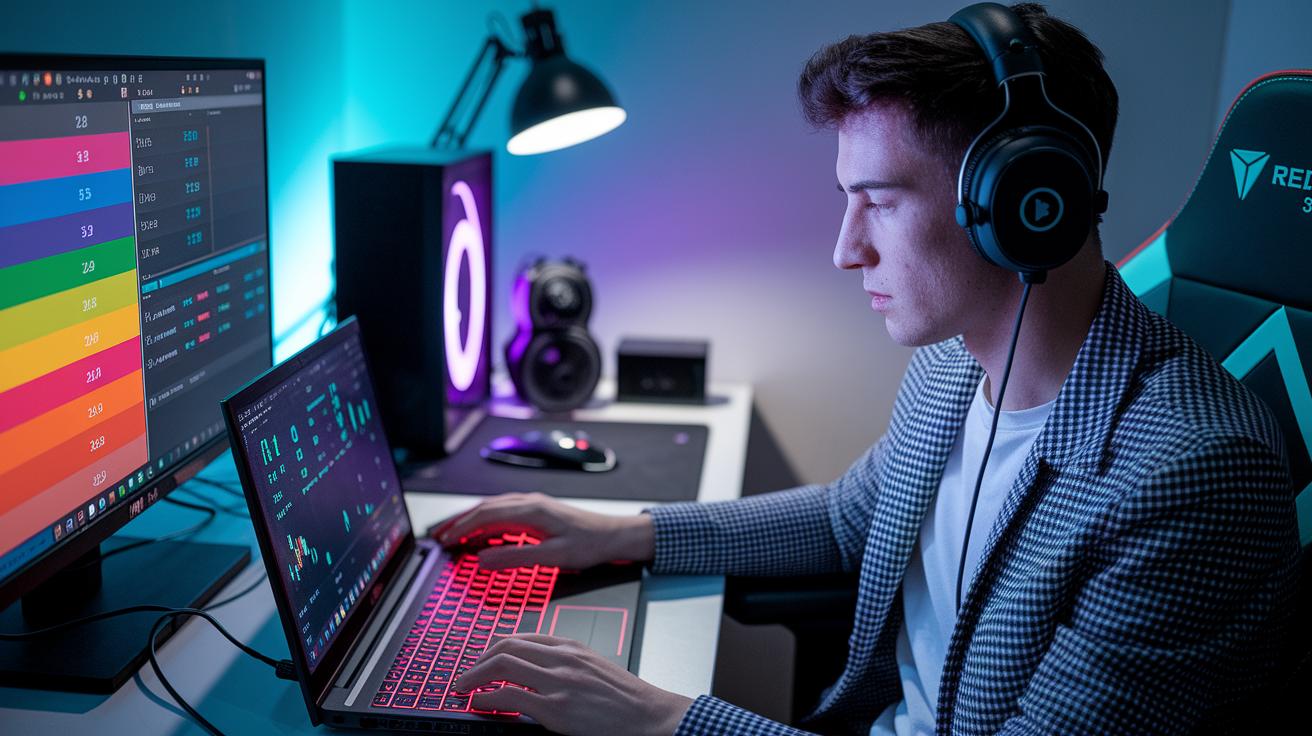
If you're streaming on Discord, keeping an eye on your stats and planning ahead is a total game-changer. Since Discord doesn’t show you all the numbers straight up, you might need to use extra tools or jot down viewer counts yourself. This way, you can spot when your chat is buzzing and tailor your sessions to match that energy.
Bots for announcements and push notifications can really build up the hype for your next stream or special event. It’s like setting up a surprise in your favorite game, you get your schedule covered and tweak your approach based on fresh, real-time info so your community always has something cool to look forward to.
- Third-party analytics (tools that help track your numbers)
- Scheduled announcements
- Social webhooks
- Server boosting
- Cross-platform collabs
Mixing these moves together can seriously level up your streaming game. Keep an eye on your stats and you’ll see what your viewers love and the times they’re most active. This info helps you tweak your plans and spread the word across Twitch, YouTube, and social media channels. Plus, teaming up with others can broaden your reach, and boosting your server can really bump up your viewer cap. Listening to what your community says along with these numbers means you can adjust and make every stream better, keeping that excitement high with every session.
Final Words
in the action, we explored setting up your Discord stream from crafting a server to mastering layout improvements and technical tweaks. We broke down each phase so you could set up a smooth broadcast, boost viewer engagement, and keep your stream stable and clear.
Your guide combined essential hardware checks, design ideas, and community methods. Hope these discord streaming tips for gaming communities help you level up your play and spark some excitement in every stream. Enjoy the ride!
FAQ
How do Discord streaming tips for gaming communities on Reddit work?
Discord streaming tips for gaming communities on Reddit offer strategies to set up smooth broadcasts, boost interactivity, and optimize settings. These tips help gamers share their streams and learn from each other in an engaged community.
How do I stream on Discord mobile?
Streaming on Discord mobile means you use your phone’s built-in features. Open Discord, enter your channel, and tap the share button to start broadcasting your mobile game to your community.
How do I stream on Discord PC?
Streaming on Discord PC involves creating a server, setting up a voice channel, and clicking the Go Live button. Then, choose full-screen or application share to easily broadcast your gameplay.
What role does a Discord RPG bot play?
A Discord RPG bot adds fun to your server by automating gameplay tasks. It helps with dice rolls, character stats, and interactive stories, making role-playing sessions more engaging and interactive.
How can I stream on Discord without a black screen?
Streaming on Discord without a black screen involves checking your display settings, updating drivers, and ensuring proper GPU acceleration. This way, your stream captures the correct window without issues.
How do I stream on Discord from my PS5?
Streaming on Discord from a PS5 requires using a capture card to connect your console to a PC. Once connected, you broadcast your PS5 gameplay through Discord’s stream settings.
What is EPIC RPG Discord?
EPIC RPG Discord is a community server where gamers share RPG tips, game updates, and role-playing sessions. It brings like-minded players together for interactive events and fun gaming experiences.