
Ever feel like your stream’s visuals are a bit old-school? Picture your highlights lighting up your stream like a game power-up. In this guide, we break down every step to build a custom setup that grabs attention and keeps your viewers hooked. We’ll talk about gathering cool assets and designing smart overlays that make your stream pop. Ready to boost your stream and give your audience an epic experience?
Essential Steps for Your Custom Streaming Highlights Overlay
Start by gathering your assets. Use PNG files with see-through backgrounds and stick to a 1920×1080 pixel frame for crisp images on any screen. Think of it like setting up the ideal gaming overlay that looks awesome no matter where it's viewed.
Next, plan out your main overlay parts. You need a spot for your webcam feed, dynamic notifications, and info panels. These pieces give your stream a polished look and keep your audience engaged. For the best effect, position your lower thirds at the bottom of your 16:9 screen, perfect for showing titles or details like match scores so that fans never lose track of the action.
After you’ve mapped your layout, work through each element step by step. Start with the background and then add the finer details. Save each file at the proper size and resolution. Pro overlays make a powerful first impression, keep viewers tuned in, and boost engagement, which is a big deal looking ahead to 2025.
Before you go live, double-check your upload limits. Most platforms let you use up to 50 overlays and each file should stay under 25 MB. Keep your files organized to prevent any hiccups during a live session. This careful, methodical setup ensures your highlight overlays not only look great but are also ready to fire up your stream in an instant.
custom streaming highlights overlay guide: Elevate Stream
Start by sorting your overlay components into neat groups like webcam borders, stream alerts, custom labels, and your start/break/end scenes. Picture a sharp webcam frame paired with lively alerts that instantly grab attention. Imagine a neon border that lights up with each alert, firing up the energy of your stream.
Next, pick a design that fits your vibe. Whether you lean toward a clean, dark, neon, or colorful look, keep your graphics consistent. In Figma, set your logo frame to 224×224 pixels and your overlay and background frames to 1920×1080 pixels. This way, every detail looks crisp and fits perfectly on any screen.
When exporting, save your logo as a PNG at 2× resolution to keep it sharp. Let your overlay and background be at 1× resolution, it’s a great balance between quality and file size. Plus, you can easily switch themes and colors on the platform and even handle up to 50 logos and overlays.
Follow these design tips to build a solid visual identity for your stream. Think of it like a quick graphics session that mixes style with simplicity, making your highlights both professional and totally unique.
Step-by-Step Integration in OBS, Streamlabs, and StreamElements
In OBS Studio, you can get your custom overlay set up fast. Start by adding an Image or Media Source, then import your PNG overlay and drop it into your scene. Adjust its size and spot by clicking, dragging, and moving it on the canvas until it fits just right. After that, hit the lock button to keep it exactly where you want during your stream. Imagine placing your webcam overlay perfectly and then locking it in place so nothing shifts around while you play.
Streamlabs keeps things super user-friendly. Slide over to the dashboard and click on “My Overlays” to upload your overlay graphics. Once they’re in, you can easily assign each overlay to different scenes by toggling visibility settings. You might want to set up a neat webcam border or even live-updating stream alerts. Just a few clicks and all your elements line up perfectly on your live stream, almost like magic.
StreamElements offers a cloud-based way to manage your overlays. You can upload your files using a URL or by doing a manual upload in their scene editor. Next, arrange your overlays with intuitive widget controls tied to specific scenes. When you’re happy with your layout, save it in the cloud for easy access on any device. Think of it like a digital command center where your overlays are always ready to jump into action whenever you start streaming.
| Platform | Max Uploads | File Size Limit |
|---|---|---|
| OBS Studio | Unlimited | None* |
| Streamlabs | 50 Overlays | 25 MB |
| StreamElements | 50 Overlays | 25 MB |
Applying Advanced Animated and Interactive Highlights Overlays
Dress up your overlays with cool animations to make your stream pop. Try adding AI camera effects for extra background depth; it's like leveling up with an extra dimension where the lights change as you move. Tweak your lighting and color settings to keep every detail sharp and clear. Use animated PNGs or GIFs for smooth scene changes, think of a gentle fade that eases you from gameplay to a break, just like a soft transition between rounds.
Amp up viewer involvement with interactive features. Add clickable panels that reveal handy info or hidden surprises. Show live follower or subscriber counts in real time, turning your overlay into a live scoreboard (a display that updates automatically). You can even use browser sources or JavaScript (a coding tool that adds extra features) to pull live stats on screen. Picture a panel flashing your latest game score or a button viewers can click to see what’s coming next. These tweaks keep your audience in the game and give your stream an interactive, game-changing edge. Experiment with these features to keep every live session fun and responsive.
Optimizing Performance and Troubleshooting Overlay Issues
When you set up your stream, keeping your graphics overlay running smoothly is key. Update your overlay every 3 to 6 months to keep it looking fresh, kind of like refreshing your favorite game’s patch notes.
Sometimes things go wonky, like your overlay drifting or lagging. If you spot it out of place, try exporting the file again at the right resolution. Also, if you see weird gaps or blurry spots, adjusting the canvas settings in your design tool can do the trick, like fine-tuning your monitor for better clarity.
Before you go live, run a few local test recordings. This gives you a chance to catch any lag or hiccups early. And don’t forget to double-check that your hardware (like your GPU and CPU) and software settings (such as bitrate and output resolution) are in balance. These simple steps help you set up a smooth, professional overlay that looks as polished as your epic gameplay moments.
Creative Inspiration and Best Practices for Highlights Overlays
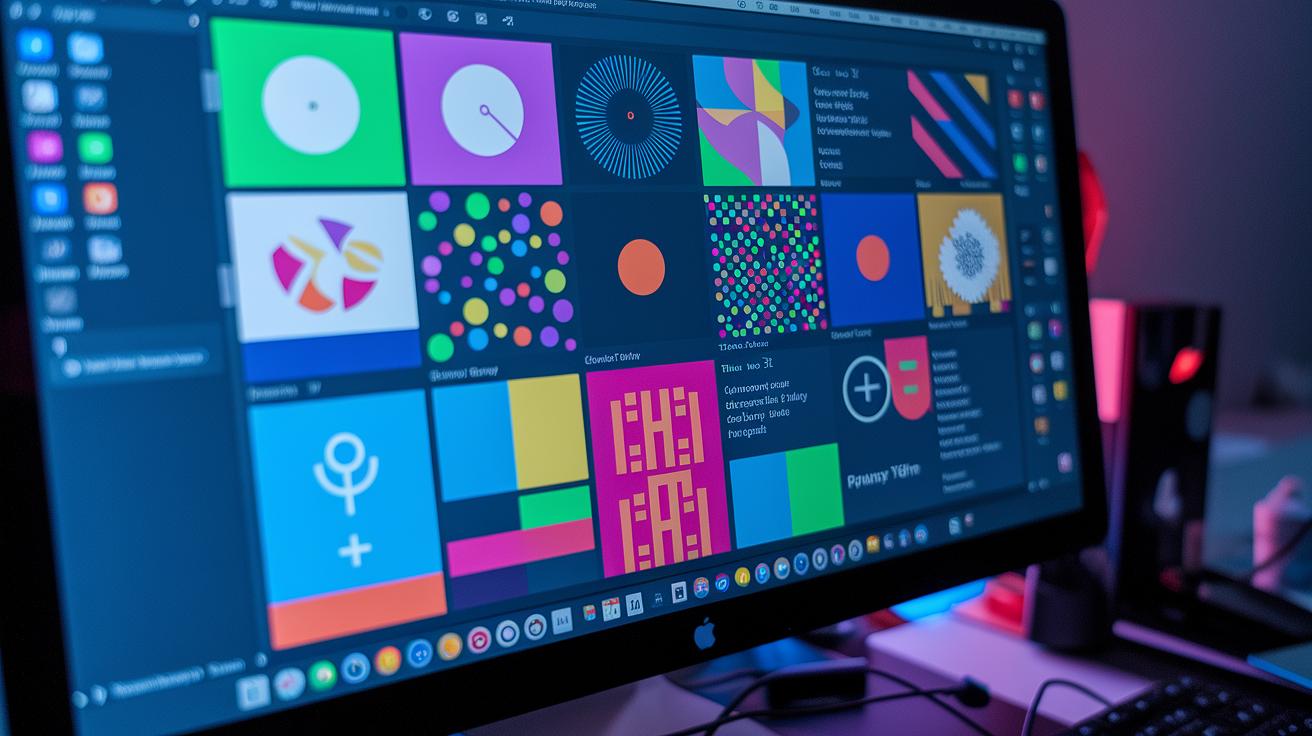
Fresh design ideas can really make your stream stand out. Have you checked out free overlay packs like FragileGFX? Over 100,000 streamers have already boosted their visuals with these free packs, proving you can look great without emptying your wallet. Right now, clean, minimal layouts are trending, they let your gameplay shine, while neon accents add a burst of energy and dark mode themes offer that sleek, modern vibe.
Keep your branding tight by matching your overlays' colors and fonts with your channel’s personality. Here are a few tips:
| Tip | How To |
|---|---|
| Create an Inspiration Gallery | Save screenshots of overlays that spark your creativity. |
| Refresh Regularly | Update your overlay collection with the latest trends. |
| Experiment and Iterate | Try different styles to see what really clicks with your audience. |
Mix these ideas together to keep your visuals fresh and totally your own. And hey, sometimes a little experiment can lead to a game-changing look!
Final Words
in the action, we broke down each step to build a winning overlay. We covered the basics from file formats and size guidelines to designing eye-catching graphics that fit your vibe. The guide walked you through OBS, Streamlabs, and StreamElements setups while adding animated elements for extra flair. We also touched on quick fixes for any overlay hiccups and shared top design tips. Keep experimenting with our custom streaming highlights overlay guide and watch your stream turn into a dynamic, engaging spectacle.
FAQ
What does custom streaming highlights overlay guide on YouTube offer?
The custom streaming highlights overlay guide on YouTube offers clear, step-by-step tips to help you create eye-catching overlays by covering file formats, dimensions, and integration methods for popular streaming software.
What does a free custom streaming highlights overlay guide include?
A free custom streaming highlights overlay guide includes detailed instructions, design tips, and free templates that walk you through setting up professional overlays with the right sizes and transparent PNG files.
What makes the best custom streaming highlights overlay guide stand out?
The best custom streaming highlights overlay guide stands out by combining simple, clear steps with useful design advice to create overlays that boost your stream’s professional look and viewer engagement.
What is a free stream overlay template and how can I use it?
A free stream overlay template is a pre-designed graphic file with recommended dimensions and a transparent background, making it simple to set up and customize your stream’s visual style.
What are free animated stream overlays, and why use them?
Free animated stream overlays add dynamic motion with interactive elements, making your stream more engaging and visually appealing while helping to capture and keep your audience’s attention.
How do Streamlabs and OBS handle free overlays for streaming?
Both Streamlabs and OBS let you upload free overlays easily by importing PNG files, setting up proper source order, and configuring scene layers for smooth display during your live streams.
What do free OBS overlays offer to a streamer?
Free OBS overlays offer high-quality visuals and easy drag-and-drop setup that enhance your stream’s appearance by using transparent PNG graphics without complex configuration steps.