
Ever notice how some streamers always nail their best moments while others just can’t catch that spark? We’ve got a simple, step-by-step plan for you. First, use a video tool (that’s just software to cut up your videos easily) to trim your long streams. Then, tag your epic plays like you’d mark a checkpoint in your favorite game.
Our guide is full of quick tips to help you spot those clutch moments and build a reel that feels as exciting as a game-winning play. Ready to turn those long recordings into a highlight celebration? Let’s dive in and make your content shine like a clutch win.
Live Stream Highlights: Step-by-Step Assembly Guide
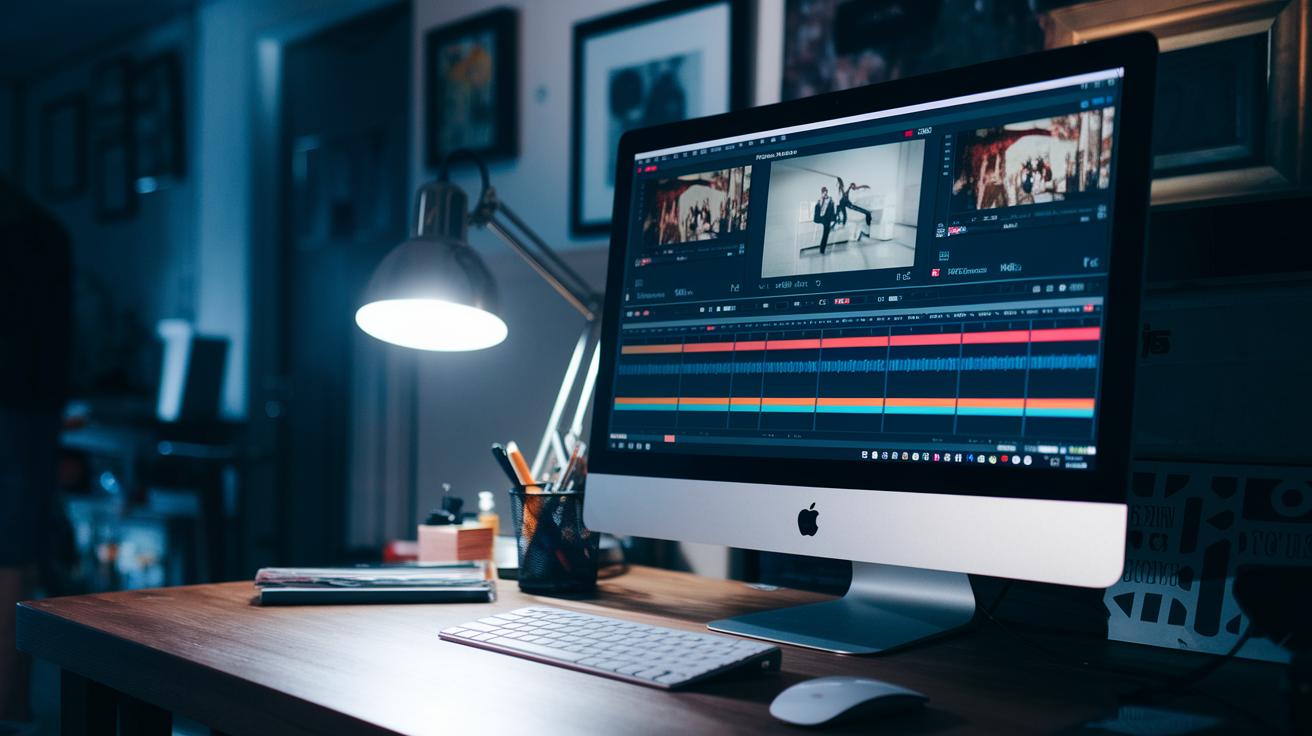
Start by loading your raw live stream footage into your editing software. Grab the razor tool (like a sharp pizza cutter for videos) to slice up long clips and find the best moments. Then, drag these pieces to a secondary track to build your rough cut.
Next, copy these rough segments into a new sequence and remove any gaps to keep things tight. Label your markers and clips clearly, kind of like organizing your favorite game highlights. This keeps your work smooth and efficient.
A cool tip is to use double-speed playback in Premiere Pro. Hit the L key to speed through your recording, making it easy to spot epic moments fast. If things get choppy, pre-render your footage so everything runs smoothly, ensuring you don’t miss a key play.
It’s super important to mark standout moments while streaming. Use manual markers or Twitch’s /marker command to tag about 90% of your key clips. These markers act like checkpoints in your game, guiding you through the best parts of your stream.
By following these steps, you can put together a polished highlight reel that’ll leave your audience cheering. Enjoy the process and get ready to relive those amazing moments!
Essential Software & Toolset for Live Stream Clip Extraction

Adobe Premiere Pro is like a trusty sidekick for editing long live streams. It lets you play back footage at double speed, so you can quickly spot those clutch moments. Its razor tool helps you chop out the best parts, and markers let you tag the must-see moments instantly. Imagine using the L key to skip through the footage, much like fast-forwarding in a game replay to catch an epic kill. Cool, right?
AI tools like Rizzle automatically grab the best moments and shape them perfectly for social media. This means you can instantly have those exciting plays ready for TikTok or Instagram. Then, YoloCast and YoloLiv help out even more with a one-click feature to create highlight clips. They also toss in neat extras like website embedding and document uploads to add extra context to your clips.
Hardware like YoloBox Pro and YoloBox Mini boosts your workflow by letting you clip on the fly and handle multiple inputs at once. Together, this mix of software and hardware creates a super powerful toolkit for effortless clip extraction.
| Tool/Platform | Main Feature |
|---|---|
| Adobe Premiere Pro | Double-speed playback, razor tool, markers |
| Rizzle | AI-powered moment extraction, social formatting presets |
| YoloCast/YoloLiv | One-click clip creation, website embedding, document uploads |
| YoloBox Pro/Mini | On-the-fly clipping, multi-input streaming |
Capturing & Timestamping Key Moments in Real Time

When an awesome play unfolds during your live stream, jot down the time immediately or use a command like Twitch’s /marker (a tool that marks moments in your stream). For instance, if you pull off a stunning comeback, type /marker right away, try saying, "I hit /marker when that comeback happened."
Platforms like YouTube and Twitch come with built-in recording tools that automatically create clip lists. This means you can easily jump back to those epic plays when you're editing later.
A few tips to keep in mind:
- Quickly note the time when a great moment happens.
- Use commands like Twitch’s /marker to tag events live.
- Count on auto-generated clip lists to back you up during editing.
Advanced Editing Techniques for Cohesive Highlight Reels
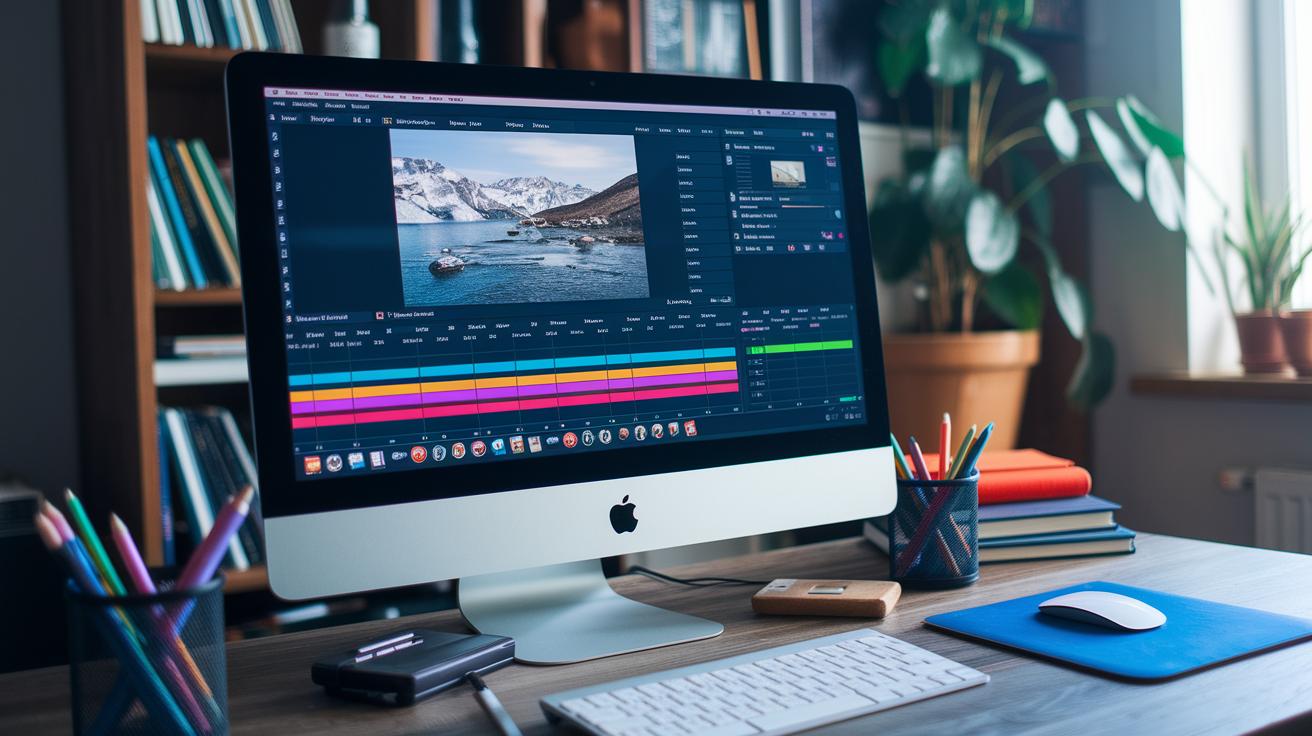
Start by picking your best clips and building a clear theme. Think of it like crafting a story-driven game replay; your top plays set the direction while shorter, exciting segments add the fun details.
Next, choose an intro that quickly tells viewers what’s coming, kind of like a game's opening cutscene. Keep it focused and avoid drifting into random chat. Then, wrap things up with a strong finish that ties all the action together, no tired, off-topic sign-offs.
Keep your edit tight by cutting aggressively to hit an 8- to 12-minute mark. Slice out anything that doesn’t match your theme, just like tossing useless gear in a boss fight. Every second should count in boosting your video's energy.
Spice things up with zoom and crop effects to keep the montage lively. These quick moves brighten up slow moments, much like zooming in on that perfect headshot. And if you’ve got multiple speakers, use color-coded subtitles to give each voice its own vibe, similar to different skins in a multiplayer match.
Finally, take one last look at your timeline for any shots that linger too long (over five seconds). Add a quick visual or sound effect to keep the pace upbeat and your audience hooked. This extra touch turns a simple reel into a polished masterpiece that truly captures the spirit of your stream.
Organizing, Managing & Exporting Highlight Assets
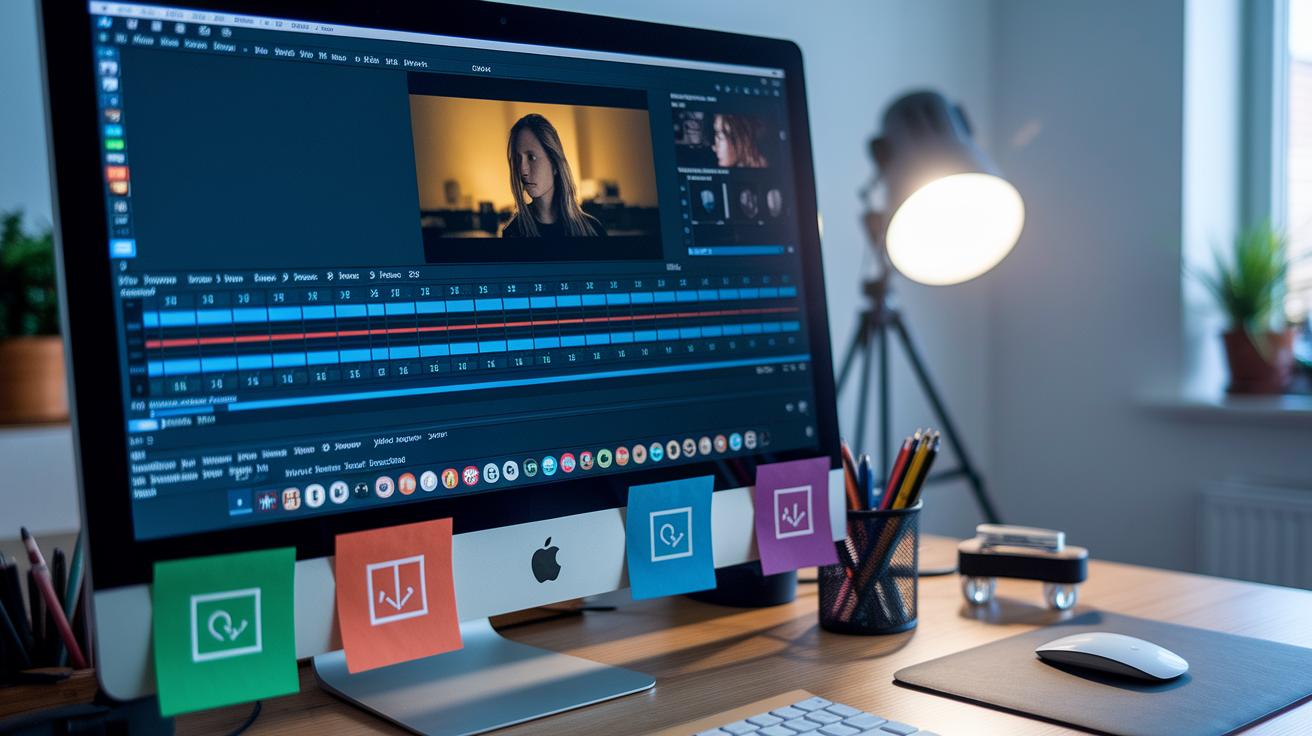
When you dive into a project, start by giving your tracks and clips clear names. Use dates, topics, or marker tags. Imagine a bin called "2023-10-15 – Epic Clutch Moments", it makes finding your recordings a snap.
Keep your final trimmed sequence in its very own project folder, like saving your best game replay in a dedicated file. This trick keeps your workspace tidy and backups simple.
Before exporting, run a quick pre-export render to make sure everything plays smooth. If you see any choppy parts, adjust the bitrate and codec settings. This little extra step makes your final video feel as slick as a pro-level stream edit.
Quick reminders:
- Label your tracks with clear, consistent names.
- Gather all your assets in one neat folder.
- Use export presets (like H.264 at 1080p for YouTube).
- Pick vertical aspect ratios for TikTok or Reels clips.
- Always preview with a pre-render to catch any issues.
Automating Highlight Workflows with AI & Scripting
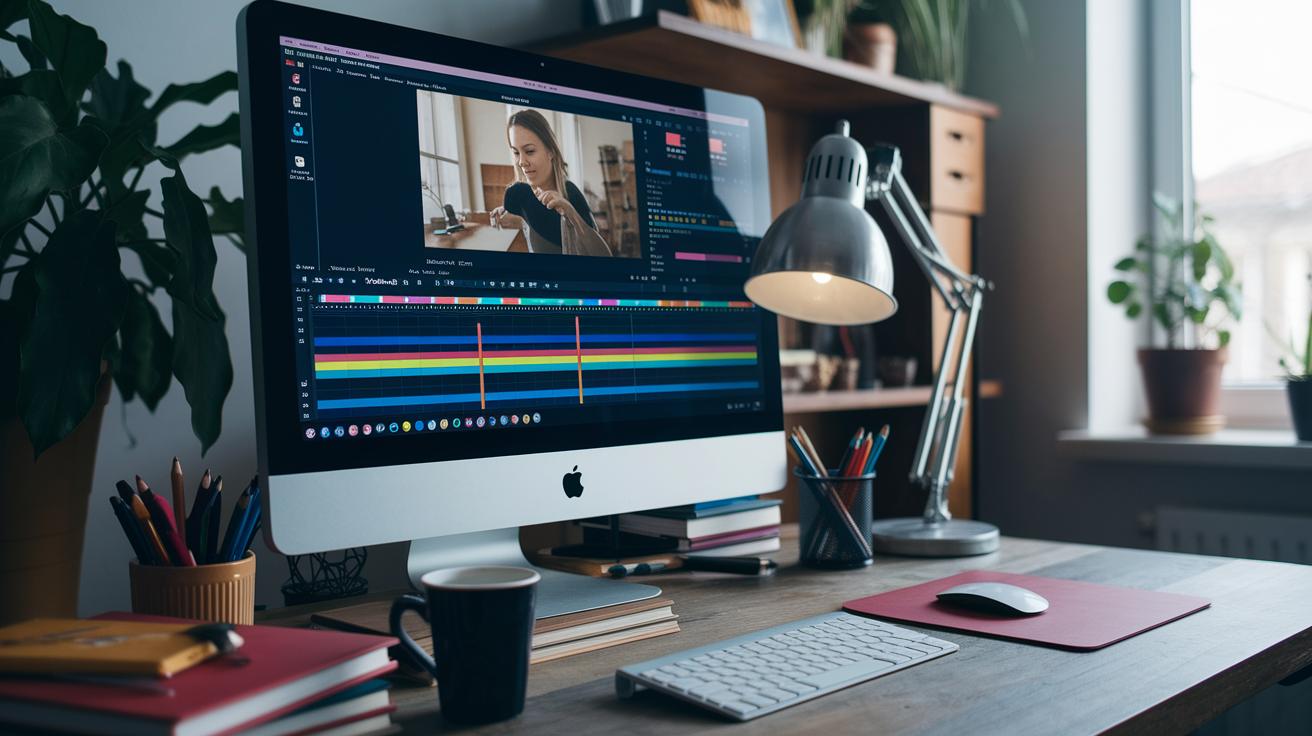
AI tools really change the game when it comes to cutting through long live streams. With programs like Rizzle, you get to skip the boring parts as the tool automatically spots and grabs those high-energy moments, think of it like an automatic highlight generator. This cool trick not only saves you time but also keeps you from missing that clutch play.
Scripting takes things up a notch. In editing tools like Premiere Pro and FFmpeg, you can run simple scripts to mark, trim, and export several clips at once. Imagine writing a short script that slices your whole stream in one go, slashing manual work by up to 50%. That’s a real power-up for any creator chasing efficiency.
Algorithmic segment sorting is another neat hack. It groups similar high-action shots so you can focus on the story instead of getting stuck with endless technical details. With AI-driven clip creation, you'll get smart tips on tightening up your final highlight reel, ensuring every epic moment shines without the fuss of manual trimming.
Monetization & Audience Engagement Strategies for Highlights

Turn your 3-hour live stream into a series of 2-minute clips perfect for YouTube, TikTok, Instagram, and Facebook. This trick lets you show off your best moments in bite-size pieces. It’s like dropping highlights from an epic match that grabs new fans and brings your regular audience back for more.
These short clips pack a punch. When viewers see quick, high-energy moments, they’re more likely to share, comment, and spread the word, just like when a killer play goes viral among friends. It’s all about keeping the hype real and the energy high.
You can also cash in on these highlights. Think about adding YouTube ads, sponsored bits, affiliate links, merch promos, or even shout-outs for Patreon. For instance, picture a Fortnite streamer slipping in a product plug during a tense play. It feels natural and earns a little extra while keeping viewers locked in.
Using AI tools to trim and tweak your clips is a smart move too. This tech finds the exact spot where viewer excitement peaks, making sure every moment is as engaging (and profitable) as possible. It’s like having a pro editor in your corner.
In short, repack your live streams into a targeted montage of must-see moments. Doing this not only opens up new revenue streams but also builds a stronger, more excited community around your content.
Final Words
in the action, this guide walked you through turning raw streams into sharp, engaging highlights. We broke down essential tools, real-time clip marking, and clever editing tricks that help you catch every epic moment.
The steps show exactly how to compile live stream highlights into a standout reel. Keep experimenting with markers, effects, and smart automation to boost the final cut. Every play counts when you’re building a memorable clip reel. Enjoy capturing those peak moments!
FAQ
Q: How to turn Twitch streams into highlights?
A: Turning Twitch streams into highlights means picking out exciting moments by placing markers or using commands, then cutting and arranging the footage in editing software for a clean, engaging clip.
Q: How do I download stream highlights?
A: Downloading stream highlights involves using the platform’s built-in features or third-party tools to save your edited clips. Start by locating the download option in your stream management dashboard and follow the prompts.
Q: How to make a clip from a YouTube stream?
A: Making a clip from a YouTube stream means using YouTube Studio or a clip creation tool to mark key moments, then trim the video to focus on the best segments for quick sharing.
Q: How to get clips from Twitch stream?
A: Getting clips from a Twitch stream means using Twitch’s clip tool or manual marker commands to capture standout moments, then trimming them in an editor to produce short, shareable highlights.