
Ever think your best game plays might be the next big hit online? Capturing your epic moments isn’t just for film directors, it’s what gamers do best.
Your raw clips can pop off as highlight reels, showcasing every clutch move and cool cut. I mean, who wouldn’t love to see that surge of adrenaline when you nail a perfect combo?
In this post, I’ll walk you through how to turn your game footage into reels that fire up excitement and pull in more viewers. Ready to give your clips the spotlight they deserve?
Creating Gaming Stream Highlight Reels: Elevate Your Clips
Start by capturing your raw gameplay. On Twitch desktop, hit the Clip icon in the bottom-right corner, like snapping a photo of your epic win. On mobile, open the Twitch app and use its clipping feature. Remember, these built-in clips let you trim and reorder your footage, but they don’t add cool effects, smooth transitions, or mix audio. It’s like cutting out the dull scenes from your favorite movie, leaving you only with the awesome highlights.
Next, download your clips from Twitch Video Manager so you’ve got all your raw content saved on your computer, ready for a deeper edit. Once you have them, import the clips into the editing software of your choice. Options like Filmora, Descript, and Adobe Premiere Pro each bring something different to the table. For example, Filmora’s Smart Short Clips work great on both desktop and mobile; Descript lets you edit by tweaking text (kind of like editing your script); and Premiere Pro gives you detailed multi-camera support along with color corrections. It’s like the feeling of landing that game-winning shot when your reel finally comes together.
For a next-level approach, check out AI-powered tools like HypeClips. This tool scans hours of your stream and even uses heart-rate data (yep, it tracks your excitement!) to pick out your most intense moments and sends them straight to your phone. It can save you hours each month by automating the selection process.
Follow these steps and you’ll be on your way to creating highlight reels that capture the thrill of your gameplay and boost viewer engagement.
Essential Tools and Software for Highlight Reel Creation
Twitch’s clip tool is super easy to use. Whether you’re on your desktop or mobile, just tap the Clip icon to grab your awesome gameplay moments, like snapping a screenshot when you land that epic headshot! It only lets you trim your clips, but that makes for a fast and smooth cut.
Filmora Smart Short Clips takes things further with cool desktop effects, smooth transitions, and balanced audio controls. Plus, its AI-Reels Maker on mobile makes editing feel like a walk in the park. And then there’s Descript, which lets you edit by working with text and even auto-transcribes your audio, imagine tweaking your script as you play! If you’re looking for something with a pro touch, Adobe Premiere Pro is your go-to. It supports multiple cameras, lets you tweak colors, and adds fancy effects for about $22.99 a month plus cloud storage.
If you’re on a budget, there are some great free options available. Shotcut, an open-source editor, handles lots of different formats without forcing you to convert files. GoPro’s Quik automatically picks out the best highlights for quick mobile edits, while Lightworks lets you export in 720p HD for free. Eklipse is your buddy if you stream gaming, it auto-selects 15 clips every 3 hours. And finally, HypeClips Premium, at $4.99 a month, offers unlimited captures with 30 days of storage.
| Tool | Key Feature |
|---|---|
| Twitch Clip Tool | Quick, trim-only capture |
| Filmora Smart Short Clips | Effects, transitions, audio leveling |
| Adobe Premiere Pro | Pro editing with multi-camera support |
| Shotcut | Free, multi-format support |
| HypeClips Premium | Unlimited capture, 30-day storage |
Moment Extraction Techniques for Gaming Streams
Native Twitch Clipping
Native Twitch clipping is super quick and easy. Whether you're on desktop or mobile, all you have to do is hit the clip icon to grab that awesome moment during live play. You get to trim off extra bits yourself, even though the editing steps are pretty simple. Imagine nailing that perfect headshot, you just snip away the rest and share your win with the crew.
AI-Powered Detection
AI tools take things up a notch by spotting the most intense moments automatically. Tools like HypeClips use a heart-rate algorithm (a tool that finds your game's peak excitement) to catch those high-energy scenes, while Eklipse pulls up to 15 standout clips from a long stream by zooming in on moments full of action. It’s like having a helper that points out every epic dodge or near miss during a boss fight. Pretty cool, right?
Editing Techniques and Visual Enhancements in Highlight Reels

When you’re refining your gaming highlight reels, smart editing tools can boost your clips like nothing else. Filmora gives you cool effects, adjustable transitions, and smooth audio leveling (making every sound pop). It’s like landing that perfect combo, you tweak each clip to build a dynamic, energetic edit. Premiere Pro, on the other hand, lets you work with multiple camera angles, add creative effects, and do detailed color corrections so your videos really stand out. And then there’s Descript, which lets you edit by changing text and even removes filler words automatically, speeding up your process.
Color Correction for Gaming Clips
Nailing your color settings makes your game visuals jump off the screen. Adjust LUTs (which are lookup tables that match color values), play with exposure, and balance contrast to capture your game’s vibe. When a match gets intense, you might increase contrast and brightness, making every explosion and flash hit like the surge of excitement after a hard-fought win.
Audio Synchronization and Music Integration
Sound is just as important as visuals. Match your background music to the action and balance voice-over levels so your commentary shines without overpowering the gameplay. With control over your audio, your raw clips transform into a smooth, engaging story.
- Trim clips precisely to cut out pauses
- Use smooth transition presets
- Add overlay graphics and captions
- Sync background music perfectly
- Reduce unwanted audio noise
With these tricks up your sleeve, your highlight reel will buzz with energy and clarity, making every moment not just seen but truly felt.
Workflow Optimization and Clip Management for Streamers
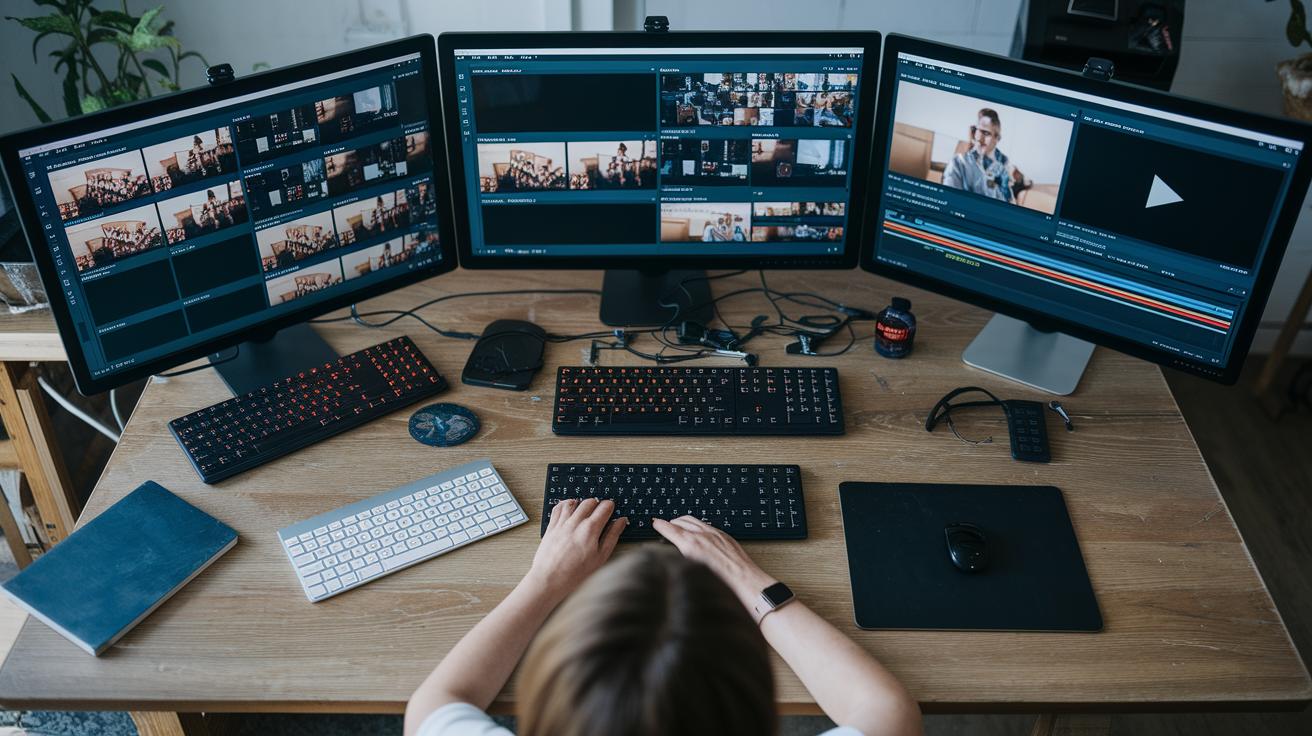
Organizing your clips is a game-changer when it comes to creating awesome highlight reels. Start by setting up folders by date and game title, think of it like sorting your inventory before a big match. For example, naming a clip "2023-09-20_Fortnite_1432" makes it easy to find that epic play later.
Next, try using batch-import features in editing tools like Filmora or Premiere Pro. This neat trick lets you load many clips at once so you can jump right into the action instead of waiting around. And don’t forget to tag standout moments with metadata. It’s like leaving breadcrumbs that help you quickly track down your best moments during reviews.
- Organize clips into folders by date and game
- Stick to a naming style like YYYY-MM-DD_Title_Timestamp
- Use batch-import options in your editing software
- Tag clips with metadata for easier searching
Backup your raw footage both locally and on the cloud. Tools like HypeClips even offer a 30-day automatic cloud storage option. This way, you keep your files safe and your workflow running smoothly, so you can focus on those clutch plays without worrying about losing your highlights.
Best Practices for Publishing and Promoting Gaming Highlight Reels
When you wrap up your edit, it’s time to share the fun. Download your reel from Twitch Video Manager and export it as an MP4 at 1080p and 60 fps for YouTube or Twitch. If you’re aiming for Shorts or TikTok, go vertical with a 9:16 format. Think about that rush when every frame is spot on, like landing a perfect play!
Next, set up titles and thumbnails that pop. They’re like a game’s loading screen, teasing the epic moment inside. Stick with your logo watermark and use the same intro and outro every time so your fans instantly recognize your style.
Plan your posts for the hours when your viewers are most active. This makes it easier for fans to join in the action. And don’t stop there, share your reels on YouTube Shorts, TikTok, and Instagram Reels to widen your reach.
| Tip | Description |
|---|---|
| Export Format | Choose the right format for each platform. |
| Titles & Thumbnails | Design eye-catching visuals that grab attention. |
| Branding | Keep your logo and style consistent. |
| Post Timing | Share during peak times to boost engagement. |
| Cross-Posting | Spread your reels on multiple channels. |
Final Words
In the action, this guide walked you through capturing raw gameplay via Twitch, cutting clips, and using smart editing tools like Filmora and Premiere Pro to boost your highlights. We broke down quick methods for spotting key moments and offered tips for managing your clips and boosting their impact. Each step helps you polish and share epic moments. Now, take that spark and start creating gaming stream highlight reels that capture your best plays with energy and style.
FAQ
How can I create gaming stream highlight reels for free using Reddit tips?
Creating gaming stream highlight reels for free often involves scouring Reddit for community-tested tools and guides. Many gamers share cost-free software suggestions and techniques to capture and edit epic moments from live streams.
How do I highlight Twitch streams on mobile and add stream markers?
Highlighting Twitch streams on mobile means using the Twitch app’s clip feature along with stream markers. Simply tap the clip icon and mark key moments, then organize them to build standout highlights.
What are some examples of stream markers on Twitch?
Stream markers on Twitch serve as tags for memorable moments. Gamers might mark a clutch play or funny moment, letting viewers jump straight to epic parts of the stream quickly.
What is a Twitch highlight maker and the best clip generator for gaming?
A Twitch highlight maker automatically assembles epic moments into shareable clips. The best clip generators sift through hours of gaming footage to automatically pick out action-packed highlights for you.
What is the Twitch highlight limit?
The Twitch highlight limit refers to the maximum number of highlights you can create with the platform’s native tools. Twitch users should check current guidelines as limits may apply to storage or highlight count.
What is the difference between clips and highlights on Twitch?
Clips capture short, instant moments directly during streams, while highlights are curated edits that compile longer segments of gameplay. Each serves a unique purpose for viewer engagement and content sharing.
How can I turn Twitch streams or VODs into highlights or clips?
Turning Twitch streams or VODs into highlights involves using the platform’s built-in clip tool or third-party editing software. This process trims down raw footage to showcase the most thrilling moments for easy sharing.