
Ever wondered if your PS4 can show off your epic wins live? It's easier than you might think.
Just set up your console, connect your Twitch or YouTube account (that’s where you stream your game), and you're ready to go live.
Imagine the thrill of seeing your hard-earned moves on screen as you play. This guide walks you through everything so you can jump in without any hassle.
Ready to step up your streaming game?
PS4 Streaming Setup: Quick 5-Step Guide
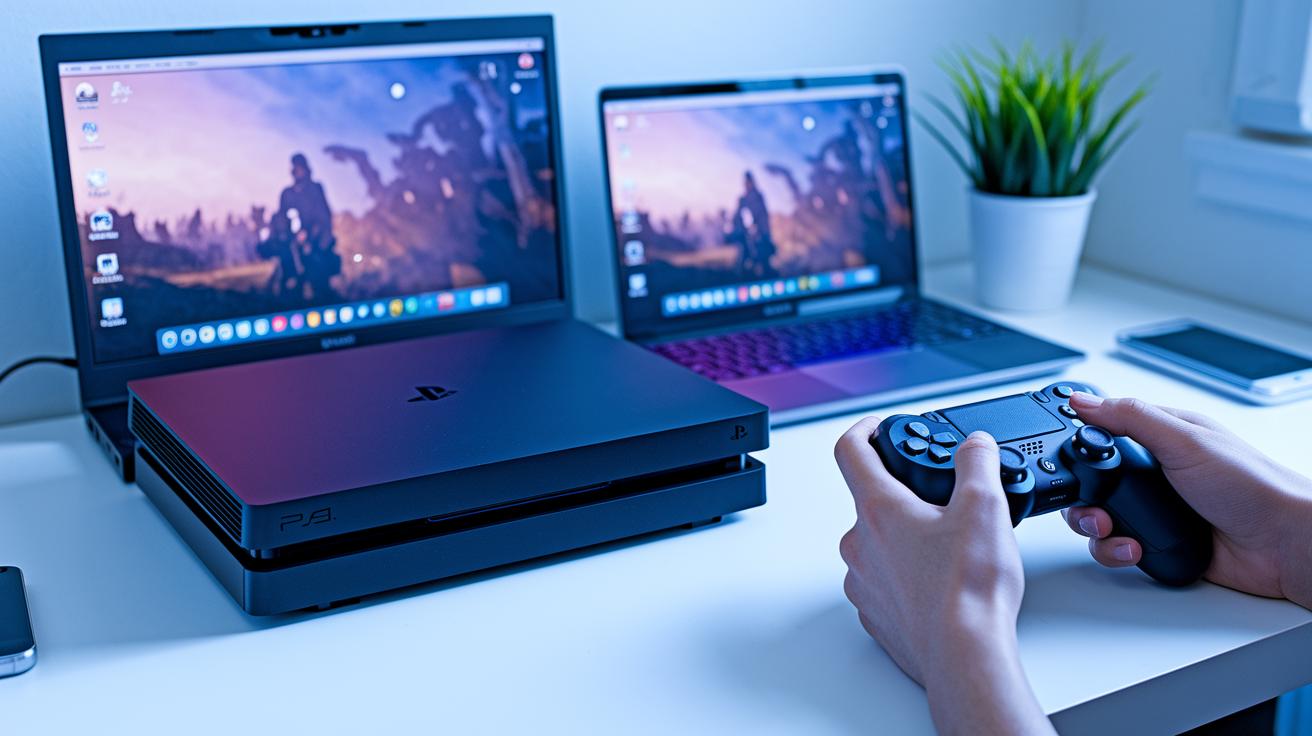
Ready to show off your gameplay? Just follow these five easy steps to get your PS4 streaming like a champ.
-
Update your PS4 firmware and log into your PSN account.
Head over to Settings > System Software Update to ensure your console is fresh. Signing in to PlayStation Network is key because it unlocks the built-in broadcast feature. Think of it as making sure you're geared up before diving into a tough level. -
Connect your Twitch or YouTube account.
Navigate to Settings > Account Management > Link with Other Services, then follow the on-screen prompts to authorize your account. It's just like pairing your best game loadout for that smooth, live action. -
Press the SHARE button and choose “Broadcast Gameplay.”
When you hit SHARE, you’re stepping into the spotlight. Select “Broadcast Gameplay” and then pick your streaming service. It’s as simple as making a quick play decision when the clock’s ticking. -
Set your stream title, video quality, and audio levels.
Give your broadcast a cool title, pick a quality preset (lower for speed, higher for a richer look), and balance your game and mic audio. Adjusting these is like fine-tuning your in-game skills before a major move. -
Hit “Start Broadcasting” and check your live feed.
Once your stream is live, take a moment to ensure everything is working right. Enjoy the rush of seeing your gameplay in real time, and make any tweaks on the fly if needed.
Linking Your PS4 to Twitch and YouTube
Step 2: Open your Settings, head to Account Management, and tap on Link with Other Services. Pick Twitch or YouTube Live, then log in with your usual details. If you get stuck, there are plenty of guides out there that explain how to nail that perfect title. The process is just the same for YouTube Live: enter your info and follow the easy prompts.
Once your account is connected, you’ll see your stream tools pop up. These include preset stream titles, privacy options (you can find these in the SHARE menu), and quality choices with bitrates of 1.5, 3, or 5 Mbps. Think of these tools like your streaming toolbox, they let you update your title (try something fun like "Epic Win" for your next session), decide who watches, and set the video quality.
If you ever need to switch accounts or reconnect, just go back to the same linking screen in Account Management. This way, you stay in control of your stream settings without any fuss.
PS4 Streaming Hardware Options Compared
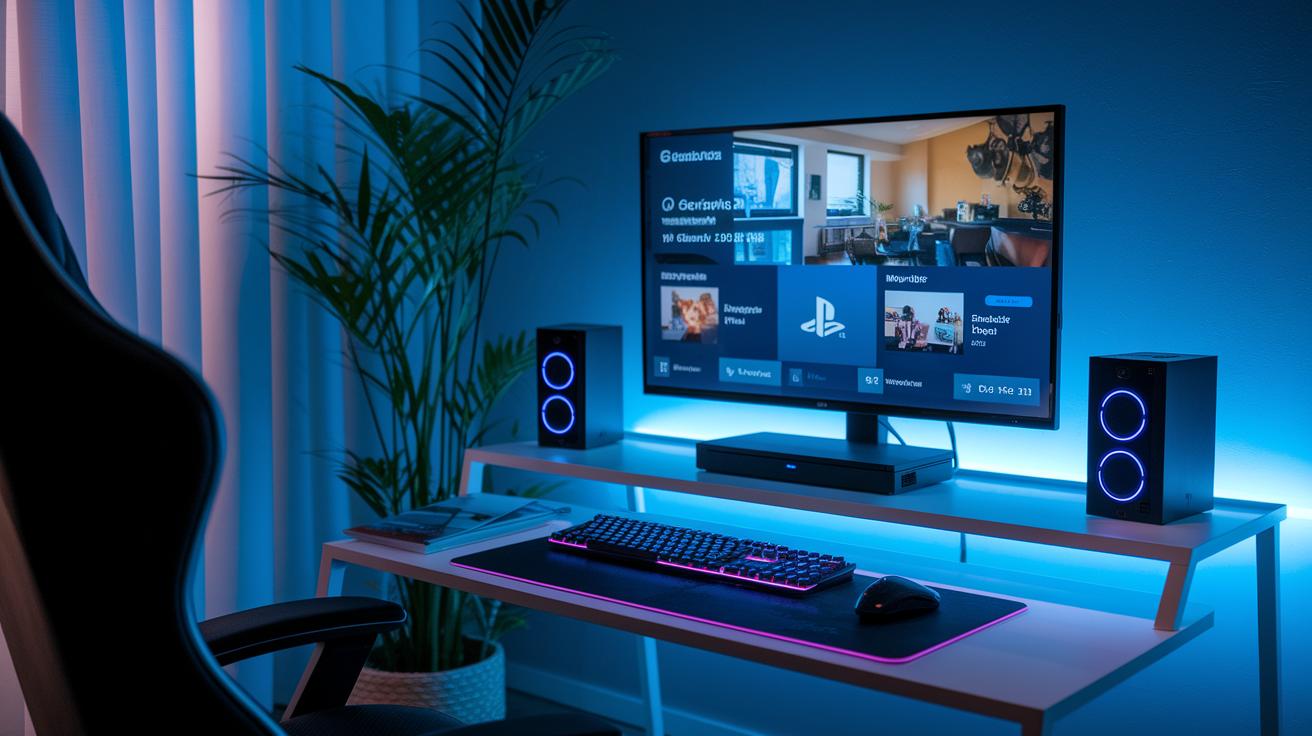
Streaming directly from your PS4 can be easy and fun with three different approaches. Each one has its own benefits and trade-offs to match your style.
First, there’s the PS4’s built-in broadcast from the SHARE menu. This option streams your gameplay at 720p and 30fps without any extra gear. It’s a quick and simple way to go live, just hit SHARE and you’re on the air.
Next, you can use the PS Remote Play app on your PC. This method also streams at 720p@30fps and is really accessible. However, it can sometimes have a bit of lag depending on your network. It’s like trying to play with a slight delay, but it still gets the job done.
The most advanced method is using a capture card. With a USB 3.0 or PCIe capture card, you can stream at 1080p and 60fps. This option takes a bit more setup and extra gear, but it gives you top-notch visuals and smoother gameplay. It works great with OBS, letting you add overlays and mix different audio sources. Ever felt that surge of adrenaline when every detail comes through perfectly? That’s the capture card experience.
| Method | Max Resolution & FPS | Pros & Cons |
|---|---|---|
| Built-in Broadcast | 720p @30fps | No extra hardware; lower quality |
| Remote Play | 720p @30fps | Easy setup; may experience network lag |
| Capture Card | 1080p @60fps | Best quality visuals; extra cost and setup |
Optimizing PS4 Broadcast Quality Settings
To get a smooth stream, start by tweaking your bitrate. PS4 comes with three easy presets: Low (1.5 Mbps), Medium (3 Mbps), and High (5 Mbps). If you’re setting up a 720p stream at 30 frames per second, go for a 5 Mbps upload speed. For a 480p stream, 3 Mbps should work fine. Think of it like switching your game to turbo mode, every bit of detail shows clearly. Also, try to match your in-game resolution with your stream output so you avoid any blurry scaling issues.
Next, lock in a solid network connection. Whether you’re plugging in an Ethernet cable or hopping on a 5 GHz Wi-Fi network, these options can cut down on packet loss (which means fewer glitches during your play). A stable connection is key; even a tiny lag can throw off an epic moment.
Finally, clear audio makes a big difference. Turn on Dual Audio Channels in your settings to manage your game sound and mic separately. This tweak lets you balance the in-game action with your commentary perfectly, kind of like handling two characters at once. A little extra effort on audio settings can turn an okay stream into one that really shines.
PS4 Streaming Tips for Twitch and YouTube Audiences
Streaming on your PS4? Keep your viewers hooked and build a brand they can recognize. Using OBS, you can jazz up your stream overlay with cool graphics, pop-up notifications, and even live webcam feeds if you hook up a USB webcam through a capture card. It’s like adding that extra pro touch that makes everyone go, "Whoa, did you see that?"
Pick titles that tell your audience exactly what to expect. For example, a title like "PS4 Battle Royale Live – Clutch Plays and Epic Fails" grabs the attention of gamers on Twitch or YouTube. And don’t forget to use a second screen or the PS App to keep an eye on chat so you can quickly reply to comments like "Nice move!" during your play.
Set up follow or sub goals with alerts in OBS or Streamlabs. A quick pop-up message, like "Goal reached: 50 subs, keep it coming!" makes everyone feel part of your crew and amps up the live vibe.
Twitch-Specific Tips
For Twitch, add tags that show what your session is about at a glance. Tweak your chat moderation settings to keep the conversation friendly and on point. Setting up channel panels lets your viewers find your schedule and learn more about you. Plus, adding Twitch extensions is a fun way to include extra widgets for game stats or interactive polls when things slow down.
YouTube-Specific Tips
When streaming on YouTube, plan ahead in YouTube Studio by scheduling your streams. The DVR buffer helps keep late joiners in the loop with live chat recaps. Make sure to design a custom thumbnail that captures your gameplay vibe before you go live. And turning on Super Chat lets your loyal fans highlight their favorite moments, adding a cool layer of interactivity to your stream.
Troubleshooting PS4 Live Broadcasting Issues
If your live stream ever shows errors like "Network Disconnected" or "Broadcast Failed," don't worry, you've got some simple fixes at your fingertips. First, try clearing your system cache and updating your firmware so any pesky glitches get sorted out. And if you run into a "Broadcast Not Available" message, take a quick look at your parental controls to ensure nothing’s blocking your stream.
Next, give these steps a go:
- Restart your console and router to fix dropped connections and cut down on lag.
- Check that your NAT is set to Type 2 (this setting keeps your network stable during broadcasts).
- Look online to see if PSN maintenance is happening, because server downtime can stop your stream too.
If the errors still pop up, unplug your system's power for a few seconds to reset it. This quick reset might kick out any temporary hiccups messing with your live feed. Keep these fixes in mind, it’s like having a fun toolkit that gets you back into the game fast.
Advanced PS4 Streaming: Overlays, Multi-Platform, and Growth
Ever dreamt of streaming your PS4 gameplay to Discord, Facebook, and LinkedIn all at once? You can do that by using tools like Restream on your PC paired with a capture card. It’s a cool way to grow your audience and stay connected with fans wherever they are.
OBS and Streamlabs let you lace your broadcast with fun features like reaction overlays, chat widgets, and live alerts. Imagine your overlay lighting up with a “Boom! Another win!” when you nail a headshot or hit a big milestone. It brings a playful vibe that keeps viewers hooked.
Recent PS4 updates make life even easier. You now have the option to toggle mic monitoring directly from the SHARE menu. This means your commentary mixes perfectly with game sounds. Plus, you can adjust chat overlay transparency on the PS4, ensuring that your gameplay always takes center stage while still showing live feedback.
Streaming straight to Discord takes community vibes to a whole new level. When you stream on your Discord server, it feels like you’re hanging out with friends during an epic game session. And linking your Twitch account? That’s a surefire way to pull in a dedicated crowd from another platform.
Give it a try by experimenting with different overlay styles and alert settings. Small changes like tweaking widget colors or adding playful notifications can make your stream look polished and boost both viewer count and interaction.
Final Words
In the action, this guide took you through every step from quick PS4 setup to fine-tuning broadcast quality and troubleshooting common issues. We covered linking accounts on Twitch and YouTube, exploring capture card options, and even tweaking your network settings to smooth out your stream. These tips on how to stream from ps4 give you a solid base to step up your live play. Gear up, try out these strategies, and get ready for some epic streaming sessions ahead.
FAQ
How to stream from PS4 to PS5?
Streaming from PS4 to PS5 works by using Remote Play. Connect both consoles on the same network, then use Remote Play to access your PS4 gameplay on the PS5 with up to 720p quality.
How to stream from PS4 to PC?
Streaming from PS4 to PC happens via the PS Remote Play app or an external capture card with OBS. This method lets you choose between free streaming or enhanced quality options.
How to stream from PS4 free?
Streaming from PS4 free involves using the built-in broadcast feature. Simply press the SHARE button, link your preferred service, and start broadcasting without extra gear or cost.
How to stream on PS4 with Twitch and YouTube?
Streaming on PS4 with Twitch or YouTube means signing in to PSN and linking your account under Account Management. Then, press SHARE, select your service, and broadcast your gameplay live.
How to stream on PS4 on Discord?
Streaming on PS4 directly to Discord isn’t supported. Instead, use a capture card or Remote Play to stream on a PC, then share your screen with friends on Discord.
How to stream on PS5?
Streaming on PS5 is similar to PS4. Tap the SHARE button, choose your streaming platform, set your title and quality, then start your broadcast to share your gameplay live.
How to stream on PS4 with a camera?
Streaming from PS4 with a camera requires extra hardware. Use a capture card with OBS to combine your gameplay feed and webcam overlay since the built-in broadcast doesn’t support face-cams.
How do I stream my screen on PS4 and watch Twitch on PS4?
Streaming your screen on PS4 works by activating the built-in broadcast feature. For watching Twitch, download the Twitch app from the PlayStation Store, sign in, and browse live streams.