
Ever wonder why gamers can’t stop raving about Twitch? It lets you jump into live streams where thousands of players meet up, share tips, and cheer each other on.
Imagine the thrill when every click brings you closer to an active, buzzing community. This guide walks you through every step, proving that getting started on Twitch is as simple as hitting play on your favorite game.
Twitch App: Your Essential Download, Installation, and Setup Guide
Let’s dive in and get your Twitch app running. First, head over to the official Twitch website or check out your device’s app store to snag the download. Hit download and watch the progress bar in action before the app installs.
Imagine the buzz of starting your live stream. Here’s a cool fact: before going live, one gamer learned that downloading Twitch connected him with thousands of players. It’s a quick setup that unlocks a whole community of interaction.
Simply follow these steps:
- Visit the app store or Twitch website.
- Tap the download button.
- Run the installation file.
- Open the app and set up your account.
After you’ve installed the app, be sure to update your desktop version if needed. Just go to settings, select update, and you’re good to go. Keeping your account secure is super important, so pick a strong password and enable account authentication like two-factor authentication (it’s an extra check to make sure it’s really you).
This setup works on all your devices, desktop, mobile, or tablet, so you get the same smooth Twitch experience wherever you are.
| Step | Description |
|---|---|
| Download | Get the app from your store |
| Install | Follow on-screen instructions |
Twitch App: Multi-Device Setup and Viewing Experience
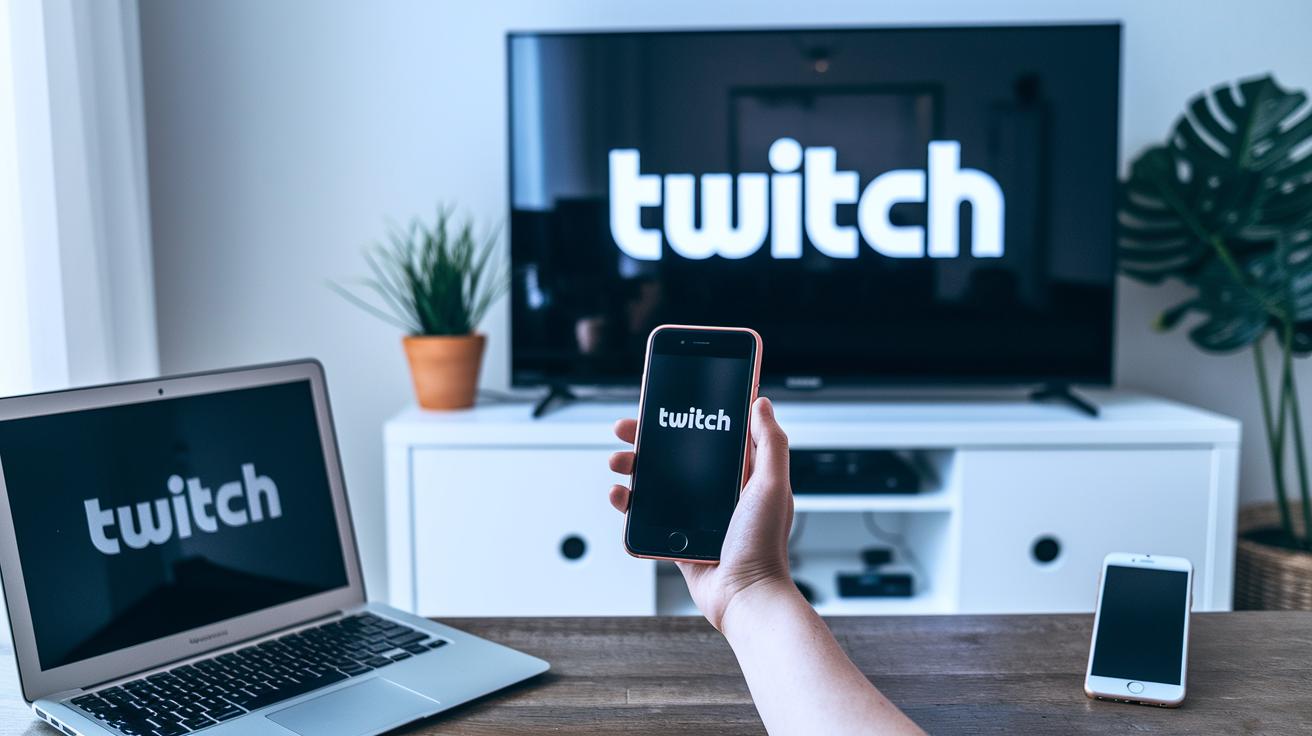
Gear up to enjoy Twitch on any device you like. If you're on Windows, just download the app from your favorite store or the official site. Run the installer, follow the simple prompts, and don’t forget to check for updates so things stay smooth. Imagine clicking "next" and being ready to stream in no time!
On macOS, it's just as easy. Open the App Store, search for Twitch, and hit install. Once it’s loaded, open the app and sign in with your secure login. Picture that satisfying click when your streaming hub springs to life, exciting, right?
For your iOS or Android mobile device, start by opening your app store, search for Twitch, tap install, and then log in to the app. Here's a neat tip: turn on push notifications to get the latest from your favorite channels wherever you are. Just open, install, log in, and you're set for action!
Smart TV users, you're covered too. Go to your TV’s app store, download Twitch, and use your remote to set things up. Adjust the picture settings for a crystal-clear view that makes every stream pop. And if you’re using Roku, search for Twitch in the Roku Channel Store, add it to your channels, and sign in with your account details. Easy does it!
| Device | Setup Steps |
|---|---|
| Windows | Download, install, and update for smooth streaming |
| macOS | Install via App Store and sign in securely |
| Mobile (iOS/Android) | Tap install, log in, and set push notifications |
| Smart TV | Download from TV’s store, set up, and adjust settings |
| Roku | Find in Channel Store, add, and log in |
Twitch App: Key Features and Interactive Community Functions
The Twitch app is packed with cool features that keep you hooked and make managing your stream feel natural. It lets you chat in real time so when someone drops a "Nice play!" mid-match, you instantly feel that rush of connection.
Dashboard navigation is super simple. You can move around your viewing panels however you like. It’s like rearranging your setup and suddenly feeling like a commander in a high-stakes mission. This tweak helps you get to your favorite tools quickly when you’re watching or streaming.
Stream management is a breeze too. You can adjust your streaming resolution and bit rate settings on the fly. Imagine boosting your stream quality right when the action peaks, it’s epic. This kind of flexibility means you’re ready for any network surprise.
The app also adds fun to chat with cool emotes and stickers. Each notification feels like a mini celebration, and live chat moderation tools keep the space friendly. After setting these up, even a bustling chat feels secure and welcoming.
Notable features include:
- Interactive Chat Integration
- Dashboard Navigation and Customization
- Stream Management and Quality Settings
- Emote and Sticker Support
- Live Chat Moderation Tools
Plus, OBS integration and Streamlabs compatibility take things to the next level, helping experienced users expand their streaming controls without missing a beat.
Twitch App: Performance Enhancements, Troubleshooting, and Configuration Tips
When Twitch runs smooth, it's like nailing that perfect game, nothing gets in the way. If your stream starts to lag or you face cutoffs, try these simple fixes like you’d tweak your gaming gear before a big match.
First, check your internet. A rock-solid connection is as crucial as a good shield in battle. Close the app, then fire it up again, and see if there’s a new update waiting. Keeping Twitch fresh can mean faster load times and clear visuals. Next, head over to the settings and adjust aspects like graphic quality and bit rate (bit rate refers to the amount of data processed over time, which affects video smoothness). Even tiny changes can clear up delays and boost your viewing experience.
Here are a few quick tips to keep things running smooth:
- Use a lower streaming quality when lots of viewers are online to ease pressure on the network.
- Tweak your resolution to balance cool visuals with steady playback.
- Turn on in-app update alerts so you always have the latest version.
- If problems stick around, consider reinstalling the app; a fresh start might just do the trick.
Check out this step-by-step guide:
| Step | Description |
|---|---|
| Restart the App | Close it completely and open again to clear temporary issues. |
| Update Software | Look for new updates that fix bugs and improve performance. |
| Adjust Quality Settings | Tweak resolution or bit rate when your connection wavers. |
| Check Network | Make sure your internet is stable and strong. |
Twitch App: Latest Updates, Best Practices, and Future Developments
The Twitch app just got a performance boost with its latest patch updates. The app now runs smoother and feels more secure. When a patch is ready, you get a simple notification so you know to update. One user even said a recent fix for mid-stream lag felt like "finding a secret level!" Beta features let you try out fresh streaming tools before they hit the masses.
The update also brings new ways to earn money and enjoy subscription perks. With easier-to-read analytics (data reviews that show how your channel's doing), you can tweak your stream for better performance. Keeping your app updated means you're always ready for what’s next. Here are some quick tips:
- Check update notices often
- Test beta features to get early access
- Watch for update alerts on your app
- Explore new monetization options and review subscription benefits
- Use analytics to boost your stream quality
Looking ahead, Twitch is cooking up more cool enhancements that can help your stream reach new heights. It's like watching your favorite game strategy evolve live. Stay tuned, experiment with new tools, and enjoy every step as Twitch cranks up the streaming excitement.
Final Words
In the action, this post took you through setting up your twitch app with clear steps. It showed you how to download, install, and get comfortable managing key features like interactive chat and quality adjustments. We also talked about optimizing performance and sorting out common issues along the way. Plus, we shared updates and best practices that keep your streaming experience top-notch. It all comes together to help you game better and enjoy every play. Happy streaming with your twitch app!
FAQ
Frequently Asked Questions
What is the Twitch app used for?
The Twitch app is used for streaming live gameplay, engaging with communities, and watching creative or sporting content, all within a user-friendly interface that keeps you connected to your favorite games.
How do I download and set up the Twitch app on Windows, including Windows 11?
The Twitch download for PC is available from the official website. Simply follow the installation guide for Windows or Windows 11 to set up the app and get streaming quickly.
What is Twitch Studio?
Twitch Studio is a simple streaming tool that customizes your broadcast setup, lets you manage chat, and incorporates interactive features to enhance your live streams in a friendly yet powerful way.
How do I stream on Twitch?
To stream on Twitch, you create an account, connect your streaming software, adjust your settings, and go live. This process helps you interact with your audience and share your gameplay experiences.
How do I log in securely to Twitch?
Twitch login works by entering your username and password, with secure multi-device options available. This keeps your account protected while you enjoy a seamless streaming experience.
Can I access Twitch on mobile with a desktop-like interface?
The Twitch desktop site on mobile lets you view the full Twitch interface in your browser. A few features might work better with the dedicated mobile app for smoother navigation.
Is Twitch suitable for a 12-year-old?
The Twitch app can be family-friendly with proper supervision. Parents should use safe viewing settings since some streams may feature mature content, making monitoring essential for younger viewers.
How much money might 1000 views earn on Twitch?
The revenue for 1000 views on Twitch depends on ads, donations, and subscriptions. Earnings vary widely, and many factors influence the final amount reached by streamers.
What are some disadvantages of using Twitch?
Twitch can be challenging due to high competition, limited video control after broadcasts, and the ongoing pressure to engage live. These factors may impact content discovery and long-term viewership.
How does Twitch compare to platforms like TikTok, YouTube, Hulu, Amazon Prime Video, and Netflix?
Twitch focuses on live broadcasts with real-time viewer interaction, while TikTok and YouTube offer short to longer videos. Hulu, Amazon Prime, and Netflix provide on-demand shows and films without live stream options.